

VPS catalog
The VPS catalog lists the plans you can order in each region, with their specs and prices. To open it, click VPS under Servers in the sidebar. After you sign in, the console opens the catalog, unless you followed a link to another console page, such as a server’s page.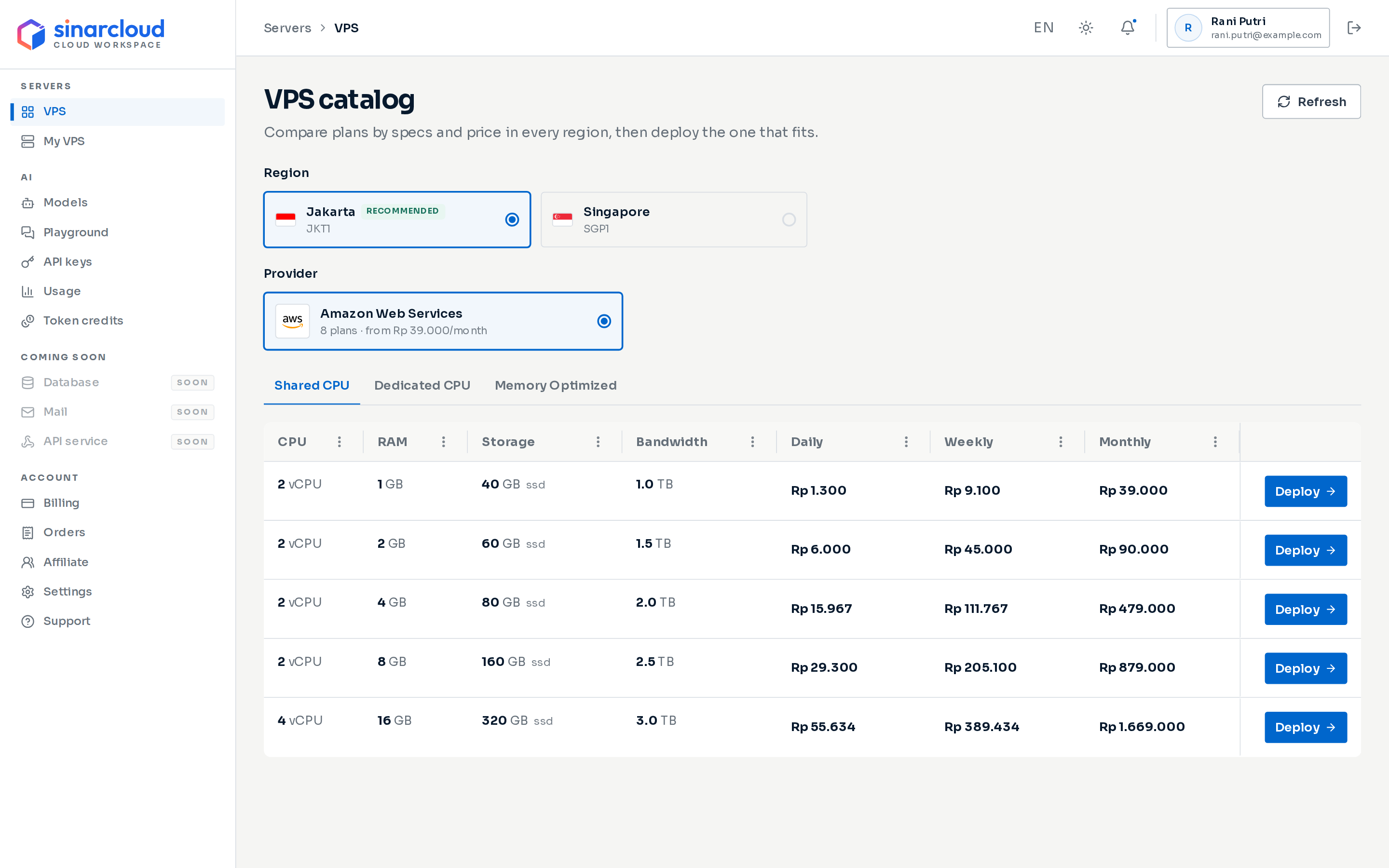
The VPS catalog: region, provider, plan type and the plans with their prices
- Region: click the region you want. Each card shows the region’s name and code, such as
JKT1. The recommended region has a Recommended tag and is selected when the page opens. Regions tagged Sold out or Unavailable can’t take orders right now. - Provider: click the provider whose plans you want to see. Each card shows how many plans the provider offers in the region and its lowest monthly price.
- Plan type: when the provider offers more than one type of plan, click a tab above the table, for example Shared CPU or Dedicated CPU.
- IPv6 only: the plan has no public IPv4 address, so you can only connect to the server from a network with IPv6.
- A per-account limit, for example 1 per account: each account can order the plan only that many times.
My VPS
To see your servers, click My VPS under Servers in the sidebar. The page, titled Virtual private servers, lists your servers, shows what you spend on them, and has shortcuts to create or manage a server.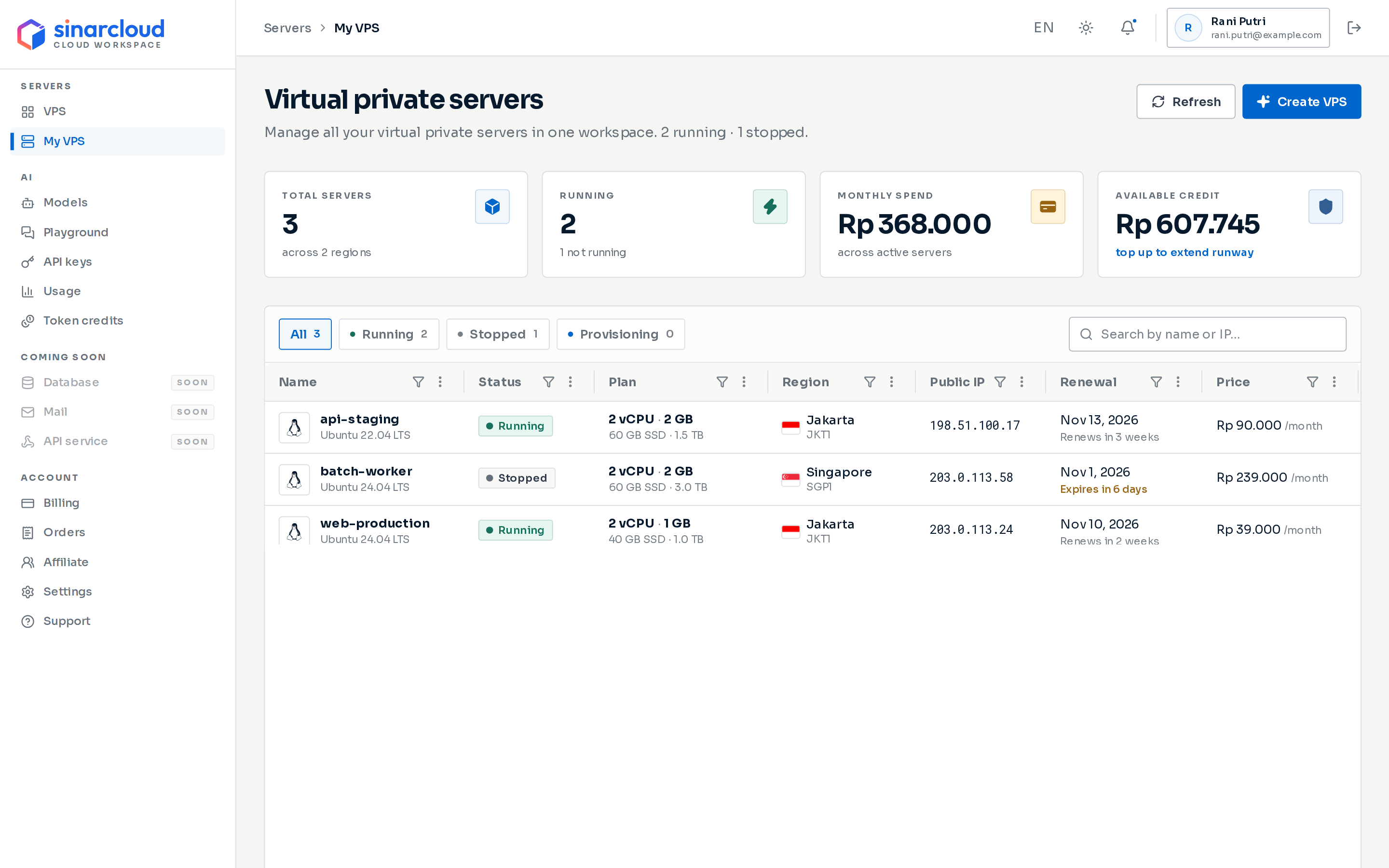
The My VPS page: summary cards, status filters and the server table
Summary cards
The line under the page title ends with a count of your servers by state, for example “2 running · 1 stopped”. The four cards below it summarize your servers and your balance.
The line under Monthly Spend reads “across active servers”, but the total also includes charges for servers you have deleted this month. If the figures can’t load, Monthly Spend and Available Credit show a dash.
To add balance, click top up to extend runway under Available Credit. The QRIS top-up dialog opens over the page, so you don’t leave your server list. See Add balance. To see what you spend on the AI API, go to Usage and spending.
Server statuses
Each server shows one of these statuses in the Status column.
While a server is stopping or starting, the page checks its status every few seconds. The status changes on its own when the server is done.
Deleted servers, and servers that are being deleted, don’t appear in the list. If setup fails for a new server, that server is left out of the list too. Check its order on the Orders page instead.
Filter and search
Use the buttons above the table to filter by status: All, Running, Stopped and Provisioning. Each button shows how many servers match it. The Stopped filter also includes servers that are stopping, starting or suspended. To find a specific server, type in the Search by name or IP… box. Search checks the server name and hostname, server ID, IP addresses and operating system (for example, ubuntu). It doesn’t match the OS version, such as 24.04. Click a column title to sort the table by that column. Sorting uses the stored value, which isn’t always what the cell shows: Name sorts by hostname and Plan by number of vCPUs. Each column header also has two controls:- The funnel icon filters the column by text you type. It matches the stored value, which isn’t always what the cell shows. For example, the Name filter checks the server’s hostname, not the name you gave it. To find a server by name, use the search box.
- The three-dot column menu has Sort Ascending, Sort Descending and Clear Sort. It also lets you pin the column (Pin to left, Pin to right, Unpin) and adjust widths (Autosize this column, Autosize all columns, Reset columns).
Table columns
When automatic renewal is on, SinarCloud charges your balance for the next period at the time shown in Renewal. Servers on Tencent Cloud are charged 3 days earlier. If your balance is too low at that point, SinarCloud tries again at the time shown in Renewal. Other servers get only one attempt, at the time shown in Renewal. If the last attempt fails, the server is suspended, and it’s deleted 6 hours after its period ended unless you renew it. When automatic renewal is off, SinarCloud deletes the server 6 hours after the time shown in Renewal. An Expires line is highlighted when the server has 7 days or less left.
If you don’t see Price or the three-dot menu, scroll the table sideways.
Actions
- Click Refresh to reload the cards and the table right away. The page also refreshes by itself every 30 seconds.
- Click Create VPS to order a new server. See Create a VPS.
- Click any row to open that server’s detail page. See Manage a VPS.
- Click the three-dot menu at the end of a row for quick actions:
- Open details opens the server’s detail page.
- Reboot restarts a running server. Running processes stop for a short time.
- Stop powers off a running server. You keep paying for a stopped server, and it renews as usual.
- Start replaces Stop while the server is stopped. It boots the server again. While the server’s data transfer allowance is used up, SinarCloud refuses the start.
- Delete permanently destroys the server and all data on it. To confirm, type the server name shown in the dialog. Deleting doesn’t refund the rest of the current paid period, and it stops future renewals. You can delete a server that is running, stopped, stopping, starting or suspended. If a new server is still provisioning, wait until it is running before you delete it.
A server can get a new public IP address when it starts again. Connect with the address shown in the list once it is running, and update any DNS records that point to the old address.
Data transfer allowance
If SinarCloud counts your server’s data transfer, the bandwidth in the Plan column is the server’s allowance for each transfer month. Data the server receives and sends both count. Plans with Unlimited bandwidth have no allowance.- A transfer month is 30 days, counted from when the server was first ready. It isn’t the calendar month, and on daily or weekly billing it doesn’t match your billing period. The console’s messages call this 30-day period the billing month.
- SinarCloud emails the account’s owners when a server passes 80% of its allowance, and again when it has used all of it.
- When the allowance is used up, SinarCloud stops the server. In the list, it shows Stopping and then Stopped, like any other stopped server.
- You can’t start the server again until the transfer month ends. A server you had already stopped stays stopped until then too.
- When the new transfer month begins, SinarCloud starts the server again if it stopped the server for its allowance. A server you stopped yourself stays stopped, but you can start it again.
- Everything on the server is kept. Billing and renewals continue while it is stopped, and the server may get a new public IP address when it starts.
Next steps
Create a VPS
Choose an operating system, region and plan, then pay from your balance.
Renewals and expiry
Learn how renewals are charged and what happens when a server expires.