

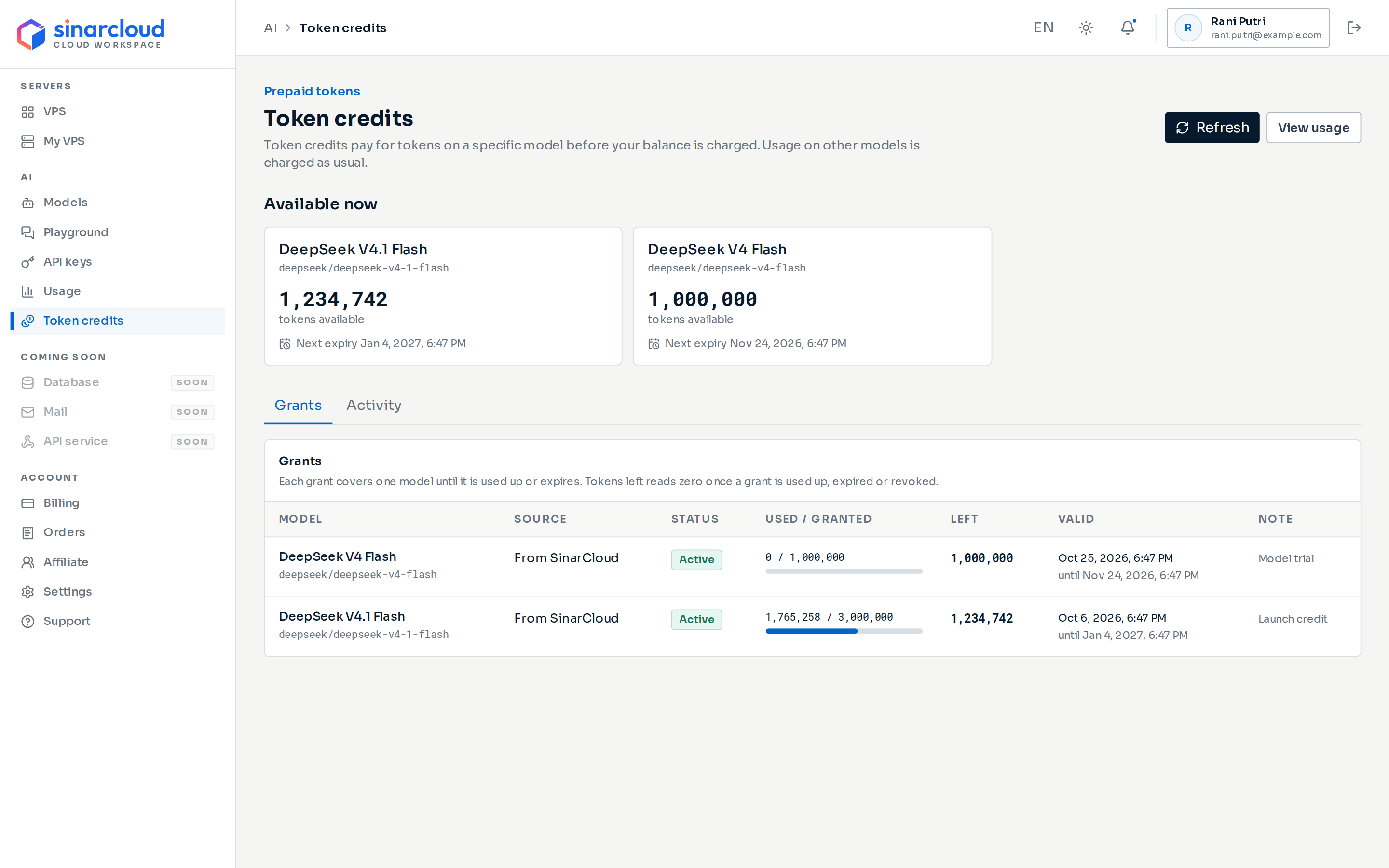
The Token credits page
How token credits work
- One model per grant. Each grant covers a single model. Credits for one model never pay for another.
- Tokens, not money. Token credits don’t add to your balance and can’t pay for VPS or other charges.
- Every token counts. Each input token, including cached input, and each output token uses one token of credit. The exception is a Cache-Free subscription plan, whose tokens don’t count cached input. See How plans count tokens.
- Applied when the request finishes. Credits are deducted when the request is charged, after it completes.
- Soonest expiry first. If you have several grants for the same model, the grant that expires first is used first. Grants that never expire, from No Expiry plans, are used last, oldest first.
- Free requests don’t use credits. If a request costs nothing, for example on a free model, your credits stay untouched.
When credits cover only part of a request
If a request uses more tokens than you have left for the model, credits cover what they can and the rest is charged to your balance. Credits pay the same share of the request’s full price as the share of its tokens they cover. For example, a request uses 10,000 tokens and its full price is Rp 200. You have 4,000 tokens of credit left for that model. Credits cover 4,000 tokens, which is 40% of the request, so they pay Rp 80. The remaining Rp 120 is charged to your balance.Requests with an empty balance
When your balance is zero or below, you can still send requests to a model as long as you have token credits left for it. Requests that would cost money and have no token credits for their model are refused, unless a promotion makes the model free. The API returns HTTP status402, error code insufficient_balance, and this message:
Available now
The Available now section shows one card for each model you can use credits on right now. Each card shows:- The model name, with the model alias you put in the
modelfield of your requests. - The tokens available, added up across all active grants for that model.
- Next expiry, the soonest expiry among those grants. The date is highlighted when it is less than seven days away.
Grants
The Grants tab lists every grant your account has received, newest first, 20 per page. Each row shows the Model, the Source, the Status, Used / granted tokens with a progress bar, the tokens Left, the Valid period and an optional Note. Source shows where a grant came from: Plan allowance for a week of an AI subscription plan, Gift for a gift you claimed, or From SinarCloud for token credits SinarCloud added to your account. The console also has the labels Promotion and Token pack for sources that aren’t available yet.
Left reads zero once a grant is used up, expired or revoked.
Expiry
Most grants have an expiry time, shown under Valid. Grants from No Expiry subscription plans never expire. When an expiry time passes, the grant shows Expired and its unused tokens no longer count toward Available now. Unused tokens are not refunded or added to your balance. A request that was already running at the expiry time can still use the grant when it finishes. The matching Expired entry in Activity can appear some time after the expiry time. The grant shows Expired from the expiry time on.Activity
The Activity tab lists every change to your token credits, newest first. Each entry shows the Date, Event, Model, Tokens, the tokens Left on grant after the change, and Details.
To see what credits paid on a specific request, use the usage log as described in the next section.
See credits on your requests
- Click View usage at the top of the Token credits page, or click Usage under AI. The Log tab opens first.
- Click Show details on one of your recent requests. The log lists your latest settled requests. In the Cost column, a request that credits paid for shows its full price struck through.
- Under Charge breakdown, Token credits shows the amount credits paid and how many tokens they covered. Charged is the amount taken from your balance.
Get token credits
Token credits come from three places today:- Subscription plans. Each week of an AI subscription plan adds a grant of the plan’s tokens, with the source Plan allowance. See AI subscription plans.
- Gifts. A SinarCloud promotion can give your account a gift of free tokens for one model. You claim it in a popup in the console, or by redeeming a gift code. Its grant shows Gift as its source. See Claim a gift and Redeem a gift code.
- SinarCloud. SinarCloud can add token credits to your account. These grants show From SinarCloud.
Claim a gift
When a SinarCloud promotion has a gift for your account, a gift popup opens over the console page you’re on. Nothing is added to your account until you click Claim gift.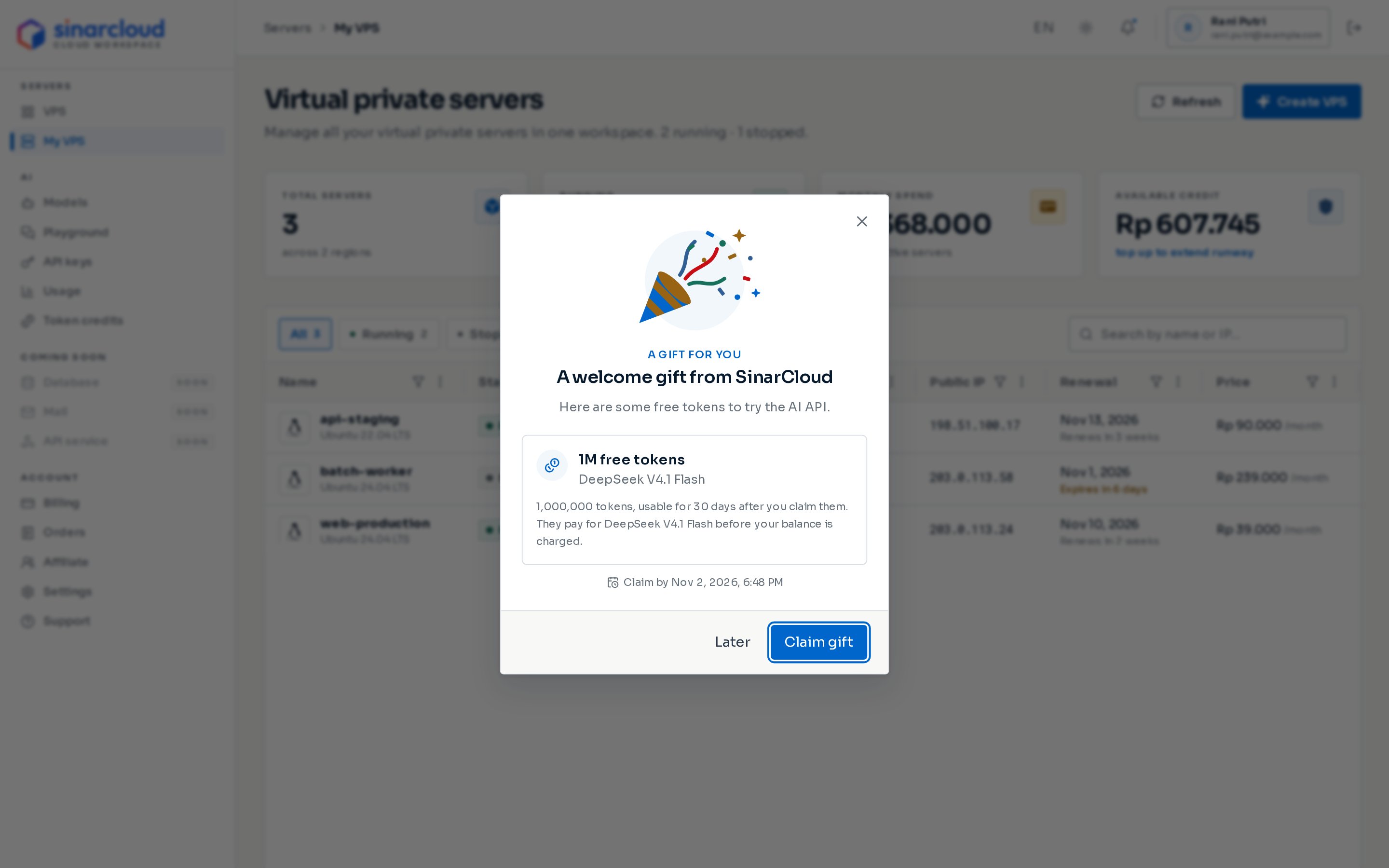
A gift popup
- A gift for you above the gift’s title. If you have several gifts waiting, it shows Gift 1 of and the number of gifts instead. Gifts open one at a time, newest first.
- The promotion’s message, if it has one.
- The number of free tokens, for example 1M free tokens, and the model they pay for. The line below gives the exact number of tokens and how many days they stay usable after you claim them.
- Claim by and a date, if the gift has a claim deadline.
- Click Claim gift. The button shows Claiming… while it works.
- The popup closes, or shows your next gift if one is waiting. A Gift claimed message shows the number of tokens from the gift, the model and when they expire, and tells you to find them under AI › Token credits.
- The tokens appear under Available now. The Grants tab lists them with the source Gift.
A gift offered to your account appears only as a popup in the console, and you don’t need a code to claim it. SinarCloud doesn’t send an email when a gift is waiting. Other gifts come with a gift code instead. See Redeem a gift code.
If a gift can’t be claimed
If claiming fails, the popup shows The gift could not be claimed with the reason. The most common ones are:
When a gift drops out, the popup closes, or shows your next gift if one is waiting.
If the problem continues, contact support.
Redeem a gift code
Some gifts come with a gift code instead of a popup. Redeeming the code claims the gift at once, so you don’t click Claim gift.- In the console sidebar, under Account, click Billing. Then click Redeem at the top of the page.
- Enter the code in Coupon code and click Redeem coupon. Codes are case-insensitive. If a checkbox appears under Coupon code, tick it.
- The Redeem coupon dialog closes and the gift popup opens, with Gift claimed above the gift’s title. It shows your free tokens, the model they pay for and when they expire. Click View token credits to open the Token credits page.
How do token credits work with promotions?
How do token credits work with promotions?
If a promotion discounts a model, token credits pay first at the full price. The promotion discount then applies only to the part charged to your balance. If a promotion makes the model free, the promotion pays and your token credits stay untouched. If the promotion stops covering the full price, for example because it has reached its limit, your credits pay the rest before your balance does. You can see promotional prices on Models and pricing.