

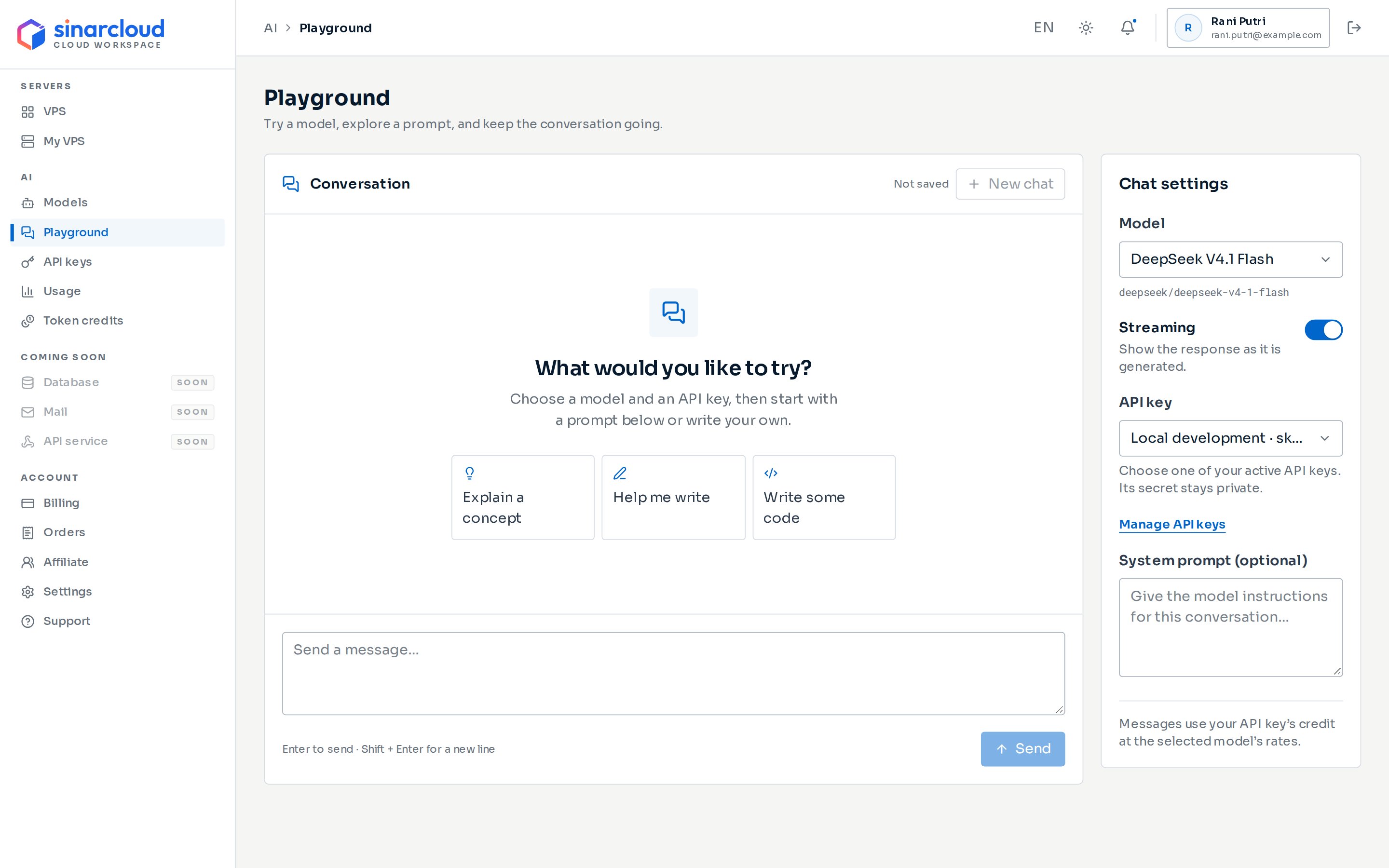
Conversation on the left, Chat settings on the right
Before you start
You need:- An API key. If you have none, or only revoked keys, the playground shows Create an API key first with a Create API key button. See API keys.
- For models that aren’t free, a balance above zero or token credits for the model you want to try. See Add balance.
Open the playground
In the console sidebar, under AI, click Playground. You can also open a model on the Models page and click Try in playground to start with that model selected. The playground only offers available models that support text chat. For any other model, the button is turned off and the model’s details say This model is not available in the chat playground.Choose your chat settings
Set up the conversation in the Chat settings panel. On smaller screens, tap Chat settings to expand it.- Model: Pick a chat model from the searchable list. The model ID below the list is the value you use as
modelin your own API requests. - Streaming: Shows the reply as it is generated. It is on by default. Models that don’t support streaming show This model does not support streaming.
- API key: Pick the key that sends your messages. Each key shows its name and the start of the key, never the secret. Only keys that are ready to use appear. If none of your keys can be used, for example because they have expired, the list is empty and the playground shows No API keys are ready for chat. Create a new key. Click Manage API keys to open the API keys page.
- System prompt (optional): Give the model instructions, such as a role or a writing style. It is sent with every message.
Send a message
1
Write a prompt
Type in the message box, or click a starter prompt in a new conversation: Explain a concept, Help me write, or Write some code. Starter prompts only fill in the box, so you can edit them first.
2
Send it
Press Enter or click Send. Press Shift + Enter for a new line. While the reply is on its way, the playground shows Waiting for the model… and Send changes to Stop. With Streaming on, the reply appears as it is written and the status changes to Generating response….
3
Read the reply
The reply appears under the model’s name. Lists, tables and code blocks are formatted. Use the copy button next to the model’s name to copy the whole reply, or the copy button on a code block to copy only that code.
Read the reply details
Under each reply, the playground shows the input, output, and total tokens, plus:- Cache hit: the share of input tokens the model read from its cache, and how many tokens that was. Cached tokens are already counted in the input tokens. It can read Cache hit: unavailable until billing is final.
- First token: how long the first text took to arrive, for streamed replies only.
- Latency: how long the complete reply took.
- Cost: what the reply took from your balance, after any token credits or discounts. It reads Cost: pending until billing is final. Small replies can cost a fraction of a rupiah.
Conversations are not saved
The Not saved label means the conversation exists only in the open page. Reloading or leaving the page discards it and stops any reply still being generated. Usage up to that point may still be charged. Copy anything you want to keep. Click New chat to clear the conversation and the message box. Your chat settings stay as they are.How playground messages are billed
You pay the model’s prices shown on Models and pricing. Token credits for that model are used first, then your account balance, the same balance that pays for your VPS. Each charged request appears on the Usage page. When the playground mentions your API key’s credit, it means your account balance and token credits. API keys don’t hold money of their own. A reply is charged in full when it finishes, even if that takes your balance below zero. See Balance and billing.If a message fails
The playground shows a notice above the message box and puts your message back so you can send it again. Common notices:
If a streamed reply breaks off partway, the playground keeps what arrived and marks it Interrupted. See also Troubleshooting.
Next steps
For options the playground doesn’t send, such as a maximum reply length, call the API from your code.Send requests
Call the AI API from your own code.
Usage and spending
Track your tokens and spending.