

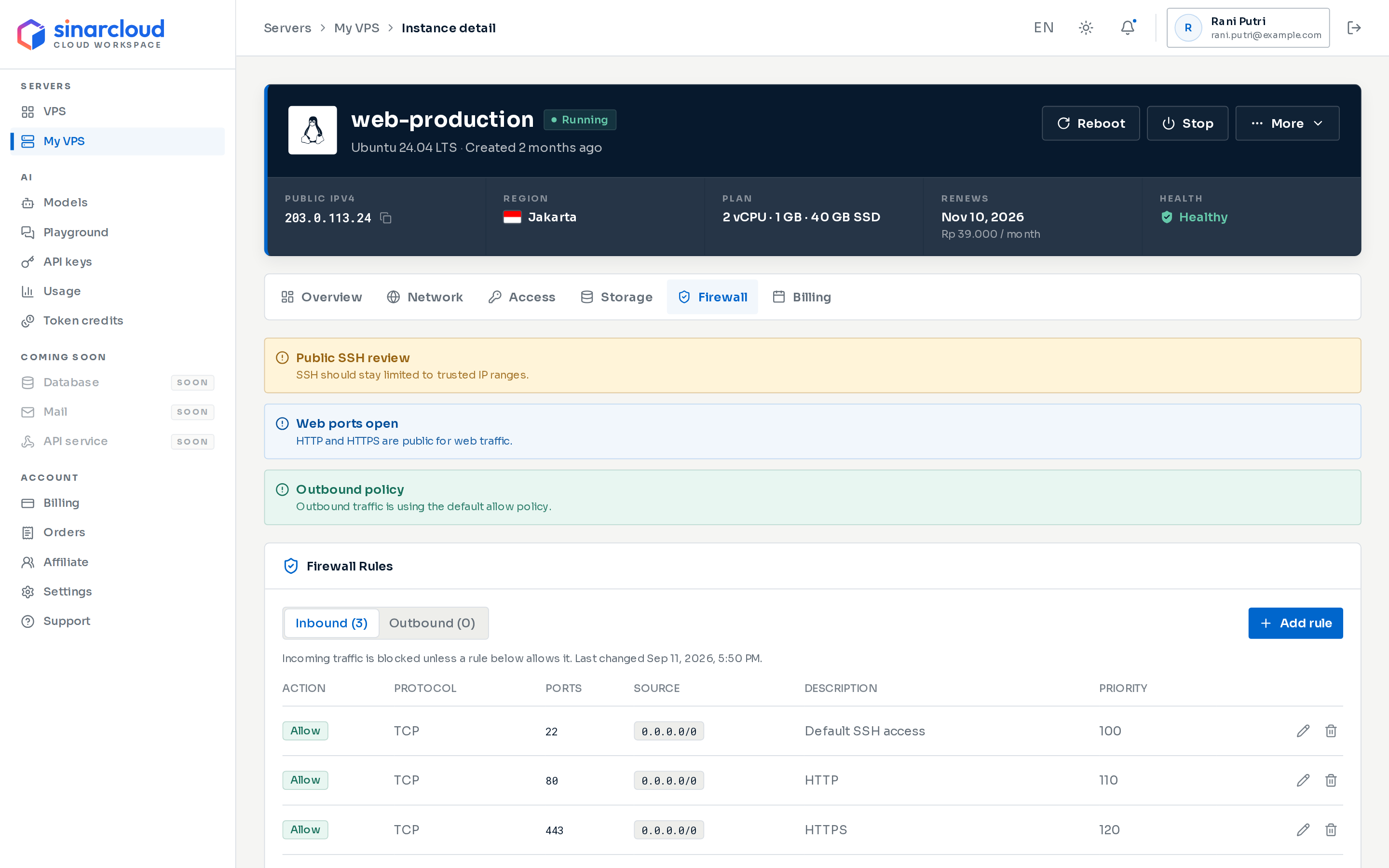
A server's Firewall tab with inbound rules for SSH and web traffic
How the firewall works
- Inbound traffic needs a rule. After you save a change, traffic reaches your server only on ports that an enabled rule allows.
- Outbound traffic is allowed. Your server can connect out to the internet without any rules.
- New servers allow SSH from anywhere. When a new server is ready, its firewall allows TCP port 22 from any address: from any IPv4 address (
0.0.0.0/0) if the server has a public IPv4 address, and from any IPv6 address (::/0) if it has a public IPv6 address. These rules have the description “Default SSH access”, so you can connect right away. - New Windows servers have only the SSH rule. To connect with Remote Desktop, add a rule for TCP port
3389. See the recipe below. - SSH must stay open. Every save must keep an enabled Allow rule for TCP whose ports include
22. This keeps you from locking yourself out, and it applies to Windows servers too. - Every save replaces the whole rule set. When you add, edit or delete one rule, SinarCloud updates your server’s firewall to match your complete list of rules. If the update fails, your rules don’t change.
While a server is still being created, its firewall has no rules yet. The card shows No inbound rules. and says nothing can reach the server until you add one, including SSH. The line under the views shows a firewall status such as
NOT_CONFIGURED. The SSH rule appears when the server is ready, which usually takes 1–2 minutes. Wait for it before you add other rules.Supported rules
The firewall currently supports Inbound rules with the Allow action for TCP or UDP, from an IP address or range. Because ICMP rules aren’t supported yet, don’t expect your server to answerping. To check that a service is reachable, test its port instead, for example with ssh or curl.
Add a rule
1
Open the rule form
On the Firewall tab, click Add rule. The Add firewall rule dialog opens.
2
Choose a service or set the details
Under Common services, click the service you want to open. This sets an Inbound Allow rule for you. For web services, an empty Source is filled in with any address. For SSH, RDP, MySQL and PostgreSQL, enter the address you connect from.Or set the details yourself. If you opened the form from the Outbound view, Direction starts on Outbound, so switch it to Inbound. Then set Action to Allow, choose TCP or UDP, and enter the Ports.
3
Set the source
Enter an IP address or range in Source, or click Anywhere IPv4 or Anywhere IPv6. If you open SSH, Remote Desktop, VNC or a database port such as MySQL, PostgreSQL, SQL Server, Redis or MongoDB to any address, the dialog warns you. Limit the source to your own address where you can.
4
Check and save
Read the summary above Advanced, for example “Allows inbound TCP traffic on port 443 from any IPv4 address.” Then click Add rule. If you entered a list of ports, the button reads Add 2 rules, for example. When your server’s firewall is updated, you see Firewall rule added. (or 2 firewall rules added.) and the new rules appear in the list.
Edit or delete a rule
To change a rule, click the pencil icon (Edit rule) in its row. Update the fields in the Edit firewall rule dialog, then click Save changes. You see Firewall rule updated. when it’s done. To remove a rule, click the trash icon (Delete rule) in its row. Check the rule in the Delete firewall rule dialog, then click Delete rule. You see Firewall rule deleted. when it’s done. Two limits protect you from locking yourself out:- You must keep at least one rule. You can’t delete your last rule. The dialog says “This is the last rule.” and Delete rule stays disabled. Add a replacement first.
- You must keep an SSH rule. To change where SSH is allowed from, edit the existing SSH rule, or add the new SSH rule before you delete the old one.
Common recipes
- Limit SSH to your IP
- Open HTTP and HTTPS
- Allow Remote Desktop
- Allow a database port
- Open a port range
The default SSH rule accepts connections from any address. To accept SSH only from your own network:
- Find your public IP address, for example by searching “what is my IP” in your browser.
- Click Edit rule on the rule for TCP port
22from0.0.0.0/0. - Replace the Source with your address, for example
203.0.113.10, and click Save changes. - If your server also has an SSH rule from
::/0, delete it, or edit it to your IPv6 address.
Review findings
The top of the Firewall tab reviews your current rules and shows up to three findings:- Public SSH review: an enabled rule opens TCP port 22 to any address. The finding reads “SSH should stay limited to trusted IP ranges.” Consider limiting SSH as in the recipe above.
- Web ports open: TCP port 80 or 443 is open to any address. This is expected for a public website.
- Outbound policy: outbound traffic uses the default allow policy.
If a save fails
The firewall changed while you were editing
The firewall changed while you were editing
Before saving, the console checks that nobody else changed the rules since you opened the dialog. If they changed, you see “The firewall changed while you were editing.” Close the dialog, review the latest rules, and try again.
The dialog shows an error
The dialog shows an error
Check that the rule is an Inbound Allow rule for TCP or UDP, that each priority is different, and that an enabled SSH rule for port 22 remains. If you entered a list of ports, leave Priority empty so each new rule gets its own number. Fix the field and save again.
The rule is saved but the port is still closed
The rule is saved but the port is still closed
Check that the rule isn’t marked Disabled, and that its Source includes the address you connect from. Then check the firewall inside your server’s operating system, and make sure an application is listening on that port.
The tab shows Failed to load firewall
The tab shows Failed to load firewall
The console couldn’t read your server’s rules. Click Retry. Your rules haven’t changed.