

Open a server
- In the console sidebar, under Servers, click My VPS. The Virtual private servers list opens.
- Click a server in the list. You can also open the menu at the end of the server’s row and click Open details.
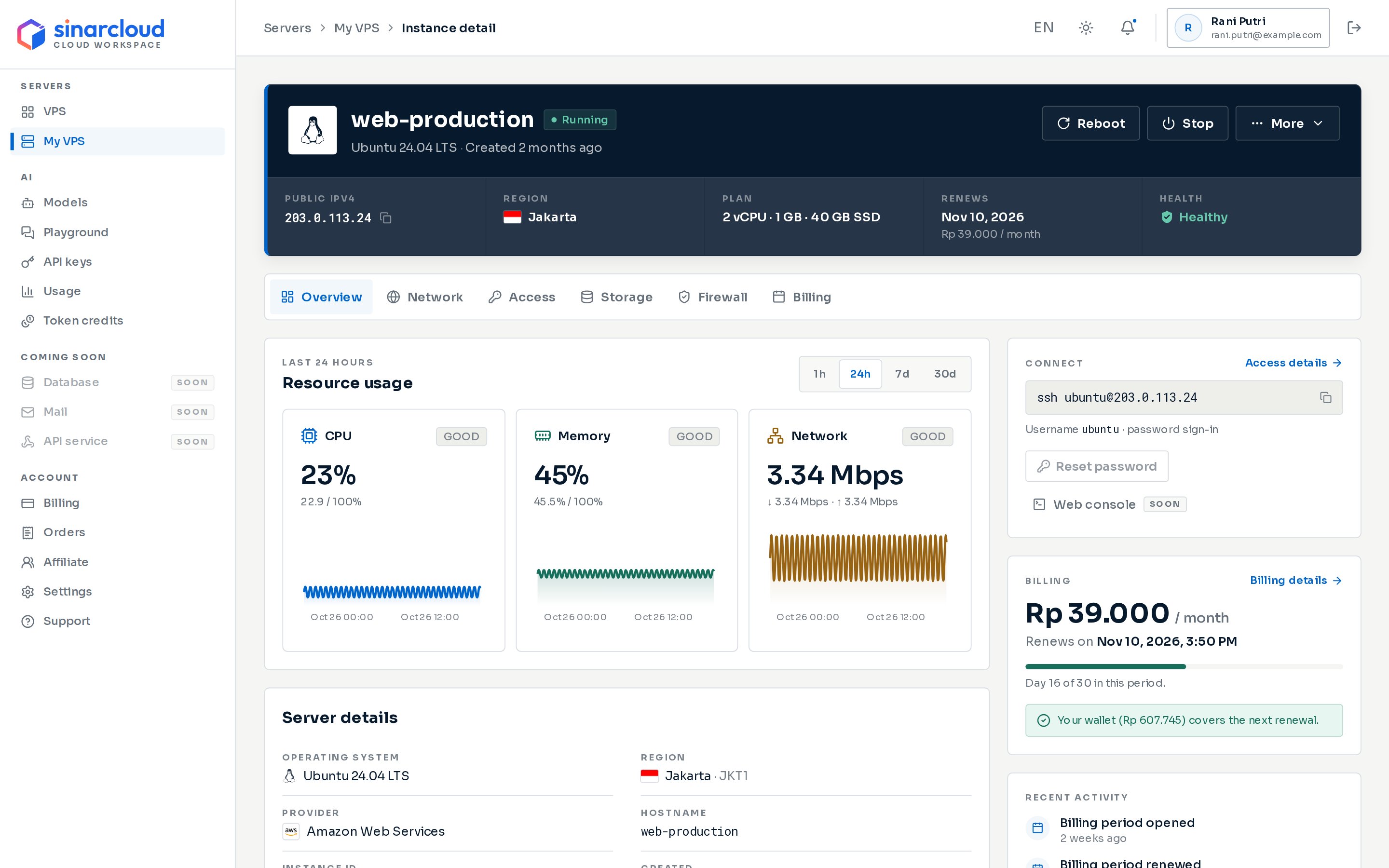
The instance detail page of a running server
Read the header
The header shows the server name, its status, its operating system image and when it was created. Below them, five fields summarize the server:
For a running server, Health shows Healthy unless a health check reports a problem. In that case it shows Needs attention, and the notice Health checks need attention below the header lists the failing checks. Try a reboot, and contact support if the problem continues. Needs attention also appears when setup failed. While the server is being set up, Health shows Launching. Otherwise it follows the status, for example Stopped or Suspended. For a server that is being deleted or was deleted, it shows Archived.
The status badge tells you what state the server is in:
A notice below the header also explains the current status, for example Setting up your server, Stopping your server, Starting your server, This server is stopped, This server is being deleted or This server was deleted.
Servers that failed setup or are being deleted don’t appear in the server list.
Notices about deletion
Within 7 days of the end of a paid period, a notice below the header warns you if the server is at risk:- This server will be deleted in n days (or today or tomorrow) appears when automatic renewal is off. Click Turn on automatic renewal to open the Billing tab. Switch on Automatic renewal, then click Turn on in the dialog to keep the server. See Renewals and expiry.
- Top up before the renewal in n days (or today or tomorrow) appears when your wallet doesn’t cover the next renewal. Click Top up wallet to add balance with QRIS without leaving the page. See Top up your balance.
Start, stop or reboot a server
Use the buttons at the top of the page to control the server’s power.1
Click the button
Click Reboot, Stop or Start. A dialog explains what happens.
2
Confirm
Click Reboot, Stop or Start in the dialog.
The More menu
Click More at the top of the page for these actions:
Clicking an action marked Soon opens a dialog that explains it isn’t available yet and links to support. Nothing on your server changes.
Overview tab
The Overview tab opens by default. Resource usage shows a card for CPU, Memory and Network. Each card shows the latest value and a chart for the selected time range. Pick 1h, 24h, 7d or 30d above the cards. The default is 24h. The 30d range doesn’t load data yet, so the cards show Unavailable. The charts refresh every minute. A badge next to the card’s title rates the latest value, for example GOOD. On the CPU card it reads WARN from 75% and CRITICAL from 90%. When a card has no value, it shows one of these instead:- No data yet: nothing has been recorded so far, for example on a new server.
- Not reported: this metric isn’t available for the server.
- Unavailable: the console couldn’t load the metrics. Refresh the page or try again later.
- Connect: the SSH command, or the address of a Windows server under Remote Desktop, with the username and sign-in method. Click Access details to open the Access tab. Servers that sign in with a password also show Reset password. It works only while the server is running and only on servers that support password reset. On a new server, password reset opens about 5 minutes after the server first starts, and the dialog counts down until then. Web console is marked Soon and isn’t available yet. See Connect to your VPS.
- Billing: the price per billing period, the renewal date and how far you are into the current period. It also tells you whether your wallet covers the next renewal. When automatic renewal is off, it shows the date the server Expires and is deleted on. Click Billing details to open the Billing tab.
- Data transfer this month: how much of the server’s data transfer allowance it has used. It appears only if SinarCloud counts the server’s data transfer. See Data transfer allowance.
- Recent activity: up to three recent events on the server, such as Instance started, Instance rebooted, Firewall rules updated, Billing period renewed or Data transfer allowance used up. A password reset shows as Login password reset, marked by you. It isn’t a full history.
- Danger zone: Delete server deletes the server.
Network tab
The Network tab shows the server’s addresses and traffic.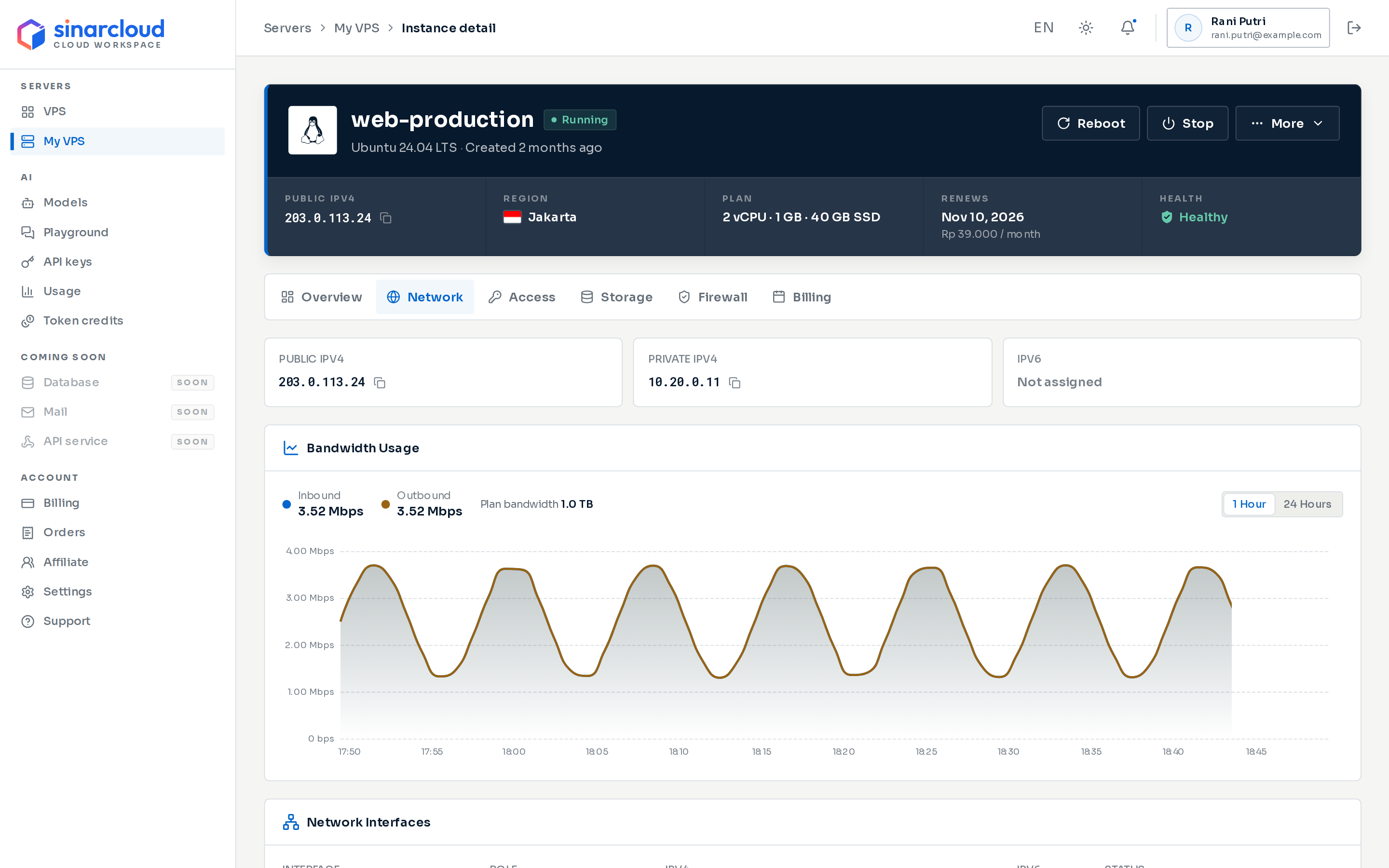
The Network tab
- The top row shows Public IPv4, Private IPv4 and IPv6. Click the copy icon next to an address to copy it. An address the server doesn’t have shows Not assigned. An IPv6-only server shows None (IPv6-only server) for Public IPv4.
- If SinarCloud counts the server’s data transfer, the Data transfer this month card follows the addresses. See Data transfer allowance.
- Bandwidth Usage charts inbound and outbound traffic. Above the chart you see the latest values and, when known, the port speed and the Plan bandwidth. Switch between 1 Hour and 24 Hours. When the server isn’t running, the chart doesn’t collect new data.
- Network Interfaces lists each interface with its role, IPv4 address, IPv6 address and status.
Data transfer allowance
A plan’s bandwidth is either a monthly data transfer allowance or Unlimited. If SinarCloud counts your server’s data transfer, the allowance limits how much data the server can move each transfer month. Plans with unlimited bandwidth have no allowance, and servers whose data transfer isn’t counted show no Data transfer this month card.- A transfer month is 30 days, counted from when the server first started, and the next one begins right after. It isn’t the calendar month. It matches your billing period only on monthly billing. The console and emails call it the billing month.
- Data the server receives and sends both count. Sizes are binary, so 1 GB is 1,024 MB.
- SinarCloud counts the data about every hour, and every 10 minutes once the server passes 80% of its allowance.
- At 80%, SinarCloud emails the account’s owners, once per transfer month.
- When the allowance is used up, SinarCloud stops a running server. You can’t start the server until the transfer month ends. A server that was already stopped stays stopped until then. The owners get an email either way.
- When the new transfer month begins, SinarCloud starts the server again if it stopped the server for its allowance. A server you stopped yourself stays stopped, but you can start it again.
- Everything on the server is kept. Billing and renewals continue while it’s stopped, and the server may get a new public IP address when it starts.
In the server list, a server stopped for its allowance shows the usual Stopped status. Open the server to see why.
The data transfer card
The Data transfer this month card appears on the Overview tab, under Billing, and on the Network tab. It refreshes every 5 minutes.- The badge at the top shows the share used, for example 45% used. It reads <1% used for a very small amount, and Used up once the allowance is used up.
- The large number shows the data used and the allowance, for example 312.4 GB of 1 TB. The bar below it changes to a warning colour from 80% and turns red when the allowance is used up.
- The row below shows data In, data Out, and when the allowance Resets.
- From 80%, the card warns that if the allowance runs out before the reset, the server is stopped until then and started again automatically.
- When the allowance is used up, the card says until when the server can’t be started.
- The last line says how recent the count is, for example Counted up to 12 minutes ago. Early in a new transfer month, it says the first count arrives within an hour.
Data transfer notices
Notices below the header tell you when a server nears or uses up its allowance:
When a server uses up its allowance, Recent activity on the Overview tab shows Data transfer allowance used up.
Storage tab
The Storage tab shows the server’s disks and operating system.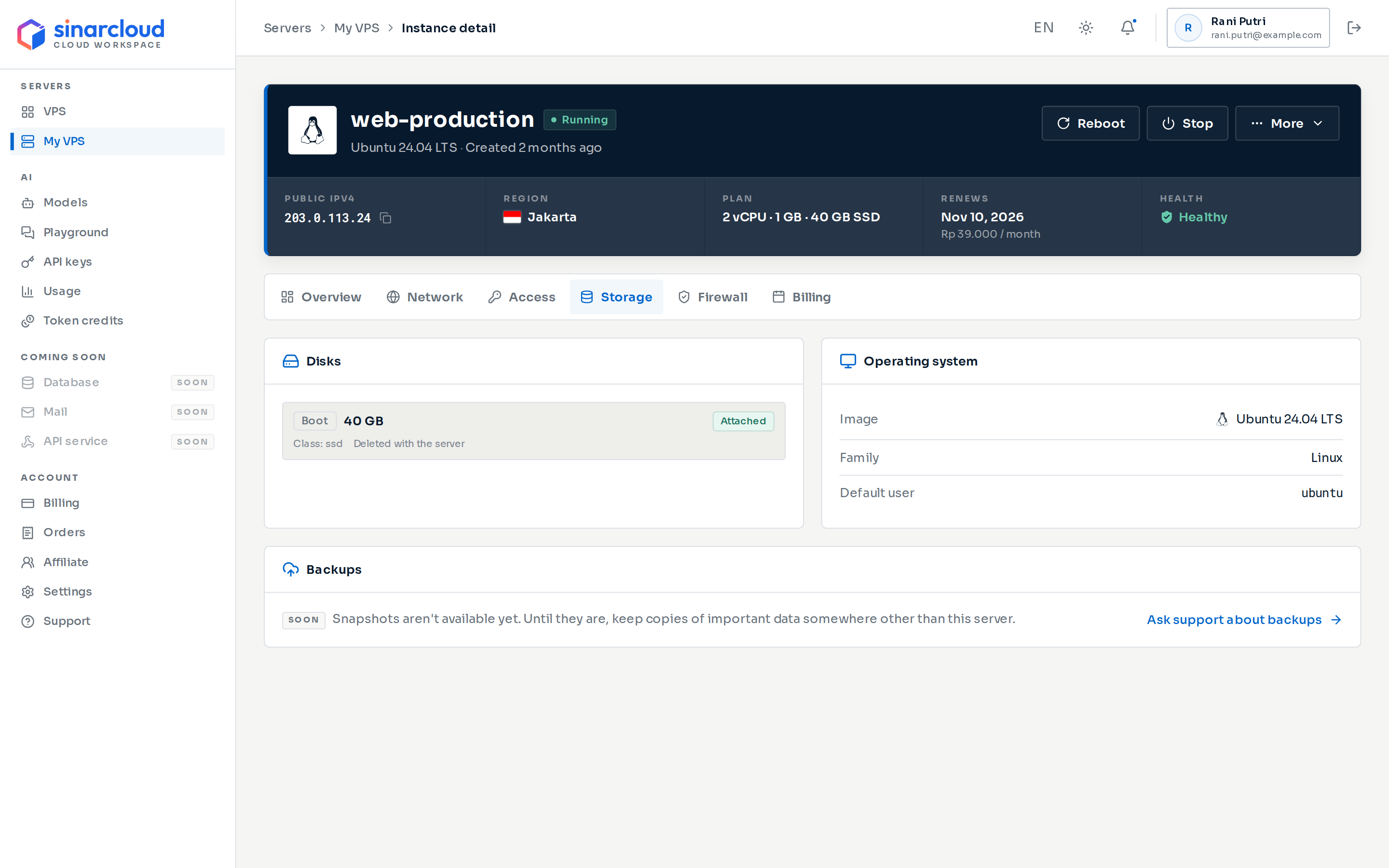
The Storage tab
- Disks lists each disk with its role (Boot or Data), size, storage class and status. It also shows whether the disk is Deleted with the server or Kept after the server is deleted.
- Operating system shows the Image, its Family (Linux or Windows) and the Default user you log in as.
- Backups is marked Soon. Snapshots aren’t available yet, so keep copies of important data somewhere other than the server. Click Ask support about backups if you need help.
Access, Firewall and Billing tabs
Delete a server
You can delete a server that is Running, Stopped, Stopping, Starting or Suspended.1
Open the delete dialog
Click More, then Delete server. You can also click Delete server under Danger zone on the Overview tab, or Delete in the server’s menu in the server list.
2
Type the server name
In the dialog, type the server name exactly as shown. The Delete button stays disabled until the name matches.
3
Confirm
Click Delete.
- The server no longer appears in the server list. If you deleted it from the instance detail page, the console takes you back to the list. SinarCloud finishes removing the server in the background and retries automatically if the first attempt fails.
- Disks marked Deleted with the server on the Storage tab are removed with it.
- The server is not renewed again, so no further renewal charges come from your balance.
- SinarCloud emails the account’s owners that the server was deleted.