

How orders use your balance
When you click Create VPS on the Review step of Create a VPS, the Confirm your order dialog shows the Order total, your Wallet balance and your Balance after order. When you click Proceed, the console creates one order and reserves the order total from your balance. The total is the price of the billing period you chose, plus any setup fee, minus any discount. Reserved money stays in your account, but you cannot spend it on anything else. The console then starts the deployment right away. When your server has been created, SinarCloud charges the reserved total and the order changes to Provisioned. If you cancel the order or the deployment fails, the total returns to your available balance. If your available balance is lower than the total, the console does not create an order and reserves nothing. Instead, the Confirm your order dialog shows Insufficient balance and the amount you need to top up. Click Top up wallet to pay by QRIS. The Add credit dialog opens over the same page with the missing amount filled in, rounded up to the next Rp 1,000. If you are short by less than Rp 15,000, the smallest top-up, it fills in Rp 15,000 instead. It never fills in more than Rp 10,000,000, the QRIS limit for one payment. After your payment arrives, click Back to your order, then click Proceed. See Add balance. On the Billing page, a line below Current Credits shows how much of your balance is reserved. The Transactions tab lists each order as a Server order entry. Its status reads Processing while the money is reserved, Paid once your server is created, and Cancelled if the money was returned. Returned money appears as a separate Refund for cancelled order entry. Renewing an existing server does not create an order. See Renewals and expiry.Order statuses
If an order stays in Pending payment or shows Payment failed, check your balance on the Billing page or contact support with the order ID.
Some plans can be ordered only once, or a limited number of times, per account. The VPS catalog and the plan table in Create a VPS say so, for example 1 per account. Orders in Cancelled, Payment failed or Provisioning failed do not count toward that limit. Every other order of the plan counts, even if you have since deleted its server.
Find an order
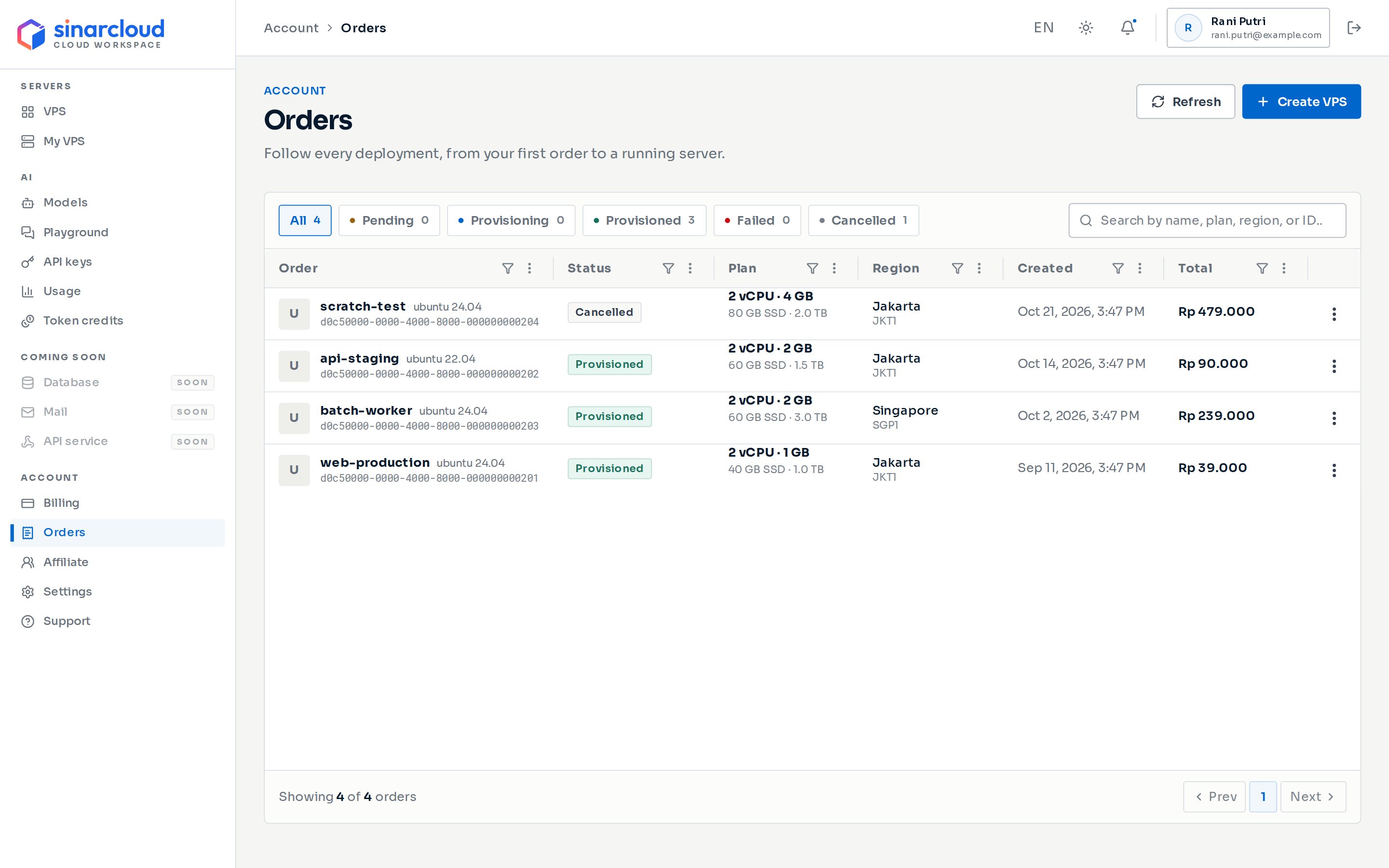
The Orders page with status filters, search and the order table
Order details
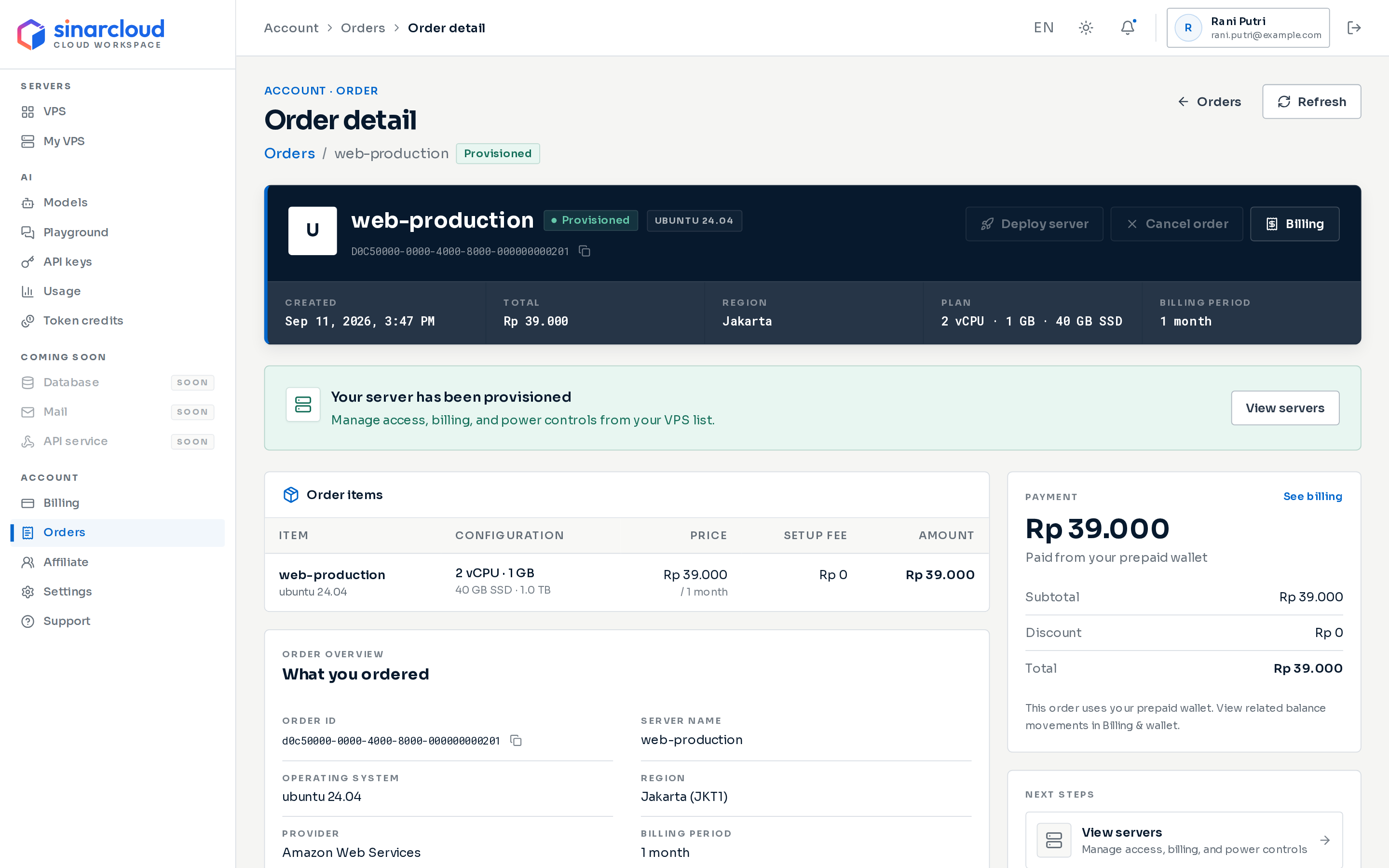
Order detail for a provisioned server
- Order items shows the server’s configuration and breaks the total down into Price, Setup fee and Amount.
- What you ordered lists the order ID, server name, operating system, region, provider, billing period and dates.
- Payment shows the Subtotal, Discount and Total, and names each promotion that lowered the price.
- Next steps links to View billing and Contact support. It adds Deploy server and Cancel order while the order is in Funds reserved, and View servers once the order is provisioned.
Deploy a reserved order
An order stays in Funds reserved when the console placed it but could not start the deployment, for example after a connection error. If this happens on the Create a VPS page, the page shows Failed to start provisioning with a Retry button. Retry uses the same settings. You can also deploy the order later from the Orders page. A reserved order does not expire. Your money stays reserved until you deploy or cancel the order. To start the deployment from the order:1
Open the deploy dialog
Open the order and click Deploy server. You can also choose Deploy server in the row’s actions menu on the Orders page.
2
Check the server name
In Deploy your server, check the Server name. Under Access method, Generated password is selected: SinarCloud creates a password for the server and shows it once on the order page.
3
Start the deployment
Click Start deployment. The order moves to Provisioning queued and the page shows the deployment progress. Under Generated password, click Reveal or Copy and store the password now.
4
Open your server
When Server is ready appears, click Go to Instance. See Connect to your VPS.
Cancel an order
You can cancel an order only while it is in Funds reserved.- Open the order and click Cancel order. You can also choose Cancel order in the row’s actions menu on the Orders page.
- In Cancel this order?, click Cancel order to confirm, or Keep order to go back.
When a deployment fails
If a deployment does not finish, the order moves to Provisioning failed. What happens to your money depends on the failure:- If SinarCloud knows that no server was created, the reserved total returns to your available balance automatically. On the Billing page, the Server order entry changes to Cancelled and a Refund for cancelled order entry adds the money back. Any promotion use on the order is returned too.
- If SinarCloud cannot confirm right away whether a server was created, the total stays reserved. The SinarCloud team checks the order and then returns the money to your available balance. SinarCloud does not charge it in the meantime.