

One balance for everything
Your account has one balance. The Billing page labels it Current Credits. The My VPS page calls it Available Credit, the Confirm your order dialog calls it Wallet balance, and the AI Usage page calls it Available balance. Money comes in from:- QRIS top-ups of Rp 15,000 to Rp 10,000,000 each, with no fee. See Add balance.
- Balance coupons you enter with Redeem. See Redeem a coupon.
- Rewards from the affiliate program.
- Refunds of VPS orders that were cancelled or couldn’t be created.
- Money that SinarCloud adds to your balance.
- New VPS orders and VPS renewals.
- AI API requests, including requests you send from the Playground.
- AI subscription plans, paid each week. They appear on the Transactions tab as Subscription.
- Affiliate rewards that are reversed, and balance corrections by SinarCloud.
Token credits are not part of your balance. Each token credit grant covers tokens on one specific model, and it pays for that model’s tokens before your balance is charged. See Token credits.
How VPS charges work
VPS charges never take your balance below zero. Your balance must cover the full price when you place an order and when a renewal is due.- When you confirm an order, SinarCloud reserves the order total. The amount leaves your available balance and appears as “Rp … reserved” under Current Credits.
- When your server is ready, SinarCloud charges the reserved amount.
- If the server can’t be created, the reserved amount usually goes back to your balance automatically. In rare cases it stays reserved until our team checks the order.
Renewals
When automatic renewal is on, SinarCloud charges the next period from your balance when the current period ends. For some servers, the renewal is charged up to 3 days before the period ends. If your balance is short then, nothing happens yet, and SinarCloud tries again when the period ends. A renewal doesn’t repeat the setup fee or carry over a discount from your first order. Stopped servers are renewed and charged too. If your server’s renewal price goes up, SinarCloud emails the account’s owners before the higher price applies. See What a renewal costs. If your balance can’t cover a renewal, the renewal fails and the server is suspended. Unless it’s renewed, the server and its data are deleted 6 hours after the period ends. Until then, you can still get it back:- Top up. When a QRIS top-up is paid, SinarCloud renews your suspended servers right away, starting with the one that would be deleted first. Each server whose renewal your balance covers comes back as it was, with all its data. See Add balance.
- Renew now. Other balance, for example from a coupon, doesn’t renew a server on its own. If your balance already covers the renewal, click Renew now in the This server is suspended notice on the server’s page.
How AI charges work
SinarCloud charges each AI request after it finishes, based on the tokens it used. Nothing is held up front. If you have token credits for the model, they pay first and your balance pays the rest. Because the charge comes after the work is done, AI usage can take your balance below zero. The next money you add pays off the negative amount first. For example, a Rp 50,000 top-up on a balance of −Rp 2,500 leaves you with Rp 47,500. When your balance is zero or below, SinarCloud refuses new AI requests with HTTP status402, unless one of these applies:
- You still have token credits for that model.
- The request costs nothing, for example because a promotion covers the full price.
Response
429 until one of them finishes.
When a model’s price changes
Model prices can change. Each request is charged at the model’s price when the request started, even if the price changes before it finishes. Before some price increases, SinarCloud emails the account’s owners, usually about a week ahead. The email goes out only if your account used the model in the last 30 days. Its subject reads “model costs more from date”. It lists the current and new prices per 1M input and output tokens and the date the new price applies. Requests before that date keep the current price, and you can switch to another model before then. Not every price increase comes with this email. Check the current prices on the Models page before you rely on a model. See Models.The Billing page
To open it, click Billing under Account in the sidebar. The page shows your Current Credits, the Redeem and Add Credit buttons, and two tabs: Transactions and Payments. Each tab lists the newest entries first, 20 per page. When there is more than one page, use Prev and Next to move between them.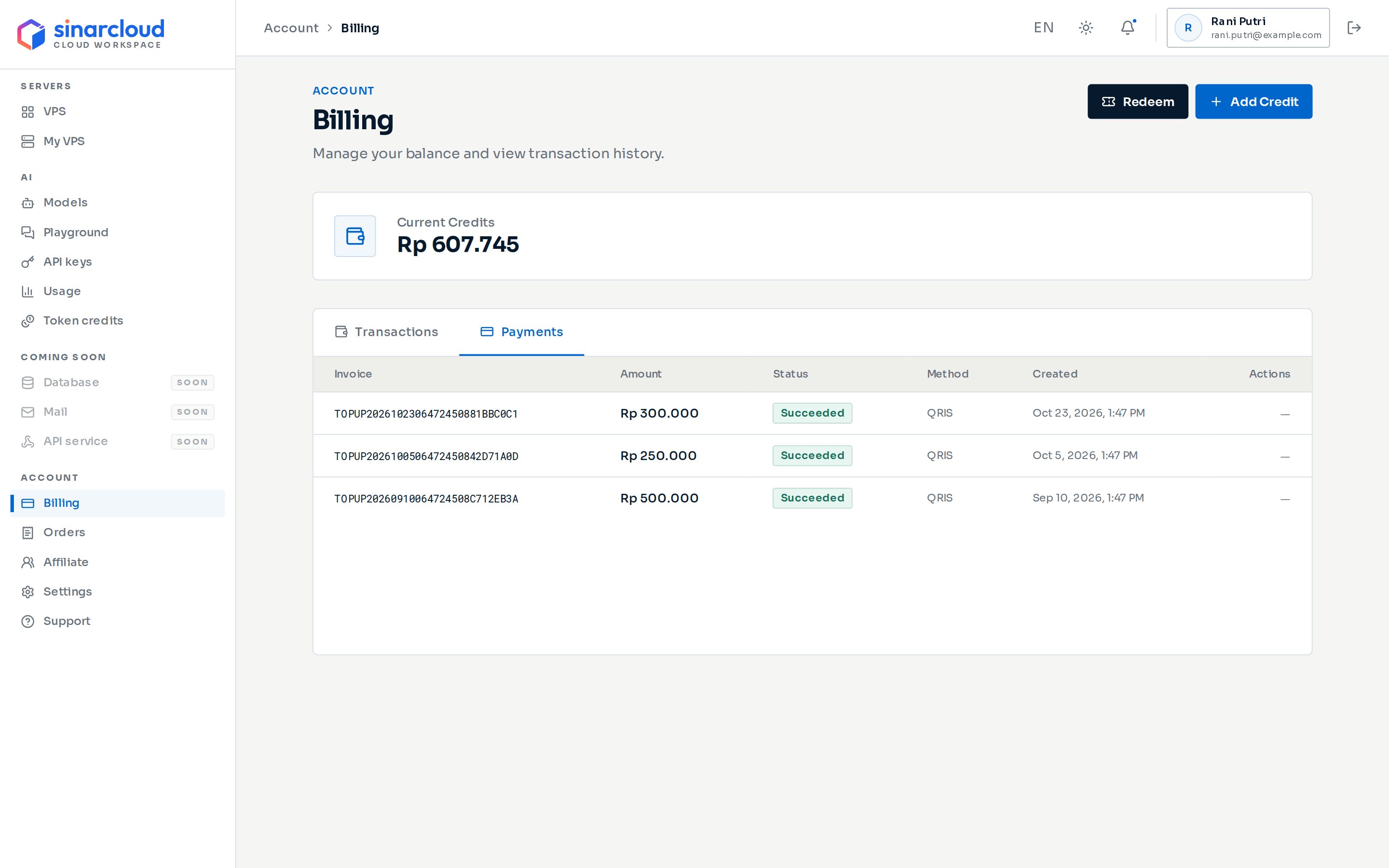
The Billing page with the Payments tab open
Transactions
Transactions lists every change to your available balance. Its columns are Description, Amount, Balance after, Status and Date. Money added shows with a plus sign, and money taken shows with a minus sign. Under each description, a short line adds details such as the server name and billing period, or the payment method and invoice number.
A Server order row has one of these statuses:
- Processing: the order total is still reserved, for example while your server is being created, or while the order is in Funds reserved and waits for you to click Deploy server.
- Paid: the server was created and the reserved amount was charged.
- Cancelled: the order was cancelled or the server couldn’t be created. A separate Refund for cancelled order row shows the money coming back.
Payments
Payments lists the top-ups you started. Its columns are Invoice, Amount, Status, Method, Created and Actions. Your balance goes up only when a payment’s status is Succeeded. While a payment is Awaiting payment, click Show QR to pay it. Click a row to open Payment details, then click Check payment to refresh its status. See Add balance.Where else you see your balance
- My VPS page (under Servers in the sidebar): the Available Credit card, with a top up to extend runway link.
- The review step of Create a VPS: the Wallet section says whether your balance covers the order. The Confirm your order dialog shows your Wallet balance and your Balance after order.
- A server’s Overview and Billing tabs: when automatic renewal is on, whether your balance covers the next renewal, with a Top up link when it doesn’t.
- A server’s page, within 7 days of a renewal your balance won’t cover: a Top up before the renewal warning with the renewal price, your balance and a Top up wallet button.
- A suspended server’s page: the This server is suspended notice says how much more the renewal needs, with Top up wallet and Renew now buttons. If your balance already covers the renewal, it says so and offers Renew now only.
- AI Usage, Spending tab: Available balance and Estimated balance runway in the Spend forecast & balance runway card. See Usage and spending.