Create an API key and send your first chat completion to the SinarCloud AI API at https://ai.sinarcloud.com/v1 with cURL, Python, or Node.js.
The SinarCloud AI API is compatible with the OpenAI API. You can call it with the official OpenAI SDKs by changing three values: the base URL, the API key, and the model alias. This quickstart walks you through your first chat completion and shows you where to find what it cost.Before you start, sign in to the console with your Google account. On your first sign-in, confirm your time zone to finish setting up your account. You also need a terminal and one of these: cURL on macOS or Linux, Python 3, or Node.js.
1
Check your balance
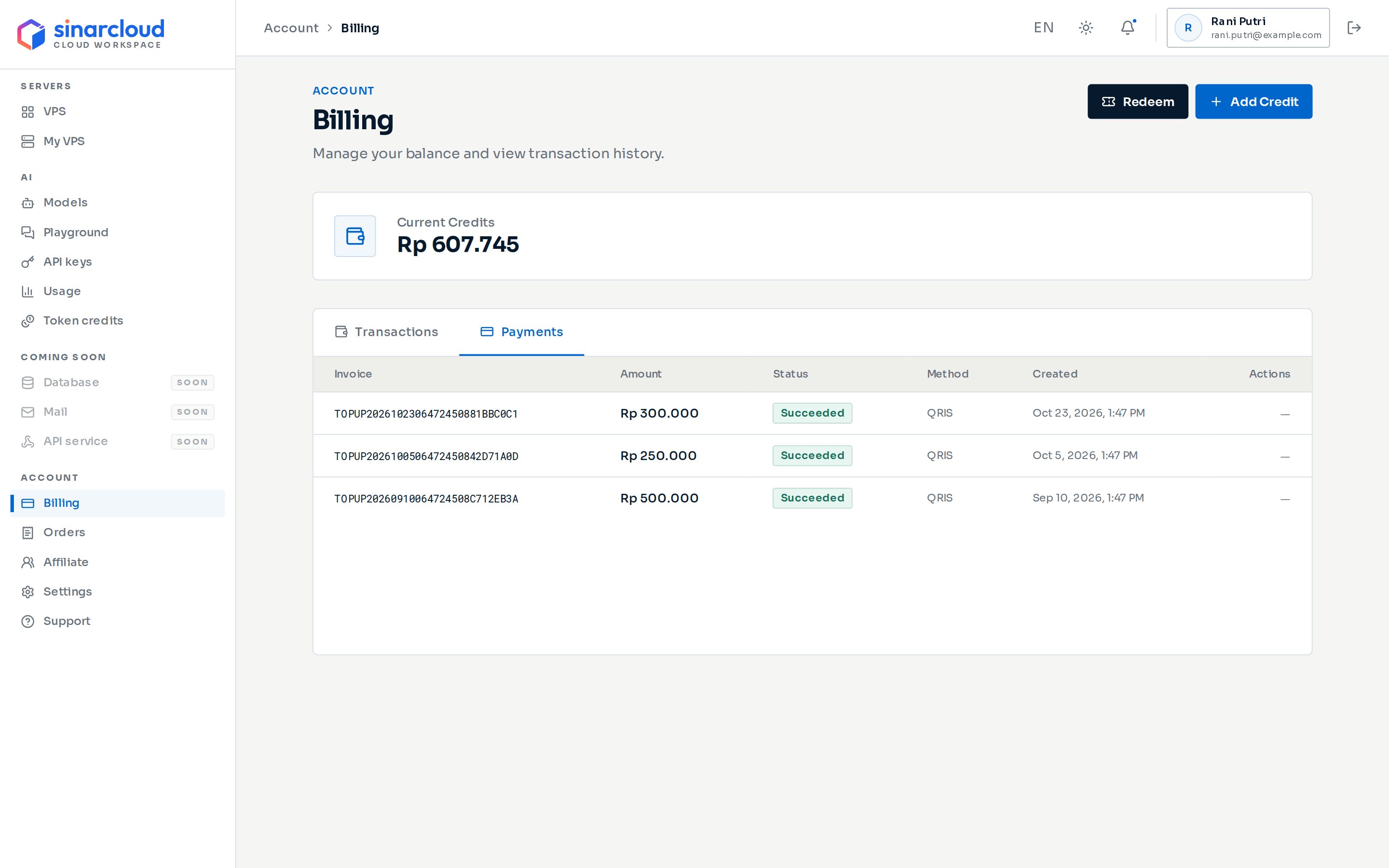
AI requests are paid from the same prepaid rupiah balance as your VPS.In the console sidebar, under Account, click Billing. The Current Credits card at the top of the page shows how much balance you have left.
The Current Credits card shows your balance
A request starts only if your balance is above Rp 0, you have token credits left for the model you call, or the request can’t cost you anything, for example under a 100% promotion. SinarCloud charges each request after it finishes, based on the tokens it used. This means a request can take your balance below zero.To add balance:
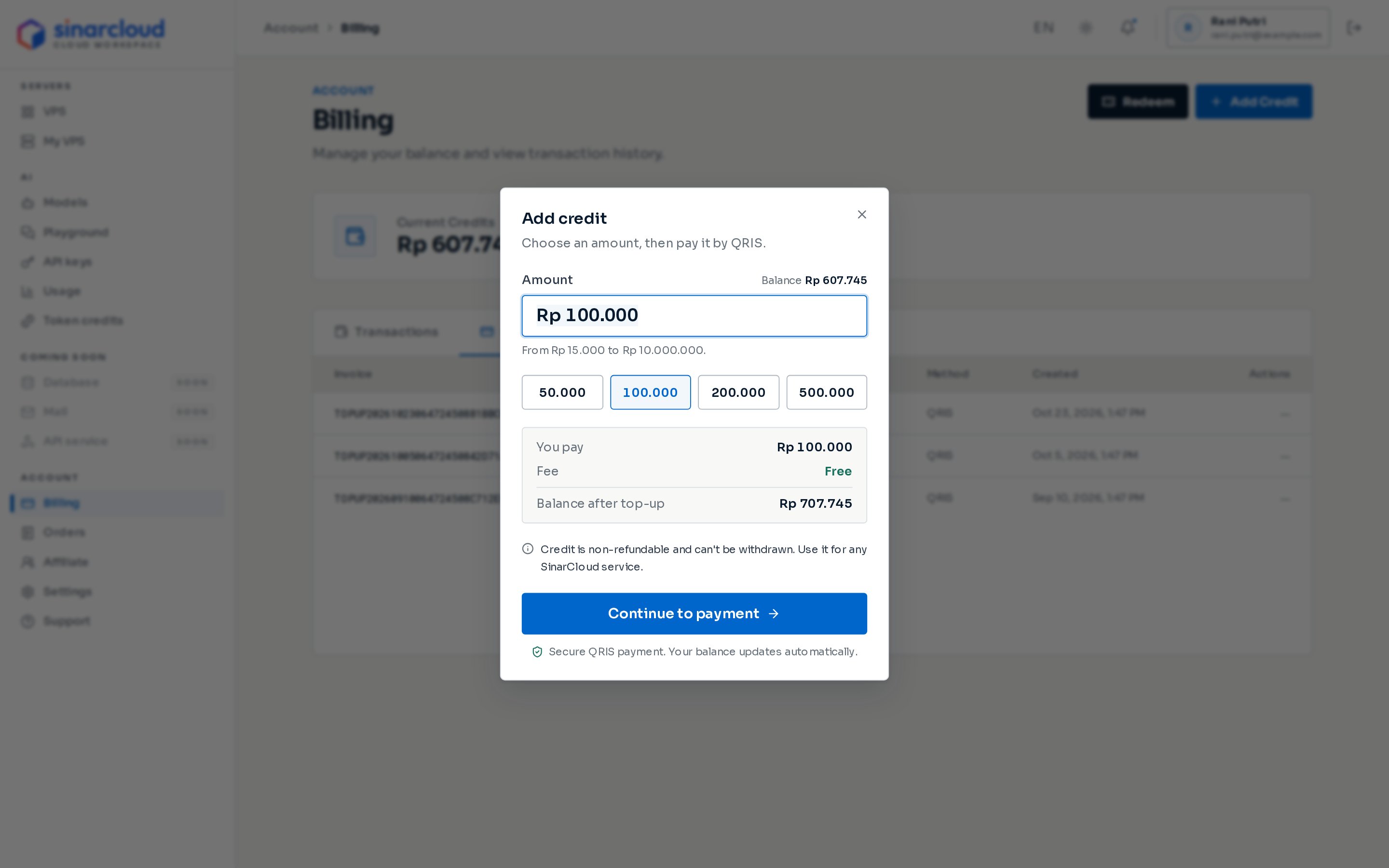
Click Add Credit. The Add credit dialog opens on the same page.
Click a preset amount, or type an amount from Rp 15,000 to Rp 10,000,000 in Amount. Balance after top-up shows your balance once the payment is confirmed.
Click Continue to payment, then scan the QRIS code with any banking or e-wallet app that supports QRIS. Your balance goes up as soon as the payment is confirmed.
Choose an amount, then click Continue to payment
Balance you add can’t be refunded or withdrawn. For details, see Add balance.
If a gift popup opens in the console, it offers free token credits for one AI model. Nothing is added to your account until you click Claim gift. Claimed tokens appear under AI > Token credits and pay for that model’s requests before your balance is charged. If the popup shows a Claim by date, claim the gift before then. Click Later to see the gift again the next time you open the console.
2
Create an API key
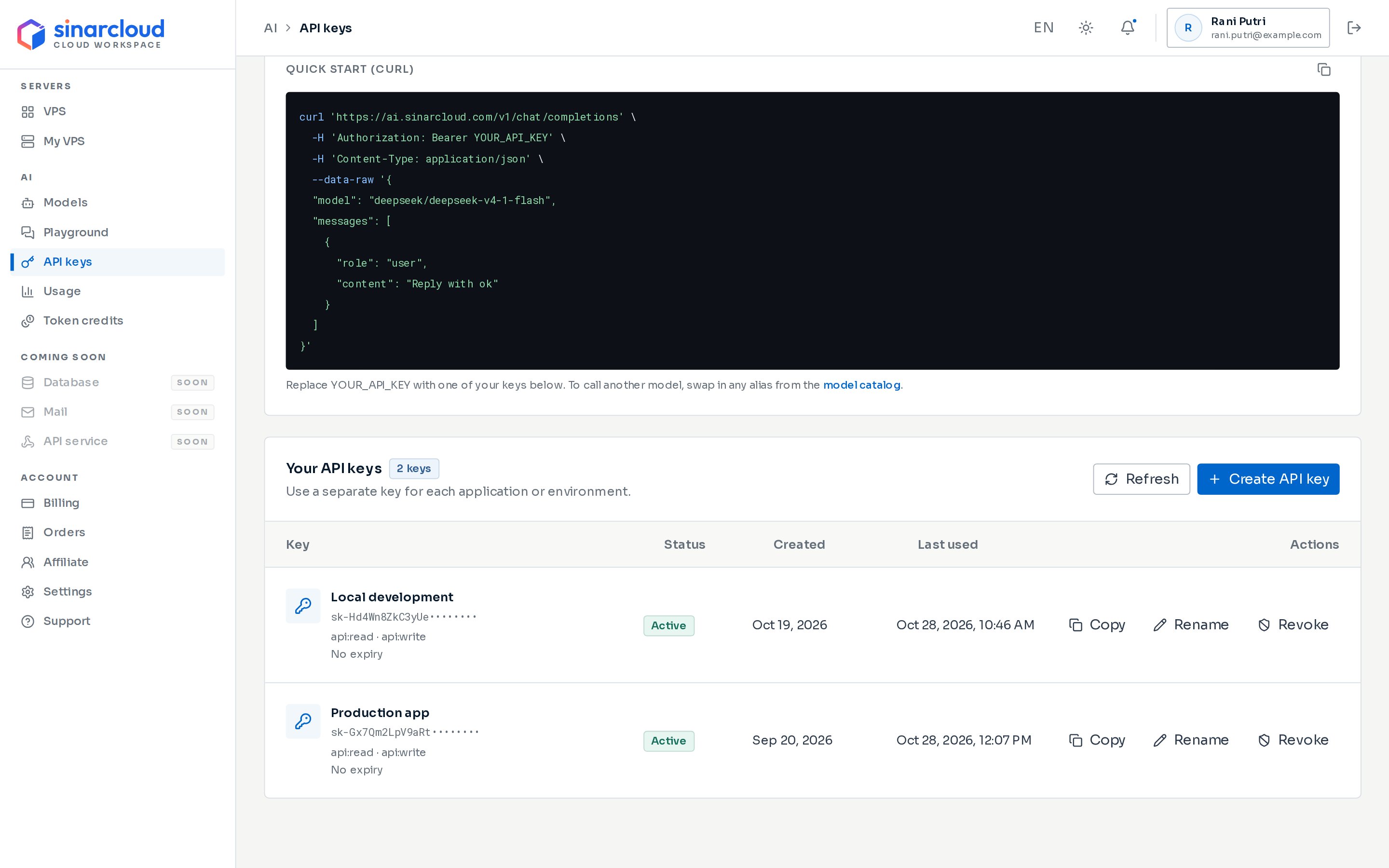
Under AI, click API keys. The API Keys page opens.
Click Create API key. You’ll find the button next to API endpoint at the top of the page and in the Your API keys section. Both open the same dialog.
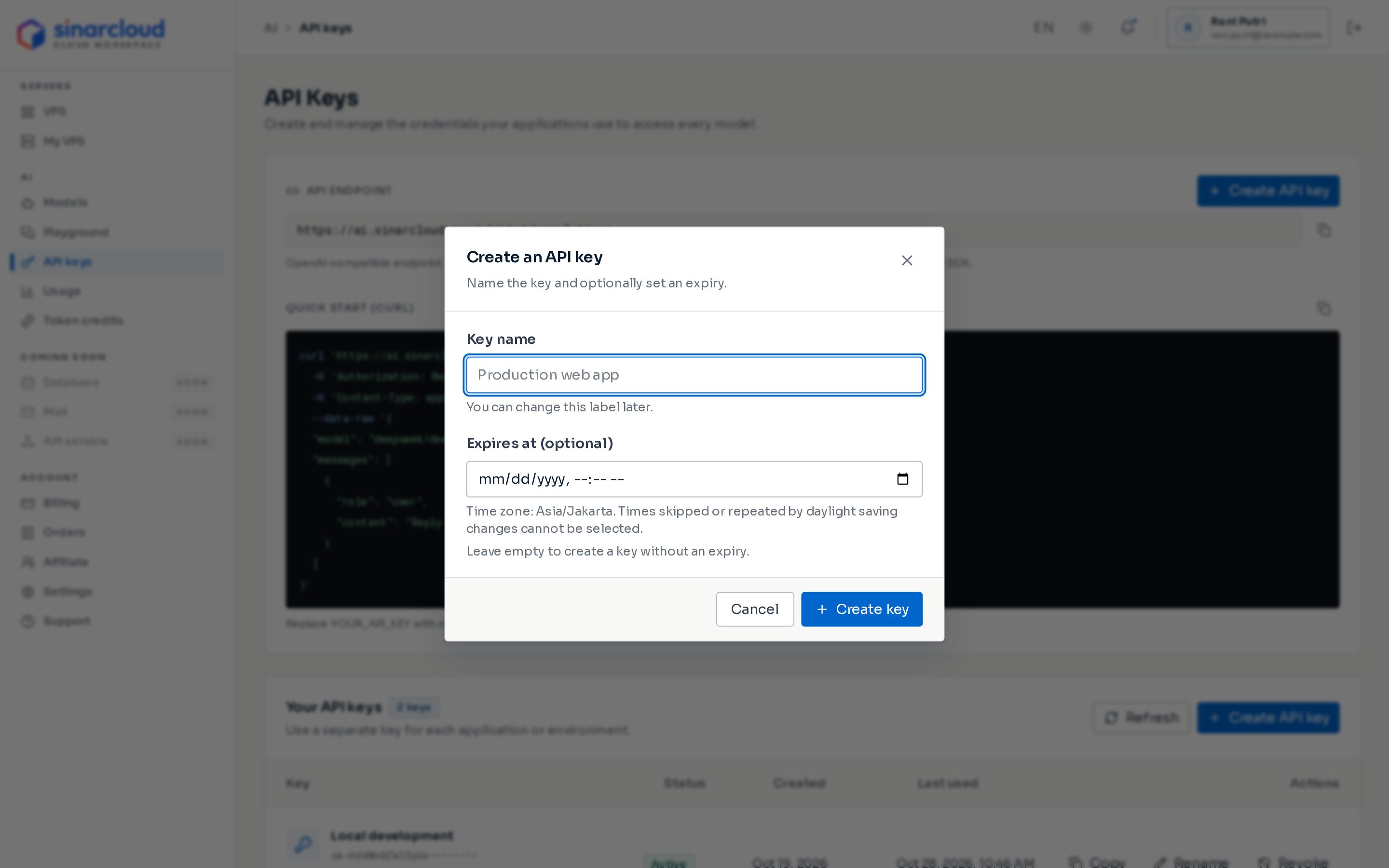
Enter a Key name, such as the app or environment that will use the key. You can rename the key later.
To make the key stop working at a set time, fill in Expires at (optional). The field uses the time zone shown under it, which you can change in Account settings. Leave the field empty for a key that never expires.
Click Create key.
The dialog changes to Your key is ready and shows your key under New secret key. Click Copy secret, then click Done. If you close the dialog first, you can still copy the key later with Copy in the Your API keys list.
Name the key and optionally set an expiry
Keep your API key private. Anyone who has it can make API requests using your account. If a key leaks, click Revoke next to it, then click Revoke key to confirm. A revoked key stops working right away, and you can’t undo this.
3
Save your API key
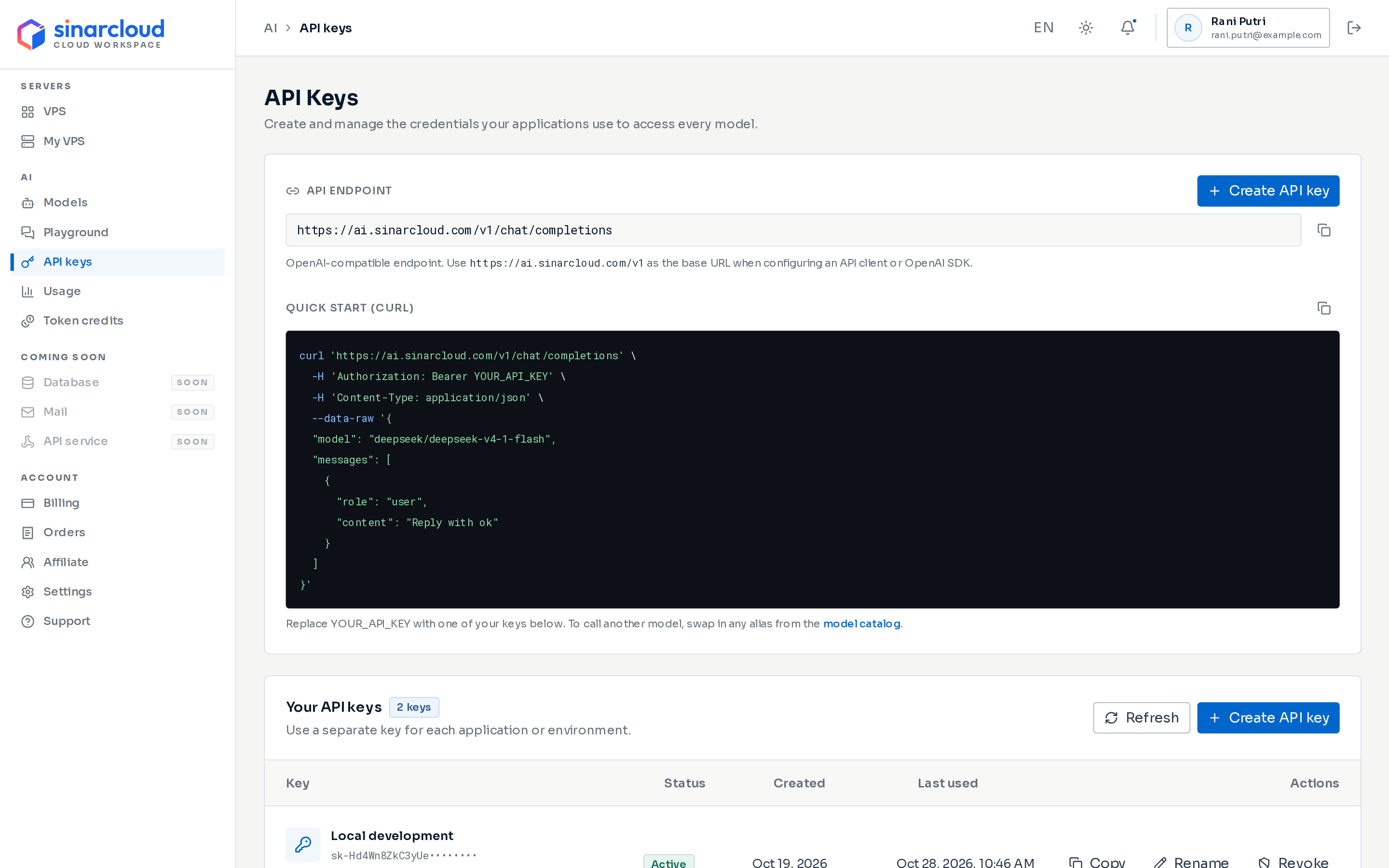
The base URL is https://ai.sinarcloud.com/v1. On the API Keys page, the hint under the API endpoint box gives it. The box itself shows the full chat completions endpoint, https://ai.sinarcloud.com/v1/chat/completions.
The base URL is in the hint under API endpoint
In the terminal where you will run the examples, save your API key as an environment variable:
Under Your API keys, click Copy next to your key. You can skip this if you still have the key you copied in the previous step.
Run the command for your system. Replace paste-your-api-key-here with your key, and keep the quotes.
The variable lasts until you close the terminal, so run the examples in the same terminal.
4
Choose a model
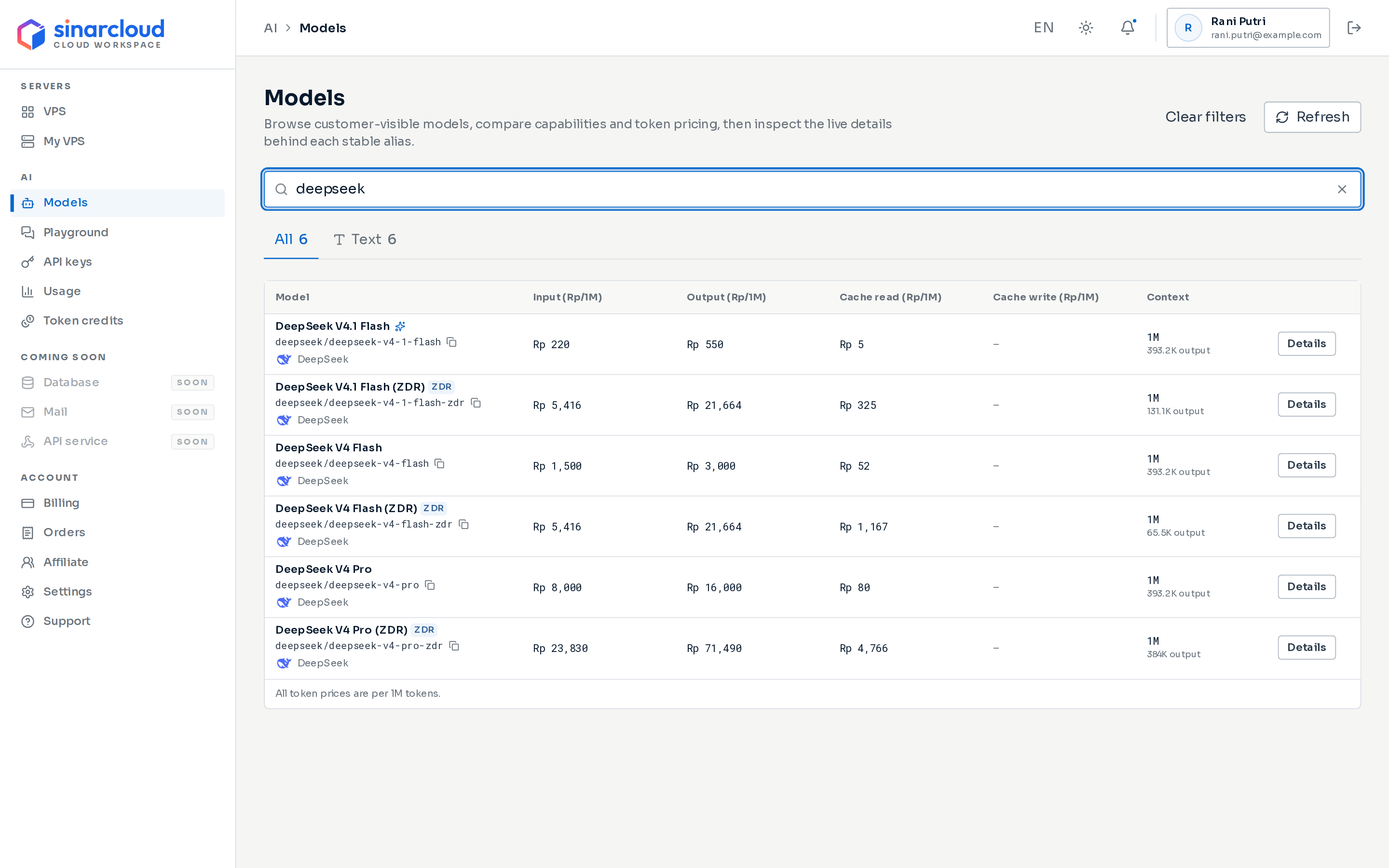
Under AI, click Models.
To show chat models, click Text under the search box. To find a model, type its name, alias, or publisher in the search box, for example deepseek.
Compare prices. The Input (Rp/1M) and Output (Rp/1M) columns show each model’s price per 1M tokens. Models tagged ZDR are zero data retention versions, which don’t keep your prompts and responses after your request is complete.
Click Details on the model you want. The model’s details open in a dialog.
Search for a model, then click Details
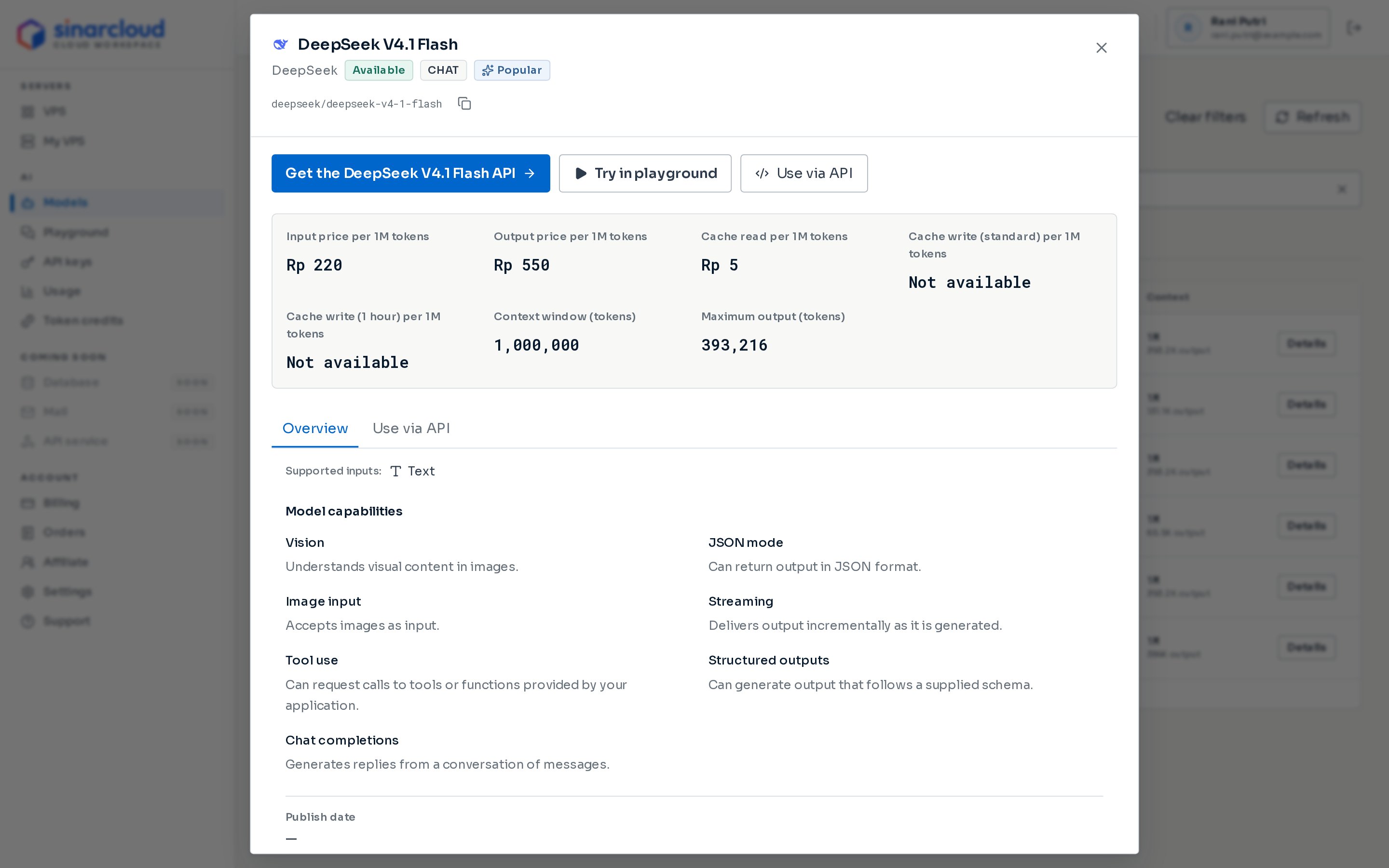
On the Overview tab, check that Model capabilities lists Chat completions, because this quickstart calls the chat completions endpoint. Below the model name is the model alias, which is also called the model ID. Click the copy icon next to it (Copy model ID) to copy it.
Check the model capabilities, then copy the alias
Model aliases are lowercase and usually look like publisher/model, for example deepseek/deepseek-v4-1-flash. The examples below use this alias. Replace it with the alias of the model you chose.
5
Send a chat completion
Run one of these examples in the same terminal where you set SINARCLOUD_API_KEY. The cURL example uses macOS and Linux shell syntax. On Windows, use the Python or Node.js example.
cURL: paste the command into your terminal and press Enter.
Python: install the SDK with pip install openai, save the code as example.py, and run python example.py. On macOS and Linux, use pip3 and python3 if pip or python isn’t found.
Node.js: install the SDK with npm install openai, save the code as example.mjs, and run node example.mjs.
import OpenAI from "openai";const client = new OpenAI({ baseURL: "https://ai.sinarcloud.com/v1", apiKey: process.env.SINARCLOUD_API_KEY,});const response = await client.chat.completions.create({ model: "deepseek/deepseek-v4-1-flash", messages: [{ role: "user", content: "Say hello in Indonesian." }],});console.log(response.choices[0].message.content);
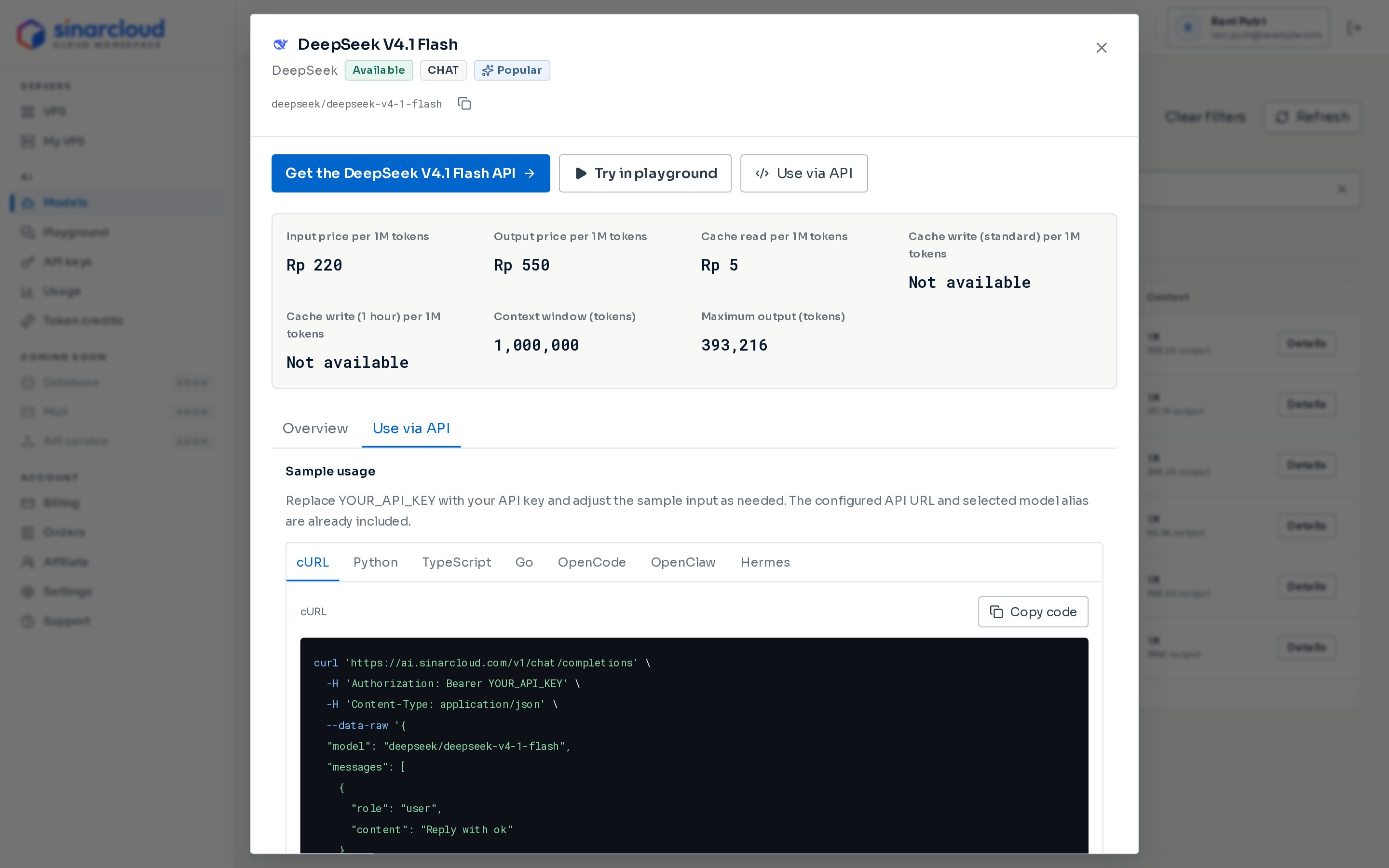
The response uses the OpenAI chat completion format. The model’s reply is in choices[0].message.content. The cURL example prints the whole response as JSON. The Python and Node.js examples print only the reply.You can also copy a ready-made request from the console. In the model’s details, click Use via API. Under Sample usage, click cURL, Python, TypeScript, or Go, then click Copy code. The samples already include the base URL and the model’s alias. Before you run one, replace YOUR_API_KEY with your key. The samples put the key in the code, so don’t share or commit a file that contains it.
Ready-made samples on the Use via API tab
On macOS or Linux, the API keys page has a ready-made request too. The Quick start (cURL) box holds a sample cURL request for a chat model. Click its copy icon (Copy cURL), replace YOUR_API_KEY with your key, and run it. To call a different model, swap in the alias of another model whose details list Chat completions under Model capabilities.
Every response includes an X-Request-Id header, including error responses. To see it with cURL, add -i to the command. For a successful request, the same ID appears as Request ID in its details on the Usage page while it is among your 8 most recent requests. Include the ID when you contact support, even for failed requests.
6
Find the request in Usage
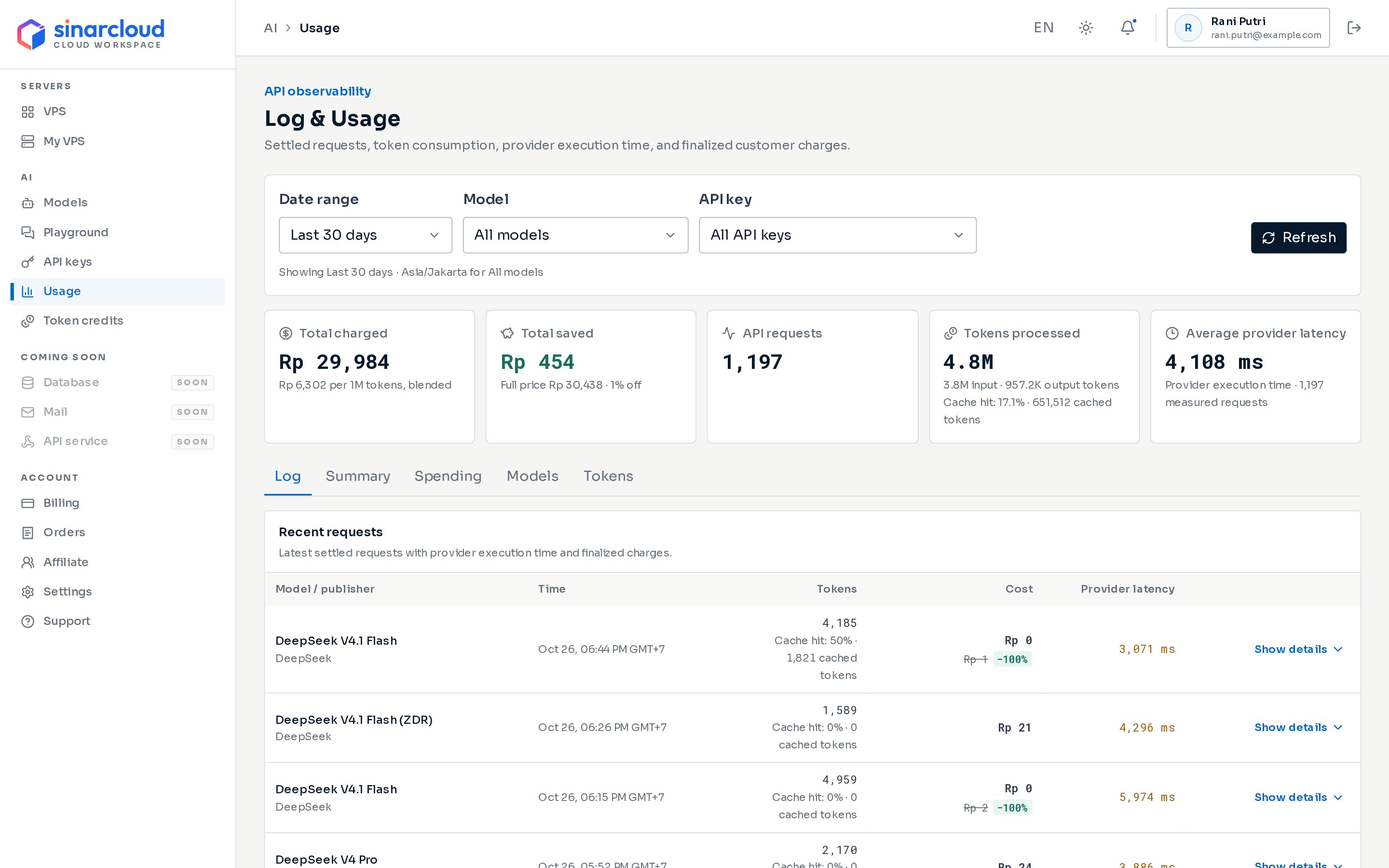
Under AI, click Usage. The Log & Usage page opens on the Log tab, where Recent requests lists your 8 most recent settled requests with their model, time, tokens, cost, and latency.Only requests whose charge is final appear here, so failed requests aren’t listed. If you don’t see your request yet, click Refresh.
Recent requests on the Log tab
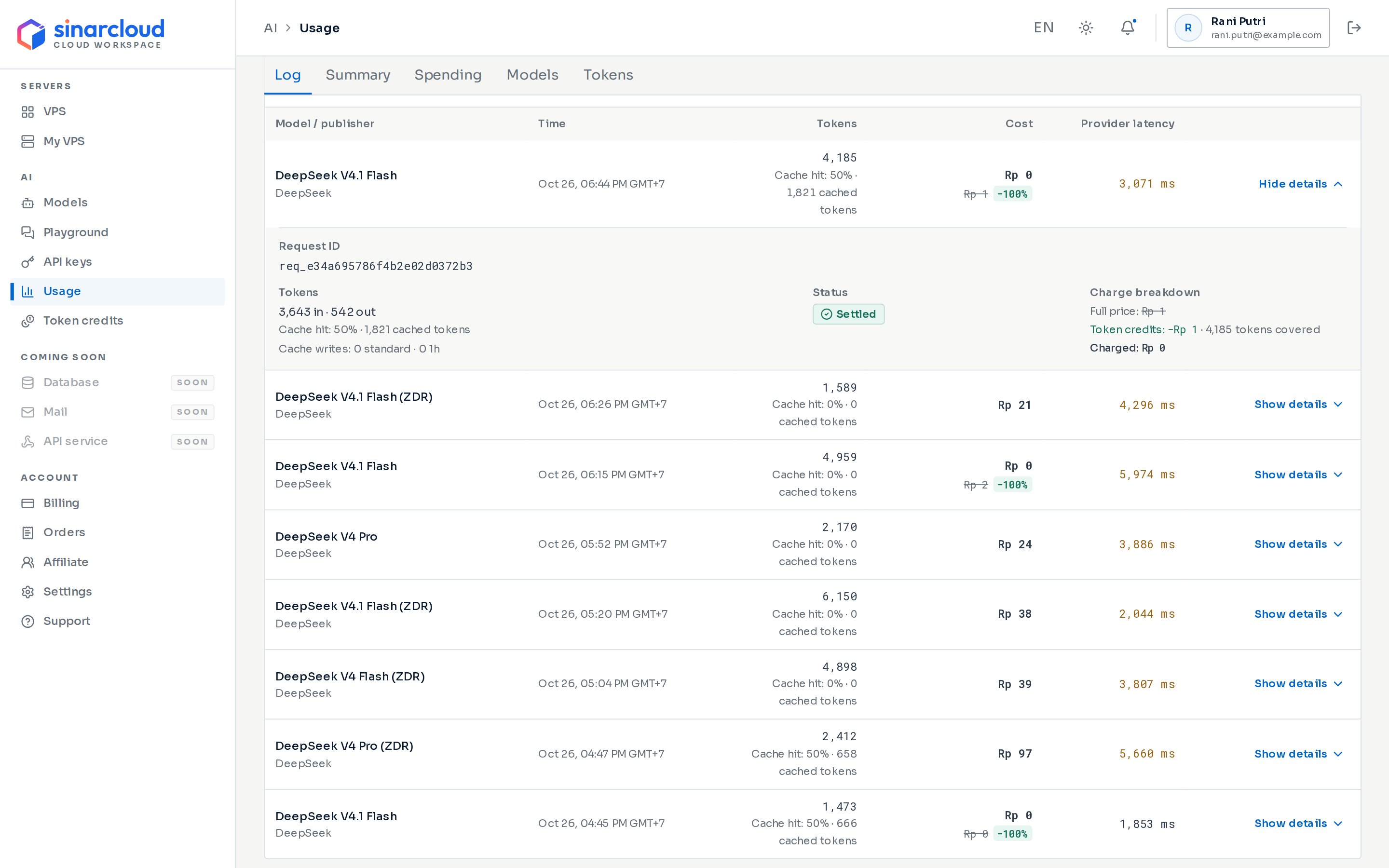
Click Show details on a request to see its Request ID, its status (Settled), and its input and output token counts. If token credits or a promotion lowered the price, the Cost column also shows the full price crossed out and the percentage you saved, and a Charge breakdown in the details shows how. The final cost is deducted from your balance.
Show details opens the request's Request ID, tokens, and status
Errors use the OpenAI error format. The code field tells you what went wrong.
401 invalid_api_key
The API key is missing, mistyped, expired, or revoked. Check that the Authorization header is Bearer followed by a space and your key. If the key has expired or been revoked, create a new one.
402 insufficient_balance
Your balance is Rp 0 or below, and you have no token credits left for this model. Add balance, then send the request again.
404 model_not_found
The model alias doesn’t exist, the model isn’t available right now, or it doesn’t support chat completions. On the Models page, search for the model’s name and copy its alias again. Then click Details and check that Model capabilities lists Chat completions. If the details show Temporarily unavailable, try again later or choose another model.
429 rate_limit_exceeded
Your account has too many requests in progress at the same time. Wait for one to finish, then try again. If the message is “The model is receiving too many requests right now. Retry shortly.”, the model itself is busy. Try again in a moment, or choose another model.
503 key_provisioning_pending
Your key can’t make requests. On the API keys page, its row shows This API key is still being provisioned. The key won’t become usable by itself, so sending the request again doesn’t help. Create a new key and use it instead. The old key may change to Revoked later, and you can ignore it. If new keys also show this message, contact support.
502, 503, or 504
SinarCloud or the model is temporarily unavailable, or the model didn’t respond in time. Wait a moment, then send the request again.
Use streaming, other endpoints, and more request options.
Models and pricing
Compare models, capabilities, and prices per 1M tokens.
Playground
Chat with a model in the console without writing code.
Usage and spending
Track requests, tokens, and what you spend on each model.
{"docsConfig":{"theme":"mint","$schema":"https://mintlify.com/docs.json","name":"SinarCloud","description":"Documentation for SinarCloud: deploy VPS in Southeast Asia, call AI models through one OpenAI-compatible API, and manage your prepaid IDR balance.","colors":{"primary":"#0066CC","light":"#6AAAEB","dark":"#004D99"},"logo":{"light":"https://mintcdn.com/sinar-cloud/B5Imz7vUklgE_ozS/logo/light.svg?fit=max\u0026auto=format\u0026n=B5Imz7vUklgE_ozS\u0026q=85\u0026s=e9d750a5729c82b08c0c002770ca98b0","dark":"https://mintcdn.com/sinar-cloud/B5Imz7vUklgE_ozS/logo/dark.svg?fit=max\u0026auto=format\u0026n=B5Imz7vUklgE_ozS\u0026q=85\u0026s=73748aa26054037a0788d4f33711e8fc","href":"https://sinarcloud.com"},"favicon":"https://mintcdn.com/sinar-cloud/B5Imz7vUklgE_ozS/favicon.svg?fit=max\u0026auto=format\u0026n=B5Imz7vUklgE_ozS\u0026q=85\u0026s=3a8c6e463fff5c4bbd253aa1aa394f3a","navbar":{"links":[{"href":"mailto:support@sinarcloud.com","label":"Support"}],"primary":{"type":"button","label":"Open console","href":"https://console.sinarcloud.com"}},"footer":{"links":[{"header":"SinarCloud","items":[{"label":"Website","href":"https://sinarcloud.com"},{"label":"Console","href":"https://console.sinarcloud.com"},{"label":"VPS pricing","href":"https://sinarcloud.com/vps"}]},{"header":"Help","items":[{"label":"Email support","href":"mailto:support@sinarcloud.com"},{"label":"Legal","href":"https://sinarcloud.com/legal"}]}]},"contextual":{"options":["copy","view","chatgpt","claude","perplexity","mcp","cursor","vscode"],"display":"header"},"styling":{"latex":false},"navigation":{"pages":[]}},"deployment":{"deploymentMetadataValue":{"subdomain":"sinar-cloud","hasAudioNarration":false,"actualSubdomain":"sinar-cloud","customDomains":["docs.sinarcloud.com"],"gitSource":{"type":"github","owner":"mintlify-community","repo":"docs-sinar-cloud-bc5a92e3","deployBranch":"main","contentDirectory":"","isPrivate":true,"mountPath":"","label":""},"chroma":{"latestBuiltDeploymentHistoryId":"6ae76f01039e90b0fea263d5","collectionId":"78c6943e-12ad-464b-8ab6-c16ab533d6c1","liveDeploymentHistoryId":"6ae76f01039e90b0fea263d5","schemaVersion":"v3"},"entitlements":{"AI_CHAT":{"status":"DISABLED"},"WEB_MCP":{"status":"DISABLED"},"NARRATION":{"status":"DISABLED"}},"buildId":"6ae76f01039e90b0fea263d5","clientVersion":"0.0.4054","searchFilterCounts":[{"language":"default","tag":"Guides","count":26},{"language":"default","tag":"AI API","count":9},{"language":"default","tag":"Integrations","count":9},{"language":"default","tag":"VPS","count":6},{"language":"default","tag":"Billing","count":4},{"language":"default","tag":"VS Code","count":4},{"language":"default","tag":"Get started","count":3},{"language":"default","tag":"Start here","count":3},{"language":"default","tag":"Account","count":2},{"language":"default","tag":"Help","count":2}]},"assistantConfig":{"enableAskAiButton":false,"enableStarterQuestions":false,"enableContextualStarterQuestions":false,"enableAskAiSearchBar":true},"basePath":"","hasChatPermissions":false,"hasWebMcpPermissions":false,"toggles":[{"name":"kill-isr","enabled":true,"variant":{"name":"disabled","enabled":false,"feature_enabled":true},"impressionData":false},{"name":"agent-mintlify-slack","enabled":true,"variant":{"name":"disabled","enabled":false,"feature_enabled":true},"impressionData":false},{"name":"agent-integrations-settings","enabled":true,"variant":{"name":"disabled","enabled":false,"feature_enabled":true},"impressionData":false},{"name":"automations-pr-grouping","enabled":true,"variant":{"name":"disabled","enabled":false,"feature_enabled":true},"impressionData":false},{"name":"custom-prefix","enabled":true,"variant":{"name":"disabled","enabled":false,"feature_enabled":true},"impressionData":false},{"name":"analytics-v7","enabled":true,"variant":{"name":"disabled","enabled":false,"feature_enabled":true},"impressionData":false},{"name":"user-flows-analytics","enabled":true,"variant":{"name":"disabled","enabled":false,"feature_enabled":true},"impressionData":false},{"name":"no-publish-flow","enabled":true,"variant":{"name":"disabled","enabled":false,"feature_enabled":true},"impressionData":false},{"name":"workos-onboarding","enabled":true,"variant":{"name":"disabled","enabled":false,"feature_enabled":true},"impressionData":false},{"name":"llms-txt-v2","enabled":true,"variant":{"name":"disabled","enabled":false,"feature_enabled":true},"impressionData":false},{"name":"snapshot-serving-live","enabled":true,"variant":{"name":"disabled","enabled":false,"feature_enabled":true},"impressionData":false},{"name":"stripTemperatureMiddleware","enabled":true,"variant":{"name":"disabled","enabled":false,"feature_enabled":true},"impressionData":false},{"name":"support-platform-pylon-zendesk","enabled":true,"variant":{"name":"disabled","enabled":false,"feature_enabled":true},"impressionData":false},{"name":"snapshot-serving","enabled":true,"variant":{"name":"disabled","enabled":false,"feature_enabled":true},"impressionData":false},{"name":"instant-rollback","enabled":true,"variant":{"name":"disabled","enabled":false,"feature_enabled":true},"impressionData":false},{"name":"granular-notifications-server","enabled":true,"variant":{"name":"disabled","enabled":false,"feature_enabled":true},"impressionData":false},{"name":"granular-notifications","enabled":true,"variant":{"name":"disabled","enabled":false,"feature_enabled":true},"impressionData":false},{"name":"automations-fable","enabled":true,"variant":{"name":"disabled","enabled":false,"feature_enabled":true},"impressionData":false},{"name":"fixed-ai-action-pricing","enabled":true,"variant":{"name":"disabled","enabled":false,"feature_enabled":true},"impressionData":false},{"name":"automation-resolve-merge-conflict","enabled":true,"variant":{"name":"disabled","enabled":false,"feature_enabled":true},"impressionData":false},{"name":"scoped-publishing","enabled":true,"variant":{"name":"disabled","enabled":false,"feature_enabled":true},"impressionData":false},{"name":"mintql","enabled":true,"variant":{"name":"disabled","enabled":false,"feature_enabled":true},"impressionData":false},{"name":"page-level-analytics","enabled":true,"variant":{"name":"disabled","enabled":false,"feature_enabled":true},"impressionData":false},{"name":"editor-version-history-v2","enabled":true,"variant":{"name":"disabled","enabled":false,"feature_enabled":true},"impressionData":false},{"name":"billing-page-v2","enabled":true,"variant":{"name":"disabled","enabled":false,"feature_enabled":true},"impressionData":false},{"name":"full-page-search","enabled":true,"variant":{"name":"disabled","enabled":false,"feature_enabled":true},"impressionData":false},{"name":"workspace-projects","enabled":true,"variant":{"name":"disabled","enabled":false,"feature_enabled":true},"impressionData":false},{"name":"assistant-v5","enabled":true,"variant":{"name":"disabled","enabled":false,"feature_enabled":true},"impressionData":false},{"name":"byok-sep-25","enabled":true,"variant":{"name":"disabled","enabled":false,"feature_enabled":true},"impressionData":false},{"name":"fork-pr-previews","enabled":true,"variant":{"name":"disabled","enabled":false,"feature_enabled":true},"impressionData":false},{"name":"revalidation-jwt","enabled":true,"variant":{"name":"disabled","enabled":false,"feature_enabled":true},"impressionData":false},{"name":"vite-origin","enabled":true,"variant":{"name":"disabled","enabled":false,"feature_enabled":true},"impressionData":false},{"name":"billing-updated-9-15","enabled":true,"variant":{"name":"disabled","enabled":false,"feature_enabled":true},"impressionData":false},{"name":"workos-sso-scim","enabled":true,"variant":{"name":"disabled","enabled":false,"feature_enabled":true},"impressionData":false},{"name":"hobby-abuse-scan","enabled":true,"variant":{"name":"disabled","enabled":false,"feature_enabled":true},"impressionData":false},{"name":"dashboard-inbox","enabled":true,"variant":{"name":"disabled","enabled":false,"feature_enabled":true},"impressionData":false},{"name":"workos-signup","enabled":true,"variant":{"name":"disabled","enabled":false,"feature_enabled":true},"impressionData":false},{"name":"turbopuffer-dual-write","enabled":true,"variant":{"name":"disabled","enabled":false,"feature_enabled":true},"impressionData":false},{"name":"workos-enabled","enabled":true,"variant":{"name":"disabled","enabled":false,"feature_enabled":true},"impressionData":false},{"name":"approve-review-flow","enabled":true,"variant":{"name":"disabled","enabled":false,"feature_enabled":true},"impressionData":false},{"name":"sso-setup-deadline-banner","enabled":true,"variant":{"name":"disabled","enabled":false,"feature_enabled":true},"impressionData":false},{"name":"rbac-expansion","enabled":true,"variant":{"name":"disabled","enabled":false,"feature_enabled":true},"impressionData":false}],"googleFontsInlined":false},"customCss":[],"page":{"pagePath":"ai-quickstart","slug":"/ai-quickstart","pageMetadata":{"title":"Make your first AI request","sidebarTitle":"AI quickstart","description":"Create an API key and send your first chat completion to the SinarCloud AI API at https://ai.sinarcloud.com/v1 with cURL, Python, or Node.js.","icon":"sparkles","href":"/ai-quickstart"},"description":{"compiledSource":"\"use strict\";\nconst {jsx: _jsx, jsxs: _jsxs} = arguments[0];\nconst {useMDXComponents: _provideComponents} = arguments[0];\nfunction _createMdxContent(props) {\n const _components = {\n a: \"a\",\n p: \"p\",\n ..._provideComponents(),\n ...props.components\n };\n return _jsxs(_components.p, {\n children: [\"Create an API key and send your first chat completion to the SinarCloud AI API at \", _jsx(_components.a, {\n href: \"https://ai.sinarcloud.com/v1\",\n children: \"https://ai.sinarcloud.com/v1\"\n }), \" with cURL, Python, or Node.js.\"]\n });\n}\nfunction MDXContent(props = {}) {\n const {wrapper: MDXLayout} = {\n ..._provideComponents(),\n ...props.components\n };\n return MDXLayout ? _jsx(MDXLayout, {\n ...props,\n children: _jsx(_createMdxContent, {\n ...props\n })\n }) : _createMdxContent(props);\n}\nreturn {\n default: MDXContent\n};\n","frontmatter":{},"scope":{}},"pageType":"default","mdx":{"mdxSource":{"compiledSource":"\"use strict\";const{Fragment:_Fragment,jsx:_jsx,jsxs:_jsxs}=arguments[0];const{useMDXComponents:_provideComponents}=arguments[0];function _createMdxContent(props){const _components={a:`a`,code:`code`,li:`li`,ol:`ol`,p:`p`,pre:`pre`,span:`span`,strong:`strong`,ul:`ul`,..._provideComponents(),...props.components},{Accordion,AccordionGroup,Card,CardGroup,CodeBlock,CodeGroup,Frame,Heading,OptimizedImage,Step,Steps,Tab,Tabs,Tip,Warning}=_components;if(!Accordion)_missingMdxReference(`Accordion`,true);if(!AccordionGroup)_missingMdxReference(`AccordionGroup`,true);if(!Card)_missingMdxReference(`Card`,true);if(!CardGroup)_missingMdxReference(`CardGroup`,true);if(!CodeBlock)_missingMdxReference(`CodeBlock`,true);if(!CodeGroup)_missingMdxReference(`CodeGroup`,true);if(!Frame)_missingMdxReference(`Frame`,true);if(!Heading)_missingMdxReference(`Heading`,true);if(!OptimizedImage)_missingMdxReference(`OptimizedImage`,true);if(!Step)_missingMdxReference(`Step`,true);if(!Steps)_missingMdxReference(`Steps`,true);if(!Tab)_missingMdxReference(`Tab`,true);if(!Tabs)_missingMdxReference(`Tabs`,true);if(!Tip)_missingMdxReference(`Tip`,true);if(!Warning)_missingMdxReference(`Warning`,true);return _jsxs(_Fragment,{children:[_jsx(_components.p,{children:`The SinarCloud AI API is compatible with the OpenAI API. You can call it with the official OpenAI SDKs by changing three values: the base URL, the API key, and the model alias. This quickstart walks you through your first chat completion and shows you where to find what it cost.`}),`\n`,_jsxs(_components.p,{children:[`Before you start, sign in to the `,_jsx(_components.a,{href:`https://console.sinarcloud.com`,children:`console`}),` with your Google account. On your first sign-in, confirm your time zone to finish setting up your account. You also need a terminal and one of these: cURL on macOS or Linux, Python 3, or Node.js.`]}),`\n`,_jsxs(Steps,{children:[_jsxs(Step,{title:`Check your balance`,children:[_jsx(_components.p,{children:`AI requests are paid from the same prepaid rupiah balance as your VPS.`}),_jsxs(_components.p,{children:[`In the console sidebar, under `,_jsx(_components.strong,{children:`Account`}),`, click `,_jsx(_components.strong,{children:`Billing`}),`. The `,_jsx(_components.strong,{children:`Current Credits`}),` card at the top of the page shows how much balance you have left.`]}),_jsx(Frame,{caption:`The Current Credits card shows your balance`,children:_jsx(OptimizedImage,{src:`https://mintcdn.com/sinar-cloud/Zz311Jgf5s_A88RD/images/billing-payments.png?fit=max\u0026auto=format\u0026n=Zz311Jgf5s_A88RD\u0026q=85\u0026s=d5bd693dffc78526dc17d20e5f6321fe`,alt:`Billing page with the Current Credits card, the Redeem and Add Credit buttons, and the Transactions and Payments tabs. The Payments tab is open and lists three QRIS top-ups with the status Succeeded under the Invoice, Amount, Status, Method, Created and Actions columns.`,\"data-og-width\":`2880`,width:`2880`,\"data-og-height\":`1800`,height:`1800`,\"data-path\":`images/billing-payments.png`,\"data-optimize\":`true`,\"data-opv\":`3`,srcset:`https://mintcdn.com/sinar-cloud/Zz311Jgf5s_A88RD/images/billing-payments.png?w=280\u0026fit=max\u0026auto=format\u0026n=Zz311Jgf5s_A88RD\u0026q=85\u0026s=40293e1537a60ccd24b70165b653e668 280w, https://mintcdn.com/sinar-cloud/Zz311Jgf5s_A88RD/images/billing-payments.png?w=560\u0026fit=max\u0026auto=format\u0026n=Zz311Jgf5s_A88RD\u0026q=85\u0026s=2a9fc2a2067ef6c0ed66b88044ba6972 560w, https://mintcdn.com/sinar-cloud/Zz311Jgf5s_A88RD/images/billing-payments.png?w=840\u0026fit=max\u0026auto=format\u0026n=Zz311Jgf5s_A88RD\u0026q=85\u0026s=0fe14fcef3f709967c4f09f493372e85 840w, https://mintcdn.com/sinar-cloud/Zz311Jgf5s_A88RD/images/billing-payments.png?w=1100\u0026fit=max\u0026auto=format\u0026n=Zz311Jgf5s_A88RD\u0026q=85\u0026s=071b1949d4bc9fb510e6bcdc0575b78b 1100w, https://mintcdn.com/sinar-cloud/Zz311Jgf5s_A88RD/images/billing-payments.png?w=1650\u0026fit=max\u0026auto=format\u0026n=Zz311Jgf5s_A88RD\u0026q=85\u0026s=4d618c491f4a344788afb4034c958d0d 1650w, https://mintcdn.com/sinar-cloud/Zz311Jgf5s_A88RD/images/billing-payments.png?w=2500\u0026fit=max\u0026auto=format\u0026n=Zz311Jgf5s_A88RD\u0026q=85\u0026s=1581bead63ee35749e7d4d119fadd8b2 2500w`})}),_jsxs(_components.p,{children:[`A request starts only if your balance is above Rp 0, you have `,_jsx(_components.a,{href:`/ai/token-credits`,children:`token credits`}),` left for the model you call, or the request can’t cost you anything, for example under a 100% promotion. SinarCloud charges each request after it finishes, based on the tokens it used. This means a request can take your balance below zero.`]}),_jsx(_components.p,{children:`To add balance:`}),_jsxs(_components.ol,{children:[`\n`,_jsxs(_components.li,{children:[`Click `,_jsx(_components.strong,{children:`Add Credit`}),`. The `,_jsx(_components.strong,{children:`Add credit`}),` dialog opens on the same page.`]}),`\n`,_jsxs(_components.li,{children:[`Click a preset amount, or type an amount from Rp 15,000 to Rp 10,000,000 in `,_jsx(_components.strong,{children:`Amount`}),`. `,_jsx(_components.strong,{children:`Balance after top-up`}),` shows your balance once the payment is confirmed.`]}),`\n`,_jsxs(_components.li,{children:[`Click `,_jsx(_components.strong,{children:`Continue to payment`}),`, then scan the QRIS code with any banking or e-wallet app that supports QRIS. Your balance goes up as soon as the payment is confirmed.`]}),`\n`]}),_jsx(Frame,{caption:`Choose an amount, then click Continue to payment`,children:_jsx(OptimizedImage,{src:`https://mintcdn.com/sinar-cloud/Zz311Jgf5s_A88RD/images/billing-top-up.png?fit=max\u0026auto=format\u0026n=Zz311Jgf5s_A88RD\u0026q=85\u0026s=717acbda0faf4c6c1583d816b277694f`,alt:`Add credit dialog over the Billing page, with the default Rp 100,000 in the Amount field, the current balance to the right of the Amount label, the allowed range below the field, and preset buttons from 50,000 to 500,000. Below them are a summary with You pay, Fee Free and Balance after top-up, the note that credit is non-refundable and can't be withdrawn, and the Continue to payment button.`,\"data-og-width\":`2880`,width:`2880`,\"data-og-height\":`1800`,height:`1800`,\"data-path\":`images/billing-top-up.png`,\"data-optimize\":`true`,\"data-opv\":`3`,srcset:`https://mintcdn.com/sinar-cloud/Zz311Jgf5s_A88RD/images/billing-top-up.png?w=280\u0026fit=max\u0026auto=format\u0026n=Zz311Jgf5s_A88RD\u0026q=85\u0026s=919e3c4ff741cc992d0273bd0d2e2f91 280w, https://mintcdn.com/sinar-cloud/Zz311Jgf5s_A88RD/images/billing-top-up.png?w=560\u0026fit=max\u0026auto=format\u0026n=Zz311Jgf5s_A88RD\u0026q=85\u0026s=a6e57dd1bd2b454e36a874bd8fea9c76 560w, https://mintcdn.com/sinar-cloud/Zz311Jgf5s_A88RD/images/billing-top-up.png?w=840\u0026fit=max\u0026auto=format\u0026n=Zz311Jgf5s_A88RD\u0026q=85\u0026s=4f2735cda6145b3a5c80a573ee1fda2d 840w, https://mintcdn.com/sinar-cloud/Zz311Jgf5s_A88RD/images/billing-top-up.png?w=1100\u0026fit=max\u0026auto=format\u0026n=Zz311Jgf5s_A88RD\u0026q=85\u0026s=d95b48fce03f60345c0b0f3ee90bd46e 1100w, https://mintcdn.com/sinar-cloud/Zz311Jgf5s_A88RD/images/billing-top-up.png?w=1650\u0026fit=max\u0026auto=format\u0026n=Zz311Jgf5s_A88RD\u0026q=85\u0026s=48359ccc0fb2c74826e26a90f4788e8e 1650w, https://mintcdn.com/sinar-cloud/Zz311Jgf5s_A88RD/images/billing-top-up.png?w=2500\u0026fit=max\u0026auto=format\u0026n=Zz311Jgf5s_A88RD\u0026q=85\u0026s=85d4c5911fc4c28b2ed3b345cf45ca32 2500w`})}),_jsxs(_components.p,{children:[`Balance you add can’t be refunded or withdrawn. For details, see `,_jsx(_components.a,{href:`/billing/top-up`,children:`Add balance`}),`.`]}),_jsx(Tip,{children:_jsxs(_components.p,{children:[`If a gift popup opens in the console, it offers free token credits for one AI model. Nothing is added to your account until you click `,_jsx(_components.strong,{children:`Claim gift`}),`. Claimed tokens appear under `,_jsx(_components.strong,{children:`AI`}),` > `,_jsx(_components.strong,{children:`Token credits`}),` and pay for that model’s requests before your balance is charged. If the popup shows a `,_jsx(_components.strong,{children:`Claim by`}),` date, claim the gift before then. Click `,_jsx(_components.strong,{children:`Later`}),` to see the gift again the next time you open the console.`]})})]}),_jsxs(Step,{title:`Create an API key`,children:[_jsxs(_components.ol,{children:[`\n`,_jsxs(_components.li,{children:[`Under `,_jsx(_components.strong,{children:`AI`}),`, click `,_jsx(_components.strong,{children:`API keys`}),`. The `,_jsx(_components.strong,{children:`API Keys`}),` page opens.`]}),`\n`,_jsxs(_components.li,{children:[`Click `,_jsx(_components.strong,{children:`Create API key`}),`. You’ll find the button next to `,_jsx(_components.strong,{children:`API endpoint`}),` at the top of the page and in the `,_jsx(_components.strong,{children:`Your API keys`}),` section. Both open the same dialog.`]}),`\n`,_jsxs(_components.li,{children:[`Enter a `,_jsx(_components.strong,{children:`Key name`}),`, such as the app or environment that will use the key. You can rename the key later.`]}),`\n`,_jsxs(_components.li,{children:[`To make the key stop working at a set time, fill in `,_jsx(_components.strong,{children:`Expires at (optional)`}),`. The field uses the time zone shown under it, which you can change in `,_jsx(_components.a,{href:`/account/settings`,children:`Account settings`}),`. Leave the field empty for a key that never expires.`]}),`\n`,_jsxs(_components.li,{children:[`Click `,_jsx(_components.strong,{children:`Create key`}),`.`]}),`\n`,_jsxs(_components.li,{children:[`The dialog changes to `,_jsx(_components.strong,{children:`Your key is ready`}),` and shows your key under `,_jsx(_components.strong,{children:`New secret key`}),`. Click `,_jsx(_components.strong,{children:`Copy secret`}),`, then click `,_jsx(_components.strong,{children:`Done`}),`. If you close the dialog first, you can still copy the key later with `,_jsx(_components.strong,{children:`Copy`}),` in the `,_jsx(_components.strong,{children:`Your API keys`}),` list.`]}),`\n`]}),_jsx(Frame,{caption:`Name the key and optionally set an expiry`,children:_jsx(OptimizedImage,{src:`https://mintcdn.com/sinar-cloud/ShOrAB8ikH3IKe3Y/images/ai-api-key-create.png?fit=max\u0026auto=format\u0026n=ShOrAB8ikH3IKe3Y\u0026q=85\u0026s=5856c63de285ff4a1b440fae4c588b91`,alt:`Create an API key dialog open over the API Keys page, with a Key name field, an Expires at (optional) date and time field with the time zone shown under it, and Cancel and Create key buttons`,\"data-og-width\":`2880`,width:`2880`,\"data-og-height\":`1800`,height:`1800`,\"data-path\":`images/ai-api-key-create.png`,\"data-optimize\":`true`,\"data-opv\":`3`,srcset:`https://mintcdn.com/sinar-cloud/ShOrAB8ikH3IKe3Y/images/ai-api-key-create.png?w=280\u0026fit=max\u0026auto=format\u0026n=ShOrAB8ikH3IKe3Y\u0026q=85\u0026s=28057a1dc74d01a08a70681627737337 280w, https://mintcdn.com/sinar-cloud/ShOrAB8ikH3IKe3Y/images/ai-api-key-create.png?w=560\u0026fit=max\u0026auto=format\u0026n=ShOrAB8ikH3IKe3Y\u0026q=85\u0026s=fe1752349432a75289e1c220181b7921 560w, https://mintcdn.com/sinar-cloud/ShOrAB8ikH3IKe3Y/images/ai-api-key-create.png?w=840\u0026fit=max\u0026auto=format\u0026n=ShOrAB8ikH3IKe3Y\u0026q=85\u0026s=4e36702061ab55a306bc0190b39f31e9 840w, https://mintcdn.com/sinar-cloud/ShOrAB8ikH3IKe3Y/images/ai-api-key-create.png?w=1100\u0026fit=max\u0026auto=format\u0026n=ShOrAB8ikH3IKe3Y\u0026q=85\u0026s=162531712f5e1b0efbbcf9762191b585 1100w, https://mintcdn.com/sinar-cloud/ShOrAB8ikH3IKe3Y/images/ai-api-key-create.png?w=1650\u0026fit=max\u0026auto=format\u0026n=ShOrAB8ikH3IKe3Y\u0026q=85\u0026s=d55812e9d225c23960c4cb65b999b849 1650w, https://mintcdn.com/sinar-cloud/ShOrAB8ikH3IKe3Y/images/ai-api-key-create.png?w=2500\u0026fit=max\u0026auto=format\u0026n=ShOrAB8ikH3IKe3Y\u0026q=85\u0026s=399cfcccc60b6c4c66dba0548da9b904 2500w`})}),_jsx(Warning,{children:_jsxs(_components.p,{children:[`Keep your API key private. Anyone who has it can make API requests using your account. If a key leaks, click `,_jsx(_components.strong,{children:`Revoke`}),` next to it, then click `,_jsx(_components.strong,{children:`Revoke key`}),` to confirm. A revoked key stops working right away, and you can’t undo this.`]})})]}),_jsxs(Step,{title:`Save your API key`,children:[_jsxs(_components.p,{children:[`The base URL is `,_jsx(_components.code,{children:`https://ai.sinarcloud.com/v1`}),`. On the `,_jsx(_components.strong,{children:`API Keys`}),` page, the hint under the `,_jsx(_components.strong,{children:`API endpoint`}),` box gives it. The box itself shows the full chat completions endpoint, `,_jsx(_components.code,{children:`https://ai.sinarcloud.com/v1/chat/completions`}),`.`]}),_jsx(Frame,{caption:`The base URL is in the hint under API endpoint`,children:_jsx(OptimizedImage,{src:`https://mintcdn.com/sinar-cloud/ShOrAB8ikH3IKe3Y/images/ai-api-keys.png?fit=max\u0026auto=format\u0026n=ShOrAB8ikH3IKe3Y\u0026q=85\u0026s=120f522a148d183a67e641d660a89697`,alt:`API Keys page with the quick start at the top: the API endpoint box showing https://ai.sinarcloud.com/v1/chat/completions with a copy icon and a Create API key button, the hint that gives https://ai.sinarcloud.com/v1 as the base URL, and a Quick start (cURL) sample request for deepseek/deepseek-v4-1-flash with its own copy icon. The Your API keys list starts below it.`,\"data-og-width\":`2880`,width:`2880`,\"data-og-height\":`1800`,height:`1800`,\"data-path\":`images/ai-api-keys.png`,\"data-optimize\":`true`,\"data-opv\":`3`,srcset:`https://mintcdn.com/sinar-cloud/ShOrAB8ikH3IKe3Y/images/ai-api-keys.png?w=280\u0026fit=max\u0026auto=format\u0026n=ShOrAB8ikH3IKe3Y\u0026q=85\u0026s=762c78aa84ac0b83c9fa162cce98c9de 280w, https://mintcdn.com/sinar-cloud/ShOrAB8ikH3IKe3Y/images/ai-api-keys.png?w=560\u0026fit=max\u0026auto=format\u0026n=ShOrAB8ikH3IKe3Y\u0026q=85\u0026s=1ec771ced275edc8a34448cce5cfa331 560w, https://mintcdn.com/sinar-cloud/ShOrAB8ikH3IKe3Y/images/ai-api-keys.png?w=840\u0026fit=max\u0026auto=format\u0026n=ShOrAB8ikH3IKe3Y\u0026q=85\u0026s=e8088c5a860e1d8e775dd6a223e69f01 840w, https://mintcdn.com/sinar-cloud/ShOrAB8ikH3IKe3Y/images/ai-api-keys.png?w=1100\u0026fit=max\u0026auto=format\u0026n=ShOrAB8ikH3IKe3Y\u0026q=85\u0026s=ca38fe1f91b4545e9a7854f7da45f5b1 1100w, https://mintcdn.com/sinar-cloud/ShOrAB8ikH3IKe3Y/images/ai-api-keys.png?w=1650\u0026fit=max\u0026auto=format\u0026n=ShOrAB8ikH3IKe3Y\u0026q=85\u0026s=487ea97128528cd4a5ba277cc5922cf3 1650w, https://mintcdn.com/sinar-cloud/ShOrAB8ikH3IKe3Y/images/ai-api-keys.png?w=2500\u0026fit=max\u0026auto=format\u0026n=ShOrAB8ikH3IKe3Y\u0026q=85\u0026s=44d2e6dd40a00093944959d773d14df8 2500w`})}),_jsx(_components.p,{children:`In the terminal where you will run the examples, save your API key as an environment variable:`}),_jsxs(_components.ol,{children:[`\n`,_jsxs(_components.li,{children:[`Under `,_jsx(_components.strong,{children:`Your API keys`}),`, click `,_jsx(_components.strong,{children:`Copy`}),` next to your key. You can skip this if you still have the key you copied in the previous step.`]}),`\n`,_jsxs(_components.li,{children:[`Run the command for your system. Replace `,_jsx(_components.code,{children:`paste-your-api-key-here`}),` with your key, and keep the quotes.`]}),`\n`]}),_jsx(Frame,{caption:`Copy is next to each key under Your API keys`,children:_jsx(OptimizedImage,{src:`https://mintcdn.com/sinar-cloud/ShOrAB8ikH3IKe3Y/images/ai-api-keys-list.png?fit=max\u0026auto=format\u0026n=ShOrAB8ikH3IKe3Y\u0026q=85\u0026s=485f41be9c2f3561f06d7acf80adde1d`,alt:`The end of the Quick start (cURL) sample, followed by the Your API keys list with the number of keys, Refresh and Create API key buttons, and Key, Status, Created, Last used and Actions columns. Each key shows its name, the first characters of the key followed by dots, the scopes api:read and api:write, No expiry, the Active status, and Copy, Rename and Revoke actions.`,\"data-og-width\":`2880`,width:`2880`,\"data-og-height\":`1800`,height:`1800`,\"data-path\":`images/ai-api-keys-list.png`,\"data-optimize\":`true`,\"data-opv\":`3`,srcset:`https://mintcdn.com/sinar-cloud/ShOrAB8ikH3IKe3Y/images/ai-api-keys-list.png?w=280\u0026fit=max\u0026auto=format\u0026n=ShOrAB8ikH3IKe3Y\u0026q=85\u0026s=cccb067fb93f85eeab49dfcafe51ee6d 280w, https://mintcdn.com/sinar-cloud/ShOrAB8ikH3IKe3Y/images/ai-api-keys-list.png?w=560\u0026fit=max\u0026auto=format\u0026n=ShOrAB8ikH3IKe3Y\u0026q=85\u0026s=adc7e9a56b29f40fa2b038b5293c0b15 560w, https://mintcdn.com/sinar-cloud/ShOrAB8ikH3IKe3Y/images/ai-api-keys-list.png?w=840\u0026fit=max\u0026auto=format\u0026n=ShOrAB8ikH3IKe3Y\u0026q=85\u0026s=6345d3235a487b8d269be05bbde39d03 840w, https://mintcdn.com/sinar-cloud/ShOrAB8ikH3IKe3Y/images/ai-api-keys-list.png?w=1100\u0026fit=max\u0026auto=format\u0026n=ShOrAB8ikH3IKe3Y\u0026q=85\u0026s=bc0e5747e6180b0e67686ba23535ea2c 1100w, https://mintcdn.com/sinar-cloud/ShOrAB8ikH3IKe3Y/images/ai-api-keys-list.png?w=1650\u0026fit=max\u0026auto=format\u0026n=ShOrAB8ikH3IKe3Y\u0026q=85\u0026s=cb99e0819ef4b747c1d655e74b70a094 1650w, https://mintcdn.com/sinar-cloud/ShOrAB8ikH3IKe3Y/images/ai-api-keys-list.png?w=2500\u0026fit=max\u0026auto=format\u0026n=ShOrAB8ikH3IKe3Y\u0026q=85\u0026s=d0686e853f748035f0a40e26529a7e54 2500w`})}),_jsxs(Tabs,{children:[_jsx(Tab,{title:`macOS and Linux`,id:`macos-and-linux`,children:_jsx(CodeBlock,{filename:``,numberOfLines:`1`,language:`shellscript`,children:_jsx(_components.pre,{className:`shiki shiki-themes github-light-default dark-plus`,style:{backgroundColor:`#ffffff`,\"--shiki-dark-bg\":`#0B0C0E`,color:`#1f2328`,\"--shiki-dark\":`#D4D4D4`},language:`shellscript`,children:_jsxs(_components.code,{language:`shellscript`,numberOfLines:`1`,children:[_jsxs(_components.span,{className:`line`,children:[_jsx(_components.span,{style:{color:`#CF222E`,\"--shiki-dark\":`#569CD6`},children:`export`}),_jsx(_components.span,{style:{color:`#1F2328`,\"--shiki-dark\":`#9CDCFE`},children:` SINARCLOUD_API_KEY`}),_jsx(_components.span,{style:{color:`#CF222E`,\"--shiki-dark\":`#D4D4D4`},children:`=`}),_jsx(_components.span,{style:{color:`#0A3069`,\"--shiki-dark\":`#CE9178`},children:`\"paste-your-api-key-here\"`})]}),`\n`]})})})}),_jsx(Tab,{title:`Windows PowerShell`,id:`windows-powershell`,children:_jsx(CodeBlock,{filename:``,numberOfLines:`1`,language:`powershell`,children:_jsx(_components.pre,{className:`shiki shiki-themes github-light-default dark-plus`,style:{backgroundColor:`#ffffff`,\"--shiki-dark-bg\":`#0B0C0E`,color:`#1f2328`,\"--shiki-dark\":`#D4D4D4`},language:`powershell`,children:_jsxs(_components.code,{language:`powershell`,numberOfLines:`1`,children:[_jsxs(_components.span,{className:`line`,children:[_jsx(_components.span,{style:{color:`#1F2328`,\"--shiki-dark\":`#9CDCFE`},children:`$`}),_jsx(_components.span,{style:{color:`#0550AE`,\"--shiki-dark\":`#9CDCFE`},children:`env:`}),_jsx(_components.span,{style:{color:`#1F2328`,\"--shiki-dark\":`#9CDCFE`},children:`SINARCLOUD_API_KEY`}),_jsx(_components.span,{style:{color:`#CF222E`,\"--shiki-dark\":`#D4D4D4`},children:` =`}),_jsx(_components.span,{style:{color:`#0A3069`,\"--shiki-dark\":`#CE9178`},children:` \"paste-your-api-key-here\"`})]}),`\n`]})})})})]}),_jsx(_components.p,{children:`The variable lasts until you close the terminal, so run the examples in the same terminal.`})]}),_jsxs(Step,{title:`Choose a model`,children:[_jsxs(_components.ol,{children:[`\n`,_jsxs(_components.li,{children:[`Under `,_jsx(_components.strong,{children:`AI`}),`, click `,_jsx(_components.strong,{children:`Models`}),`.`]}),`\n`,_jsxs(_components.li,{children:[`To show chat models, click `,_jsx(_components.strong,{children:`Text`}),` under the search box. To find a model, type its name, alias, or publisher in the search box, for example `,_jsx(_components.code,{children:`deepseek`}),`.`]}),`\n`,_jsxs(_components.li,{children:[`Compare prices. The `,_jsx(_components.strong,{children:`Input (Rp/1M)`}),` and `,_jsx(_components.strong,{children:`Output (Rp/1M)`}),` columns show each model’s price per 1M tokens. Models tagged `,_jsx(_components.strong,{children:`ZDR`}),` are zero data retention versions, which don’t keep your prompts and responses after your request is complete.`]}),`\n`,_jsxs(_components.li,{children:[`Click `,_jsx(_components.strong,{children:`Details`}),` on the model you want. The model’s details open in a dialog.`]}),`\n`]}),_jsx(Frame,{caption:`Search for a model, then click Details`,children:_jsx(OptimizedImage,{src:`https://mintcdn.com/sinar-cloud/Zz311Jgf5s_A88RD/images/ai-models.png?fit=max\u0026auto=format\u0026n=Zz311Jgf5s_A88RD\u0026q=85\u0026s=62aacc42fd75bc459731e588f703775f`,alt:`The Models page with Clear filters and Refresh at the top right and the search box below them, with deepseek entered. Under the search box, the All and Text mode buttons with counts sit above a table of DeepSeek models, one marked with the Popular sparkle icon and some tagged ZDR. The table has Model, Input, Output, Cache read, Cache write, and Context columns and a Details button on each row.`,\"data-og-width\":`2880`,width:`2880`,\"data-og-height\":`1800`,height:`1800`,\"data-path\":`images/ai-models.png`,\"data-optimize\":`true`,\"data-opv\":`3`,srcset:`https://mintcdn.com/sinar-cloud/Zz311Jgf5s_A88RD/images/ai-models.png?w=280\u0026fit=max\u0026auto=format\u0026n=Zz311Jgf5s_A88RD\u0026q=85\u0026s=a153ad078b3f9902bb92814b75f9fbfc 280w, https://mintcdn.com/sinar-cloud/Zz311Jgf5s_A88RD/images/ai-models.png?w=560\u0026fit=max\u0026auto=format\u0026n=Zz311Jgf5s_A88RD\u0026q=85\u0026s=f66d533303a8a8b9b408613a6eea97ea 560w, https://mintcdn.com/sinar-cloud/Zz311Jgf5s_A88RD/images/ai-models.png?w=840\u0026fit=max\u0026auto=format\u0026n=Zz311Jgf5s_A88RD\u0026q=85\u0026s=cc6efe5d4be183f98293fbfc0fceead0 840w, https://mintcdn.com/sinar-cloud/Zz311Jgf5s_A88RD/images/ai-models.png?w=1100\u0026fit=max\u0026auto=format\u0026n=Zz311Jgf5s_A88RD\u0026q=85\u0026s=640e13a4ff657b23653fd4621d72038c 1100w, https://mintcdn.com/sinar-cloud/Zz311Jgf5s_A88RD/images/ai-models.png?w=1650\u0026fit=max\u0026auto=format\u0026n=Zz311Jgf5s_A88RD\u0026q=85\u0026s=6c9890eb2a308f3e3a9ce16b17c5f005 1650w, https://mintcdn.com/sinar-cloud/Zz311Jgf5s_A88RD/images/ai-models.png?w=2500\u0026fit=max\u0026auto=format\u0026n=Zz311Jgf5s_A88RD\u0026q=85\u0026s=0c25b3565f9c2b0c2199ffc60d4ad6d5 2500w`})}),_jsxs(_components.p,{children:[`On the `,_jsx(_components.strong,{children:`Overview`}),` tab, check that `,_jsx(_components.strong,{children:`Model capabilities`}),` lists `,_jsx(_components.strong,{children:`Chat completions`}),`, because this quickstart calls the chat completions endpoint. Below the model name is the model alias, which is also called the model ID. Click the copy icon next to it (`,_jsx(_components.strong,{children:`Copy model ID`}),`) to copy it.`]}),_jsx(Frame,{caption:`Check the model capabilities, then copy the alias`,children:_jsx(OptimizedImage,{src:`https://mintcdn.com/sinar-cloud/ShOrAB8ikH3IKe3Y/images/ai-model-details.png?fit=max\u0026auto=format\u0026n=ShOrAB8ikH3IKe3Y\u0026q=85\u0026s=b884851a91e53793346bdf6f50ad95af`,alt:`The model details dialog for a DeepSeek model, showing its publisher, the Available, CHAT, and Popular badges, its alias with a copy icon, a button to get the model's API, and the Try in playground and Use via API buttons. Below are the prices per 1M tokens, with both cache write prices showing Not available, the context window and maximum output, and the Overview tab open with Supported inputs, Model capabilities with a description of each, and Publish date.`,\"data-og-width\":`2880`,width:`2880`,\"data-og-height\":`1800`,height:`1800`,\"data-path\":`images/ai-model-details.png`,\"data-optimize\":`true`,\"data-opv\":`3`,srcset:`https://mintcdn.com/sinar-cloud/ShOrAB8ikH3IKe3Y/images/ai-model-details.png?w=280\u0026fit=max\u0026auto=format\u0026n=ShOrAB8ikH3IKe3Y\u0026q=85\u0026s=ff7f3eafa92f850280268c0503a03eb0 280w, https://mintcdn.com/sinar-cloud/ShOrAB8ikH3IKe3Y/images/ai-model-details.png?w=560\u0026fit=max\u0026auto=format\u0026n=ShOrAB8ikH3IKe3Y\u0026q=85\u0026s=b3a00011d8044b3bf33dfa9bbea36f30 560w, https://mintcdn.com/sinar-cloud/ShOrAB8ikH3IKe3Y/images/ai-model-details.png?w=840\u0026fit=max\u0026auto=format\u0026n=ShOrAB8ikH3IKe3Y\u0026q=85\u0026s=e81a8736cb8d16ea9225f144180d6fd8 840w, https://mintcdn.com/sinar-cloud/ShOrAB8ikH3IKe3Y/images/ai-model-details.png?w=1100\u0026fit=max\u0026auto=format\u0026n=ShOrAB8ikH3IKe3Y\u0026q=85\u0026s=a705d561c073e04d529f17da11012a4c 1100w, https://mintcdn.com/sinar-cloud/ShOrAB8ikH3IKe3Y/images/ai-model-details.png?w=1650\u0026fit=max\u0026auto=format\u0026n=ShOrAB8ikH3IKe3Y\u0026q=85\u0026s=28537d12ff878bacec10e5b5600fd357 1650w, https://mintcdn.com/sinar-cloud/ShOrAB8ikH3IKe3Y/images/ai-model-details.png?w=2500\u0026fit=max\u0026auto=format\u0026n=ShOrAB8ikH3IKe3Y\u0026q=85\u0026s=f64016bb6eb59d71bf3c852f5e8907ce 2500w`})}),_jsxs(_components.p,{children:[`Model aliases are lowercase and usually look like `,_jsx(_components.code,{children:`publisher/model`}),`, for example `,_jsx(_components.code,{children:`deepseek/deepseek-v4-1-flash`}),`. The examples below use this alias. Replace it with the alias of the model you chose.`]})]}),_jsxs(Step,{title:`Send a chat completion`,children:[_jsxs(_components.p,{children:[`Run one of these examples in the same terminal where you set `,_jsx(_components.code,{children:`SINARCLOUD_API_KEY`}),`. The cURL example uses macOS and Linux shell syntax. On Windows, use the Python or Node.js example.`]}),_jsxs(_components.ul,{children:[`\n`,_jsxs(_components.li,{children:[_jsx(_components.strong,{children:`cURL:`}),` paste the command into your terminal and press Enter.`]}),`\n`,_jsxs(_components.li,{children:[_jsx(_components.strong,{children:`Python:`}),` install the SDK with `,_jsx(_components.code,{children:`pip install openai`}),`, save the code as `,_jsx(_components.code,{children:`example.py`}),`, and run `,_jsx(_components.code,{children:`python example.py`}),`. On macOS and Linux, use `,_jsx(_components.code,{children:`pip3`}),` and `,_jsx(_components.code,{children:`python3`}),` if `,_jsx(_components.code,{children:`pip`}),` or `,_jsx(_components.code,{children:`python`}),` isn’t found.`]}),`\n`,_jsxs(_components.li,{children:[_jsx(_components.strong,{children:`Node.js:`}),` install the SDK with `,_jsx(_components.code,{children:`npm install openai`}),`, save the code as `,_jsx(_components.code,{children:`example.mjs`}),`, and run `,_jsx(_components.code,{children:`node example.mjs`}),`.`]}),`\n`]}),_jsxs(CodeGroup,{children:[_jsx(CodeBlock,{filename:`cURL`,numberOfLines:`7`,language:`shellscript`,children:_jsx(_components.pre,{className:`shiki shiki-themes github-light-default dark-plus`,style:{backgroundColor:`#ffffff`,\"--shiki-dark-bg\":`#0B0C0E`,color:`#1f2328`,\"--shiki-dark\":`#D4D4D4`},language:`shellscript`,children:_jsxs(_components.code,{language:`shellscript`,numberOfLines:`7`,children:[_jsxs(_components.span,{className:`line`,children:[_jsx(_components.span,{style:{color:`#953800`,\"--shiki-dark\":`#DCDCAA`},children:`curl`}),_jsx(_components.span,{style:{color:`#0A3069`,\"--shiki-dark\":`#CE9178`},children:` \"https://ai.sinarcloud.com/v1/chat/completions\"`}),_jsx(_components.span,{style:{color:`#CF222E`,\"--shiki-dark\":`#D7BA7D`},children:` \\\\`})]}),`\n`,_jsxs(_components.span,{className:`line`,children:[_jsx(_components.span,{style:{color:`#0550AE`,\"--shiki-dark\":`#569CD6`},children:` -H`}),_jsx(_components.span,{style:{color:`#0A3069`,\"--shiki-dark\":`#CE9178`},children:` \"Authorization: Bearer `}),_jsx(_components.span,{style:{color:`#1F2328`,\"--shiki-dark\":`#9CDCFE`},children:`$SINARCLOUD_API_KEY`}),_jsx(_components.span,{style:{color:`#0A3069`,\"--shiki-dark\":`#CE9178`},children:`\"`}),_jsx(_components.span,{style:{color:`#CF222E`,\"--shiki-dark\":`#D7BA7D`},children:` \\\\`})]}),`\n`,_jsxs(_components.span,{className:`line`,children:[_jsx(_components.span,{style:{color:`#0550AE`,\"--shiki-dark\":`#569CD6`},children:` -H`}),_jsx(_components.span,{style:{color:`#0A3069`,\"--shiki-dark\":`#CE9178`},children:` \"Content-Type: application/json\"`}),_jsx(_components.span,{style:{color:`#CF222E`,\"--shiki-dark\":`#D7BA7D`},children:` \\\\`})]}),`\n`,_jsxs(_components.span,{className:`line`,children:[_jsx(_components.span,{style:{color:`#0550AE`,\"--shiki-dark\":`#569CD6`},children:` -d`}),_jsx(_components.span,{style:{color:`#0A3069`,\"--shiki-dark\":`#CE9178`},children:` '{`})]}),`\n`,_jsx(_components.span,{className:`line`,children:_jsx(_components.span,{style:{color:`#0A3069`,\"--shiki-dark\":`#CE9178`},children:` \"model\": \"deepseek/deepseek-v4-1-flash\",`})}),`\n`,_jsx(_components.span,{className:`line`,children:_jsx(_components.span,{style:{color:`#0A3069`,\"--shiki-dark\":`#CE9178`},children:` \"messages\": [{\"role\": \"user\", \"content\": \"Say hello in Indonesian.\"}]`})}),`\n`,_jsx(_components.span,{className:`line`,children:_jsx(_components.span,{style:{color:`#0A3069`,\"--shiki-dark\":`#CE9178`},children:` }'`})}),`\n`]})})}),_jsx(CodeBlock,{filename:`Python`,numberOfLines:`15`,language:`python`,children:_jsx(_components.pre,{className:`shiki shiki-themes github-light-default dark-plus`,style:{backgroundColor:`#ffffff`,\"--shiki-dark-bg\":`#0B0C0E`,color:`#1f2328`,\"--shiki-dark\":`#D4D4D4`},language:`python`,children:_jsxs(_components.code,{language:`python`,numberOfLines:`15`,children:[_jsxs(_components.span,{className:`line`,children:[_jsx(_components.span,{style:{color:`#CF222E`,\"--shiki-dark\":`#C586C0`},children:`import`}),_jsx(_components.span,{style:{color:`#1F2328`,\"--shiki-dark\":`#D4D4D4`},children:` os`})]}),`\n`,_jsx(_components.span,{className:`line`}),`\n`,_jsxs(_components.span,{className:`line`,children:[_jsx(_components.span,{style:{color:`#CF222E`,\"--shiki-dark\":`#C586C0`},children:`from`}),_jsx(_components.span,{style:{color:`#1F2328`,\"--shiki-dark\":`#D4D4D4`},children:` openai `}),_jsx(_components.span,{style:{color:`#CF222E`,\"--shiki-dark\":`#C586C0`},children:`import`}),_jsx(_components.span,{style:{color:`#1F2328`,\"--shiki-dark\":`#D4D4D4`},children:` OpenAI`})]}),`\n`,_jsx(_components.span,{className:`line`}),`\n`,_jsxs(_components.span,{className:`line`,children:[_jsx(_components.span,{style:{color:`#1F2328`,\"--shiki-dark\":`#D4D4D4`},children:`client `}),_jsx(_components.span,{style:{color:`#CF222E`,\"--shiki-dark\":`#D4D4D4`},children:`=`}),_jsx(_components.span,{style:{color:`#1F2328`,\"--shiki-dark\":`#D4D4D4`},children:` OpenAI(`})]}),`\n`,_jsxs(_components.span,{className:`line`,children:[_jsx(_components.span,{style:{color:`#953800`,\"--shiki-dark\":`#9CDCFE`},children:` base_url`}),_jsx(_components.span,{style:{color:`#CF222E`,\"--shiki-dark\":`#D4D4D4`},children:`=`}),_jsx(_components.span,{style:{color:`#0A3069`,\"--shiki-dark\":`#CE9178`},children:`\"https://ai.sinarcloud.com/v1\"`}),_jsx(_components.span,{style:{color:`#1F2328`,\"--shiki-dark\":`#D4D4D4`},children:`,`})]}),`\n`,_jsxs(_components.span,{className:`line`,children:[_jsx(_components.span,{style:{color:`#953800`,\"--shiki-dark\":`#9CDCFE`},children:` api_key`}),_jsx(_components.span,{style:{color:`#CF222E`,\"--shiki-dark\":`#D4D4D4`},children:`=`}),_jsx(_components.span,{style:{color:`#1F2328`,\"--shiki-dark\":`#D4D4D4`},children:`os.environ[`}),_jsx(_components.span,{style:{color:`#0A3069`,\"--shiki-dark\":`#CE9178`},children:`\"SINARCLOUD_API_KEY\"`}),_jsx(_components.span,{style:{color:`#1F2328`,\"--shiki-dark\":`#D4D4D4`},children:`],`})]}),`\n`,_jsx(_components.span,{className:`line`,children:_jsx(_components.span,{style:{color:`#1F2328`,\"--shiki-dark\":`#D4D4D4`},children:`)`})}),`\n`,_jsx(_components.span,{className:`line`}),`\n`,_jsxs(_components.span,{className:`line`,children:[_jsx(_components.span,{style:{color:`#1F2328`,\"--shiki-dark\":`#D4D4D4`},children:`response `}),_jsx(_components.span,{style:{color:`#CF222E`,\"--shiki-dark\":`#D4D4D4`},children:`=`}),_jsx(_components.span,{style:{color:`#1F2328`,\"--shiki-dark\":`#D4D4D4`},children:` client.chat.completions.create(`})]}),`\n`,_jsxs(_components.span,{className:`line`,children:[_jsx(_components.span,{style:{color:`#953800`,\"--shiki-dark\":`#9CDCFE`},children:` model`}),_jsx(_components.span,{style:{color:`#CF222E`,\"--shiki-dark\":`#D4D4D4`},children:`=`}),_jsx(_components.span,{style:{color:`#0A3069`,\"--shiki-dark\":`#CE9178`},children:`\"deepseek/deepseek-v4-1-flash\"`}),_jsx(_components.span,{style:{color:`#1F2328`,\"--shiki-dark\":`#D4D4D4`},children:`,`})]}),`\n`,_jsxs(_components.span,{className:`line`,children:[_jsx(_components.span,{style:{color:`#953800`,\"--shiki-dark\":`#9CDCFE`},children:` messages`}),_jsx(_components.span,{style:{color:`#CF222E`,\"--shiki-dark\":`#D4D4D4`},children:`=`}),_jsx(_components.span,{style:{color:`#1F2328`,\"--shiki-dark\":`#D4D4D4`},children:`[{`}),_jsx(_components.span,{style:{color:`#0A3069`,\"--shiki-dark\":`#CE9178`},children:`\"role\"`}),_jsx(_components.span,{style:{color:`#1F2328`,\"--shiki-dark\":`#D4D4D4`},children:`: `}),_jsx(_components.span,{style:{color:`#0A3069`,\"--shiki-dark\":`#CE9178`},children:`\"user\"`}),_jsx(_components.span,{style:{color:`#1F2328`,\"--shiki-dark\":`#D4D4D4`},children:`, `}),_jsx(_components.span,{style:{color:`#0A3069`,\"--shiki-dark\":`#CE9178`},children:`\"content\"`}),_jsx(_components.span,{style:{color:`#1F2328`,\"--shiki-dark\":`#D4D4D4`},children:`: `}),_jsx(_components.span,{style:{color:`#0A3069`,\"--shiki-dark\":`#CE9178`},children:`\"Say hello in Indonesian.\"`}),_jsx(_components.span,{style:{color:`#1F2328`,\"--shiki-dark\":`#D4D4D4`},children:`}],`})]}),`\n`,_jsx(_components.span,{className:`line`,children:_jsx(_components.span,{style:{color:`#1F2328`,\"--shiki-dark\":`#D4D4D4`},children:`)`})}),`\n`,_jsx(_components.span,{className:`line`}),`\n`,_jsxs(_components.span,{className:`line`,children:[_jsx(_components.span,{style:{color:`#0550AE`,\"--shiki-dark\":`#DCDCAA`},children:`print`}),_jsx(_components.span,{style:{color:`#1F2328`,\"--shiki-dark\":`#D4D4D4`},children:`(response.choices[`}),_jsx(_components.span,{style:{color:`#0550AE`,\"--shiki-dark\":`#B5CEA8`},children:`0`}),_jsx(_components.span,{style:{color:`#1F2328`,\"--shiki-dark\":`#D4D4D4`},children:`].message.content)`})]}),`\n`]})})}),_jsx(CodeBlock,{filename:`Node.js`,numberOfLines:`13`,language:`javascript`,children:_jsx(_components.pre,{className:`shiki shiki-themes github-light-default dark-plus`,style:{backgroundColor:`#ffffff`,\"--shiki-dark-bg\":`#0B0C0E`,color:`#1f2328`,\"--shiki-dark\":`#D4D4D4`},language:`javascript`,children:_jsxs(_components.code,{language:`javascript`,numberOfLines:`13`,children:[_jsxs(_components.span,{className:`line`,children:[_jsx(_components.span,{style:{color:`#CF222E`,\"--shiki-dark\":`#C586C0`},children:`import`}),_jsx(_components.span,{style:{color:`#1F2328`,\"--shiki-dark\":`#9CDCFE`},children:` OpenAI`}),_jsx(_components.span,{style:{color:`#CF222E`,\"--shiki-dark\":`#C586C0`},children:` from`}),_jsx(_components.span,{style:{color:`#0A3069`,\"--shiki-dark\":`#CE9178`},children:` \"openai\"`}),_jsx(_components.span,{style:{color:`#1F2328`,\"--shiki-dark\":`#D4D4D4`},children:`;`})]}),`\n`,_jsx(_components.span,{className:`line`}),`\n`,_jsxs(_components.span,{className:`line`,children:[_jsx(_components.span,{style:{color:`#CF222E`,\"--shiki-dark\":`#569CD6`},children:`const`}),_jsx(_components.span,{style:{color:`#0550AE`,\"--shiki-dark\":`#4FC1FF`},children:` client`}),_jsx(_components.span,{style:{color:`#CF222E`,\"--shiki-dark\":`#D4D4D4`},children:` =`}),_jsx(_components.span,{style:{color:`#CF222E`,\"--shiki-dark\":`#569CD6`},children:` new`}),_jsx(_components.span,{style:{color:`#8250DF`,\"--shiki-dark\":`#DCDCAA`},children:` OpenAI`}),_jsx(_components.span,{style:{color:`#1F2328`,\"--shiki-dark\":`#D4D4D4`},children:`({`})]}),`\n`,_jsxs(_components.span,{className:`line`,children:[_jsx(_components.span,{style:{color:`#1F2328`,\"--shiki-dark\":`#9CDCFE`},children:` baseURL:`}),_jsx(_components.span,{style:{color:`#0A3069`,\"--shiki-dark\":`#CE9178`},children:` \"https://ai.sinarcloud.com/v1\"`}),_jsx(_components.span,{style:{color:`#1F2328`,\"--shiki-dark\":`#D4D4D4`},children:`,`})]}),`\n`,_jsxs(_components.span,{className:`line`,children:[_jsx(_components.span,{style:{color:`#1F2328`,\"--shiki-dark\":`#9CDCFE`},children:` apiKey:`}),_jsx(_components.span,{style:{color:`#1F2328`,\"--shiki-dark\":`#9CDCFE`},children:` process`}),_jsx(_components.span,{style:{color:`#1F2328`,\"--shiki-dark\":`#D4D4D4`},children:`.`}),_jsx(_components.span,{style:{color:`#1F2328`,\"--shiki-dark\":`#9CDCFE`},children:`env`}),_jsx(_components.span,{style:{color:`#1F2328`,\"--shiki-dark\":`#D4D4D4`},children:`.`}),_jsx(_components.span,{style:{color:`#0550AE`,\"--shiki-dark\":`#4FC1FF`},children:`SINARCLOUD_API_KEY`}),_jsx(_components.span,{style:{color:`#1F2328`,\"--shiki-dark\":`#D4D4D4`},children:`,`})]}),`\n`,_jsx(_components.span,{className:`line`,children:_jsx(_components.span,{style:{color:`#1F2328`,\"--shiki-dark\":`#D4D4D4`},children:`});`})}),`\n`,_jsx(_components.span,{className:`line`}),`\n`,_jsxs(_components.span,{className:`line`,children:[_jsx(_components.span,{style:{color:`#CF222E`,\"--shiki-dark\":`#569CD6`},children:`const`}),_jsx(_components.span,{style:{color:`#0550AE`,\"--shiki-dark\":`#4FC1FF`},children:` response`}),_jsx(_components.span,{style:{color:`#CF222E`,\"--shiki-dark\":`#D4D4D4`},children:` =`}),_jsx(_components.span,{style:{color:`#CF222E`,\"--shiki-dark\":`#C586C0`},children:` await`}),_jsx(_components.span,{style:{color:`#1F2328`,\"--shiki-dark\":`#9CDCFE`},children:` client`}),_jsx(_components.span,{style:{color:`#1F2328`,\"--shiki-dark\":`#D4D4D4`},children:`.`}),_jsx(_components.span,{style:{color:`#1F2328`,\"--shiki-dark\":`#9CDCFE`},children:`chat`}),_jsx(_components.span,{style:{color:`#1F2328`,\"--shiki-dark\":`#D4D4D4`},children:`.`}),_jsx(_components.span,{style:{color:`#1F2328`,\"--shiki-dark\":`#9CDCFE`},children:`completions`}),_jsx(_components.span,{style:{color:`#1F2328`,\"--shiki-dark\":`#D4D4D4`},children:`.`}),_jsx(_components.span,{style:{color:`#8250DF`,\"--shiki-dark\":`#DCDCAA`},children:`create`}),_jsx(_components.span,{style:{color:`#1F2328`,\"--shiki-dark\":`#D4D4D4`},children:`({`})]}),`\n`,_jsxs(_components.span,{className:`line`,children:[_jsx(_components.span,{style:{color:`#1F2328`,\"--shiki-dark\":`#9CDCFE`},children:` model:`}),_jsx(_components.span,{style:{color:`#0A3069`,\"--shiki-dark\":`#CE9178`},children:` \"deepseek/deepseek-v4-1-flash\"`}),_jsx(_components.span,{style:{color:`#1F2328`,\"--shiki-dark\":`#D4D4D4`},children:`,`})]}),`\n`,_jsxs(_components.span,{className:`line`,children:[_jsx(_components.span,{style:{color:`#1F2328`,\"--shiki-dark\":`#9CDCFE`},children:` messages:`}),_jsx(_components.span,{style:{color:`#1F2328`,\"--shiki-dark\":`#D4D4D4`},children:` [{ `}),_jsx(_components.span,{style:{color:`#1F2328`,\"--shiki-dark\":`#9CDCFE`},children:`role:`}),_jsx(_components.span,{style:{color:`#0A3069`,\"--shiki-dark\":`#CE9178`},children:` \"user\"`}),_jsx(_components.span,{style:{color:`#1F2328`,\"--shiki-dark\":`#D4D4D4`},children:`, `}),_jsx(_components.span,{style:{color:`#1F2328`,\"--shiki-dark\":`#9CDCFE`},children:`content:`}),_jsx(_components.span,{style:{color:`#0A3069`,\"--shiki-dark\":`#CE9178`},children:` \"Say hello in Indonesian.\"`}),_jsx(_components.span,{style:{color:`#1F2328`,\"--shiki-dark\":`#D4D4D4`},children:` }],`})]}),`\n`,_jsx(_components.span,{className:`line`,children:_jsx(_components.span,{style:{color:`#1F2328`,\"--shiki-dark\":`#D4D4D4`},children:`});`})}),`\n`,_jsx(_components.span,{className:`line`}),`\n`,_jsxs(_components.span,{className:`line`,children:[_jsx(_components.span,{style:{color:`#1F2328`,\"--shiki-dark\":`#9CDCFE`},children:`console`}),_jsx(_components.span,{style:{color:`#1F2328`,\"--shiki-dark\":`#D4D4D4`},children:`.`}),_jsx(_components.span,{style:{color:`#8250DF`,\"--shiki-dark\":`#DCDCAA`},children:`log`}),_jsx(_components.span,{style:{color:`#1F2328`,\"--shiki-dark\":`#D4D4D4`},children:`(`}),_jsx(_components.span,{style:{color:`#1F2328`,\"--shiki-dark\":`#9CDCFE`},children:`response`}),_jsx(_components.span,{style:{color:`#1F2328`,\"--shiki-dark\":`#D4D4D4`},children:`.`}),_jsx(_components.span,{style:{color:`#1F2328`,\"--shiki-dark\":`#9CDCFE`},children:`choices`}),_jsx(_components.span,{style:{color:`#1F2328`,\"--shiki-dark\":`#D4D4D4`},children:`[`}),_jsx(_components.span,{style:{color:`#0550AE`,\"--shiki-dark\":`#B5CEA8`},children:`0`}),_jsx(_components.span,{style:{color:`#1F2328`,\"--shiki-dark\":`#D4D4D4`},children:`].`}),_jsx(_components.span,{style:{color:`#1F2328`,\"--shiki-dark\":`#9CDCFE`},children:`message`}),_jsx(_components.span,{style:{color:`#1F2328`,\"--shiki-dark\":`#D4D4D4`},children:`.`}),_jsx(_components.span,{style:{color:`#1F2328`,\"--shiki-dark\":`#9CDCFE`},children:`content`}),_jsx(_components.span,{style:{color:`#1F2328`,\"--shiki-dark\":`#D4D4D4`},children:`);`})]}),`\n`]})})})]}),_jsxs(_components.p,{children:[`The response uses the OpenAI chat completion format. The model’s reply is in `,_jsx(_components.code,{children:`choices[0].message.content`}),`. The cURL example prints the whole response as JSON. The Python and Node.js examples print only the reply.`]}),_jsxs(_components.p,{children:[`You can also copy a ready-made request from the console. In the model’s details, click `,_jsx(_components.strong,{children:`Use via API`}),`. Under `,_jsx(_components.strong,{children:`Sample usage`}),`, click `,_jsx(_components.strong,{children:`cURL`}),`, `,_jsx(_components.strong,{children:`Python`}),`, `,_jsx(_components.strong,{children:`TypeScript`}),`, or `,_jsx(_components.strong,{children:`Go`}),`, then click `,_jsx(_components.strong,{children:`Copy code`}),`. The samples already include the base URL and the model’s alias. Before you run one, replace `,_jsx(_components.code,{children:`YOUR_API_KEY`}),` with your key. The samples put the key in the code, so don’t share or commit a file that contains it.`]}),_jsx(Frame,{caption:`Ready-made samples on the Use via API tab`,children:_jsx(OptimizedImage,{src:`https://mintcdn.com/sinar-cloud/ShOrAB8ikH3IKe3Y/images/ai-model-api.png?fit=max\u0026auto=format\u0026n=ShOrAB8ikH3IKe3Y\u0026q=85\u0026s=a02384690b3208132a81614d1dbd7cb2`,alt:`The model details dialog for a DeepSeek model with the Use via API tab open. Under Sample usage, a note says to replace YOUR_API_KEY and that the API URL and model alias are already included. Tabs for cURL, Python, TypeScript, Go, OpenCode, OpenClaw and Hermes sit above the cURL sample, which has a Copy code button and sends a request to https://ai.sinarcloud.com/v1/chat/completions for deepseek/deepseek-v4-1-flash.`,\"data-og-width\":`2880`,width:`2880`,\"data-og-height\":`1800`,height:`1800`,\"data-path\":`images/ai-model-api.png`,\"data-optimize\":`true`,\"data-opv\":`3`,srcset:`https://mintcdn.com/sinar-cloud/ShOrAB8ikH3IKe3Y/images/ai-model-api.png?w=280\u0026fit=max\u0026auto=format\u0026n=ShOrAB8ikH3IKe3Y\u0026q=85\u0026s=639b02c3c5f970cc7afac6ecd17a6eab 280w, https://mintcdn.com/sinar-cloud/ShOrAB8ikH3IKe3Y/images/ai-model-api.png?w=560\u0026fit=max\u0026auto=format\u0026n=ShOrAB8ikH3IKe3Y\u0026q=85\u0026s=f6192cf9d74b7a1125053bf0fbf43c72 560w, https://mintcdn.com/sinar-cloud/ShOrAB8ikH3IKe3Y/images/ai-model-api.png?w=840\u0026fit=max\u0026auto=format\u0026n=ShOrAB8ikH3IKe3Y\u0026q=85\u0026s=45777d47bb58ddfda36d0606d44bcfe1 840w, https://mintcdn.com/sinar-cloud/ShOrAB8ikH3IKe3Y/images/ai-model-api.png?w=1100\u0026fit=max\u0026auto=format\u0026n=ShOrAB8ikH3IKe3Y\u0026q=85\u0026s=8675a7d0e12f8997b9c4330c0526407d 1100w, https://mintcdn.com/sinar-cloud/ShOrAB8ikH3IKe3Y/images/ai-model-api.png?w=1650\u0026fit=max\u0026auto=format\u0026n=ShOrAB8ikH3IKe3Y\u0026q=85\u0026s=f3a77776c8f26c2868a46a5c01f6979b 1650w, https://mintcdn.com/sinar-cloud/ShOrAB8ikH3IKe3Y/images/ai-model-api.png?w=2500\u0026fit=max\u0026auto=format\u0026n=ShOrAB8ikH3IKe3Y\u0026q=85\u0026s=28c10f279f780a7902baaedbb762d9d2 2500w`})}),_jsxs(_components.p,{children:[`On macOS or Linux, the `,_jsx(_components.strong,{children:`API keys`}),` page has a ready-made request too. The `,_jsx(_components.strong,{children:`Quick start (cURL)`}),` box holds a sample cURL request for a chat model. Click its copy icon (`,_jsx(_components.strong,{children:`Copy cURL`}),`), replace `,_jsx(_components.code,{children:`YOUR_API_KEY`}),` with your key, and run it. To call a different model, swap in the alias of another model whose details list `,_jsx(_components.strong,{children:`Chat completions`}),` under `,_jsx(_components.strong,{children:`Model capabilities`}),`.`]}),_jsx(Tip,{children:_jsxs(_components.p,{children:[`Every response includes an `,_jsx(_components.code,{children:`X-Request-Id`}),` header, including error responses. To see it with cURL, add `,_jsx(_components.code,{children:`-i`}),` to the command. For a successful request, the same ID appears as `,_jsx(_components.strong,{children:`Request ID`}),` in its details on the `,_jsx(_components.strong,{children:`Usage`}),` page while it is among your 8 most recent requests. Include the ID when you `,_jsx(_components.a,{href:`/help/support`,children:`contact support`}),`, even for failed requests.`]})})]}),_jsxs(Step,{title:`Find the request in Usage`,children:[_jsxs(_components.p,{children:[`Under `,_jsx(_components.strong,{children:`AI`}),`, click `,_jsx(_components.strong,{children:`Usage`}),`. The `,_jsx(_components.strong,{children:`Log \u0026 Usage`}),` page opens on the `,_jsx(_components.strong,{children:`Log`}),` tab, where `,_jsx(_components.strong,{children:`Recent requests`}),` lists your 8 most recent settled requests with their model, time, tokens, cost, and latency.`]}),_jsxs(_components.p,{children:[`Only requests whose charge is final appear here, so failed requests aren’t listed. If you don’t see your request yet, click `,_jsx(_components.strong,{children:`Refresh`}),`.`]}),_jsx(Frame,{caption:`Recent requests on the Log tab`,children:_jsx(OptimizedImage,{src:`https://mintcdn.com/sinar-cloud/Zz311Jgf5s_A88RD/images/ai-usage.png?fit=max\u0026auto=format\u0026n=Zz311Jgf5s_A88RD\u0026q=85\u0026s=81c8d86294bf5b9247d4970ce519223f`,alt:`Log \u0026 Usage page with Date range, Model, and API key filters, a Refresh button, and cards for total charged, total saved, API requests, tokens processed, and average latency. The Log tab is open on the Recent requests list, with Show details on each request.`,\"data-og-width\":`2880`,width:`2880`,\"data-og-height\":`1800`,height:`1800`,\"data-path\":`images/ai-usage.png`,\"data-optimize\":`true`,\"data-opv\":`3`,srcset:`https://mintcdn.com/sinar-cloud/Zz311Jgf5s_A88RD/images/ai-usage.png?w=280\u0026fit=max\u0026auto=format\u0026n=Zz311Jgf5s_A88RD\u0026q=85\u0026s=2426572c809fcc8139fc6555c322c6ed 280w, https://mintcdn.com/sinar-cloud/Zz311Jgf5s_A88RD/images/ai-usage.png?w=560\u0026fit=max\u0026auto=format\u0026n=Zz311Jgf5s_A88RD\u0026q=85\u0026s=38e84a2f3d0aa8f93e3d198516eaed43 560w, https://mintcdn.com/sinar-cloud/Zz311Jgf5s_A88RD/images/ai-usage.png?w=840\u0026fit=max\u0026auto=format\u0026n=Zz311Jgf5s_A88RD\u0026q=85\u0026s=1db1af74f3e4520e5edea3d20f70de0f 840w, https://mintcdn.com/sinar-cloud/Zz311Jgf5s_A88RD/images/ai-usage.png?w=1100\u0026fit=max\u0026auto=format\u0026n=Zz311Jgf5s_A88RD\u0026q=85\u0026s=c2358515461b8db7f307d42bd750955e 1100w, https://mintcdn.com/sinar-cloud/Zz311Jgf5s_A88RD/images/ai-usage.png?w=1650\u0026fit=max\u0026auto=format\u0026n=Zz311Jgf5s_A88RD\u0026q=85\u0026s=4d6adfd0ffef151cdb4fcfcb92720432 1650w, https://mintcdn.com/sinar-cloud/Zz311Jgf5s_A88RD/images/ai-usage.png?w=2500\u0026fit=max\u0026auto=format\u0026n=Zz311Jgf5s_A88RD\u0026q=85\u0026s=9a3d79a9ab5f6a18bf01013600e61229 2500w`})}),_jsxs(_components.p,{children:[`Click `,_jsx(_components.strong,{children:`Show details`}),` on a request to see its `,_jsx(_components.strong,{children:`Request ID`}),`, its status (`,_jsx(_components.strong,{children:`Settled`}),`), and its input and output token counts. If token credits or a promotion lowered the price, the `,_jsx(_components.strong,{children:`Cost`}),` column also shows the full price crossed out and the percentage you saved, and a `,_jsx(_components.strong,{children:`Charge breakdown`}),` in the details shows how. The final cost is deducted from your balance.`]}),_jsx(Frame,{caption:`Show details opens the request's Request ID, tokens, and status`,children:_jsx(OptimizedImage,{src:`https://mintcdn.com/sinar-cloud/Zz311Jgf5s_A88RD/images/ai-usage-request-details.png?fit=max\u0026auto=format\u0026n=Zz311Jgf5s_A88RD\u0026q=85\u0026s=a85e3dd53c56ef7a7378756073ac4c6f`,alt:`The Log tab's Recent requests table with the newest request expanded. Its details show the Request ID, the input and output tokens with the cache hit and cache writes, and a Settled status.`,\"data-og-width\":`2880`,width:`2880`,\"data-og-height\":`1800`,height:`1800`,\"data-path\":`images/ai-usage-request-details.png`,\"data-optimize\":`true`,\"data-opv\":`3`,srcset:`https://mintcdn.com/sinar-cloud/Zz311Jgf5s_A88RD/images/ai-usage-request-details.png?w=280\u0026fit=max\u0026auto=format\u0026n=Zz311Jgf5s_A88RD\u0026q=85\u0026s=fcdbbd48a012504e6a1ae4dcc8372309 280w, https://mintcdn.com/sinar-cloud/Zz311Jgf5s_A88RD/images/ai-usage-request-details.png?w=560\u0026fit=max\u0026auto=format\u0026n=Zz311Jgf5s_A88RD\u0026q=85\u0026s=77b6ed7c07d492b2502db76a919bb697 560w, https://mintcdn.com/sinar-cloud/Zz311Jgf5s_A88RD/images/ai-usage-request-details.png?w=840\u0026fit=max\u0026auto=format\u0026n=Zz311Jgf5s_A88RD\u0026q=85\u0026s=ef07be71053d328eca638585da2aaf4b 840w, https://mintcdn.com/sinar-cloud/Zz311Jgf5s_A88RD/images/ai-usage-request-details.png?w=1100\u0026fit=max\u0026auto=format\u0026n=Zz311Jgf5s_A88RD\u0026q=85\u0026s=09dbe935ab13f638d4063880a1d5b568 1100w, https://mintcdn.com/sinar-cloud/Zz311Jgf5s_A88RD/images/ai-usage-request-details.png?w=1650\u0026fit=max\u0026auto=format\u0026n=Zz311Jgf5s_A88RD\u0026q=85\u0026s=40da65b25454f73515d5820afa0dfbe5 1650w, https://mintcdn.com/sinar-cloud/Zz311Jgf5s_A88RD/images/ai-usage-request-details.png?w=2500\u0026fit=max\u0026auto=format\u0026n=Zz311Jgf5s_A88RD\u0026q=85\u0026s=47efbfdecb36e1fb4804679ac8434958 2500w`})})]})]}),`\n`,_jsx(Heading,{level:`2`,id:`if-the-request-fails`,children:`If the request fails`}),`\n`,_jsxs(_components.p,{children:[`Errors use the OpenAI error format. The `,_jsx(_components.code,{children:`code`}),` field tells you what went wrong.`]}),`\n`,_jsxs(AccordionGroup,{children:[_jsx(Accordion,{title:`401 invalid_api_key`,id:`401-invalid-api-key`,children:_jsxs(_components.p,{children:[`The API key is missing, mistyped, expired, or revoked. Check that the `,_jsx(_components.code,{children:`Authorization`}),` header is `,_jsx(_components.code,{children:`Bearer`}),` followed by a space and your key. If the key has expired or been revoked, create a new one.`]})}),_jsx(Accordion,{title:`402 insufficient_balance`,id:`402-insufficient-balance`,children:_jsxs(_components.p,{children:[`Your balance is Rp 0 or below, and you have no token credits left for this model. `,_jsx(_components.a,{href:`/billing/top-up`,children:`Add balance`}),`, then send the request again.`]})}),_jsx(Accordion,{title:`404 model_not_found`,id:`404-model-not-found`,children:_jsxs(_components.p,{children:[`The model alias doesn’t exist, the model isn’t available right now, or it doesn’t support chat completions. On the `,_jsx(_components.strong,{children:`Models`}),` page, search for the model’s name and copy its alias again. Then click `,_jsx(_components.strong,{children:`Details`}),` and check that `,_jsx(_components.strong,{children:`Model capabilities`}),` lists `,_jsx(_components.strong,{children:`Chat completions`}),`. If the details show `,_jsx(_components.strong,{children:`Temporarily unavailable`}),`, try again later or choose another model.`]})}),_jsx(Accordion,{title:`429 rate_limit_exceeded`,id:`429-rate-limit-exceeded`,children:_jsx(_components.p,{children:`Your account has too many requests in progress at the same time. Wait for one to finish, then try again. If the message is “The model is receiving too many requests right now. Retry shortly.”, the model itself is busy. Try again in a moment, or choose another model.`})}),_jsx(Accordion,{title:`503 key_provisioning_pending`,id:`503-key-provisioning-pending`,children:_jsxs(_components.p,{children:[`Your key can’t make requests. On the `,_jsx(_components.strong,{children:`API keys`}),` page, its row shows `,_jsx(_components.strong,{children:`This API key is still being provisioned.`}),` The key won’t become usable by itself, so sending the request again doesn’t help. Create a new key and use it instead. The old key may change to `,_jsx(_components.strong,{children:`Revoked`}),` later, and you can ignore it. If new keys also show this message, `,_jsx(_components.a,{href:`/help/support`,children:`contact support`}),`.`]})}),_jsx(Accordion,{title:`502, 503, or 504`,id:`502-503-or-504`,children:_jsx(_components.p,{children:`SinarCloud or the model is temporarily unavailable, or the model didn’t respond in time. Wait a moment, then send the request again.`})})]}),`\n`,_jsxs(_components.p,{children:[`For other problems, see `,_jsx(_components.a,{href:`/help/troubleshooting`,children:`Troubleshooting`}),`.`]}),`\n`,_jsx(Heading,{level:`2`,id:`next-steps`,children:`Next steps`}),`\n`,_jsxs(CardGroup,{cols:2,children:[_jsx(Card,{title:`Send requests`,icon:`terminal`,href:`/ai/requests`,children:_jsx(_components.p,{children:`Use streaming, other endpoints, and more request options.`})}),_jsx(Card,{title:`Models and pricing`,icon:`sparkles`,href:`/ai/models`,children:_jsx(_components.p,{children:`Compare models, capabilities, and prices per 1M tokens.`})}),_jsx(Card,{title:`Playground`,icon:`message`,href:`/ai/playground`,children:_jsx(_components.p,{children:`Chat with a model in the console without writing code.`})}),_jsx(Card,{title:`Usage and spending`,icon:`chart-line`,href:`/ai/usage`,children:_jsx(_components.p,{children:`Track requests, tokens, and what you spend on each model.`})})]})]})}function MDXContent(props={}){const{wrapper:MDXLayout}={..._provideComponents(),...props.components};return MDXLayout?_jsx(MDXLayout,{...props,children:_jsx(_createMdxContent,{...props})}):_createMdxContent(props)}return{default:MDXContent};function _missingMdxReference(id,component){throw new Error(`Expected `+(component?`component`:`object`)+\" `\"+id+\"` to be defined: you likely forgot to import, pass, or provide it.\")}","frontmatter":{},"scope":{"config":{},"pageMetadata":{"title":"Make your first AI request","sidebarTitle":"AI quickstart","description":"Create an API key and send your first chat completion to the SinarCloud AI API at https://ai.sinarcloud.com/v1 with cURL, Python, or Node.js.","icon":"sparkles","href":"/ai-quickstart"}}},"mdxSourceWithNoJs":null},"mdxExtracts":{"tableOfContents":[{"title":"If the request fails","slug":"if-the-request-fails","depth":2,"children":[]},{"title":"Next steps","slug":"next-steps","depth":2,"children":[]}],"codeExamples":{}},"jsLinks":[],"subdomain":"sinar-cloud","siteName":"SinarCloud","title":"Make your first AI request - SinarCloud","navMaps":{"firstHrefInVersion":{},"firstHrefInLanguage":{}},"lastModified":"2026-10-28T06:09:48.031Z","originalFileLocation":"ai-quickstart.mdx"},"headHtml":"\u003cscript data-mint-head>(function(){var d=document.documentElement,p=null;if(!p){try{p=localStorage.getItem(\"isDarkMode\")}catch(e){}if(p==='true')p='dark';else if(p==='false')p='light';if(p!=='light'\u0026\u0026p!=='dark'\u0026\u0026p!=='system')p=\"system\"}var r=p==='system'?(matchMedia(\"(prefers-color-scheme: dark)\").matches?'dark':'light'):p;d.classList.remove(r==='dark'?'light':'dark');d.classList.add(r);d.setAttribute(\"data-theme-preference\",p)})();\u003c/script>\u003cmeta data-mint-head name=\"description\" content=\"Create an API key and send your first chat completion to the SinarCloud AI API at https://ai.sinarcloud.com/v1 with cURL, Python, or Node.js.\">\u003cmeta data-mint-head name=\"application-name\" content=\"SinarCloud\">\u003cmeta data-mint-head name=\"generator\" content=\"Mintlify\">\u003clink data-mint-head rel=\"icon\" type=\"image/png\" sizes=\"192x192\" href=\"/mintlify-assets/_mintlify/favicons/sinar-cloud/qYYrDQEL49wjTG-a/_generated/favicon/android-chrome-192x192.png\" media=\"(prefers-color-scheme: light)\">\u003clink data-mint-head rel=\"apple-touch-icon\" type=\"image/png\" sizes=\"180x180\" href=\"/mintlify-assets/_mintlify/favicons/sinar-cloud/qYYrDQEL49wjTG-a/_generated/favicon/apple-touch-icon.png\">\u003clink data-mint-head rel=\"icon\" type=\"image/png\" sizes=\"16x16\" href=\"/mintlify-assets/_mintlify/favicons/sinar-cloud/qYYrDQEL49wjTG-a/_generated/favicon/favicon-16x16.png\" media=\"(prefers-color-scheme: light)\">\u003clink data-mint-head rel=\"icon\" type=\"image/png\" sizes=\"32x32\" href=\"/mintlify-assets/_mintlify/favicons/sinar-cloud/qYYrDQEL49wjTG-a/_generated/favicon/favicon-32x32.png\" media=\"(prefers-color-scheme: light)\">\u003clink data-mint-head rel=\"shortcut icon\" type=\"image/x-icon\" href=\"/mintlify-assets/_mintlify/favicons/sinar-cloud/qYYrDQEL49wjTG-a/_generated/favicon/favicon.ico\" media=\"(prefers-color-scheme: light)\">\u003clink data-mint-head rel=\"icon\" type=\"image/png\" sizes=\"192x192\" href=\"/mintlify-assets/_mintlify/favicons/sinar-cloud/qYYrDQEL49wjTG-a/_generated/favicon-dark/android-chrome-192x192.png\" media=\"(prefers-color-scheme: dark)\">\u003clink data-mint-head rel=\"icon\" type=\"image/png\" sizes=\"16x16\" href=\"/mintlify-assets/_mintlify/favicons/sinar-cloud/qYYrDQEL49wjTG-a/_generated/favicon-dark/favicon-16x16.png\" media=\"(prefers-color-scheme: dark)\">\u003clink data-mint-head rel=\"icon\" type=\"image/png\" sizes=\"32x32\" href=\"/mintlify-assets/_mintlify/favicons/sinar-cloud/qYYrDQEL49wjTG-a/_generated/favicon-dark/favicon-32x32.png\" media=\"(prefers-color-scheme: dark)\">\u003clink data-mint-head rel=\"shortcut icon\" type=\"image/x-icon\" href=\"/mintlify-assets/_mintlify/favicons/sinar-cloud/qYYrDQEL49wjTG-a/_generated/favicon-dark/favicon.ico\" media=\"(prefers-color-scheme: dark)\">\u003cmeta data-mint-head property=\"og:title\" content=\"Make your first AI request - SinarCloud\">\u003cmeta data-mint-head property=\"og:description\" content=\"Create an API key and send your first chat completion to the SinarCloud AI API at https://ai.sinarcloud.com/v1 with cURL, Python, or Node.js.\">\u003cmeta data-mint-head property=\"og:site_name\" content=\"SinarCloud\">\u003cmeta data-mint-head property=\"og:url\" content=\"https://docs.sinarcloud.com/ai-quickstart\">\u003cmeta data-mint-head property=\"og:type\" content=\"website\">\u003cmeta data-mint-head property=\"og:image\" content=\"https://sinar-cloud.mintlify.app/_mintlify/api/og/v2?division=Get+started\u0026amp;title=Make+your+first+AI+request\u0026amp;description=Create+an+API+key+and+send+your+first+chat+completion+to+the+SinarCloud+AI+API+at+https%3A%2F%2Fai.sinarcloud.com%2Fv1+with+cURL%2C+Python%2C+or+Node.js.\u0026amp;theme=d3d561d856c05a6395bfee2d\u0026amp;signature=35bf8fcecf75d5fee3a6d29b7f27b7f3b11c65a84f5a03fd3e1587c56ab660df\">\u003cmeta data-mint-head property=\"og:image:width\" content=\"1200\">\u003cmeta data-mint-head property=\"og:image:height\" content=\"630\">\u003cmeta data-mint-head name=\"twitter:card\" content=\"summary_large_image\">\u003cmeta data-mint-head name=\"twitter:title\" content=\"Make your first AI request - SinarCloud\">\u003cmeta data-mint-head name=\"twitter:description\" content=\"Create an API key and send your first chat completion to the SinarCloud AI API at https://ai.sinarcloud.com/v1 with cURL, Python, or Node.js.\">\u003cmeta data-mint-head name=\"twitter:image\" content=\"https://sinar-cloud.mintlify.app/_mintlify/api/og/v2?division=Get+started\u0026amp;title=Make+your+first+AI+request\u0026amp;description=Create+an+API+key+and+send+your+first+chat+completion+to+the+SinarCloud+AI+API+at+https%3A%2F%2Fai.sinarcloud.com%2Fv1+with+cURL%2C+Python%2C+or+Node.js.\u0026amp;theme=d3d561d856c05a6395bfee2d\u0026amp;signature=35bf8fcecf75d5fee3a6d29b7f27b7f3b11c65a84f5a03fd3e1587c56ab660df\">\u003cmeta data-mint-head name=\"twitter:image:width\" content=\"1200\">\u003cmeta data-mint-head name=\"twitter:image:height\" content=\"630\">\u003cmeta data-mint-head name=\"msapplication-config\" content=\"/mintlify-assets/_mintlify/favicons/sinar-cloud/qYYrDQEL49wjTG-a/_generated/favicon/browserconfig.xml\">\u003cmeta data-mint-head name=\"apple-mobile-web-app-title\" content=\"SinarCloud\">\u003cmeta data-mint-head name=\"msapplication-TileColor\" content=\"#0066CC\">\u003clink data-mint-head rel=\"canonical\" href=\"https://docs.sinarcloud.com/ai-quickstart\">\u003clink data-mint-head rel=\"alternate\" type=\"application/xml\" href=\"/sitemap.xml\">\u003clink data-mint-head rel=\"alternate\" type=\"text/markdown\" href=\"/ai-quickstart.md\">\u003cscript data-mint-head type=\"application/ld+json\">{\"@context\":\"https://schema.org\",\"@graph\":[{\"@type\":\"Organization\",\"@id\":\"https://docs.sinarcloud.com/#organization\",\"name\":\"SinarCloud\",\"url\":\"https://docs.sinarcloud.com\",\"logo\":{\"@type\":\"ImageObject\",\"url\":\"https://mintcdn.com/sinar-cloud/B5Imz7vUklgE_ozS/logo/light.svg?fit=max\u0026auto=format\u0026n=B5Imz7vUklgE_ozS\u0026q=85\u0026s=e9d750a5729c82b08c0c002770ca98b0\"}},{\"@type\":\"WebSite\",\"@id\":\"https://docs.sinarcloud.com#website\",\"name\":\"SinarCloud\",\"url\":\"https://docs.sinarcloud.com\",\"publisher\":{\"@id\":\"https://docs.sinarcloud.com/#organization\"}},{\"@type\":\"WebPage\",\"@id\":\"https://docs.sinarcloud.com/ai-quickstart#webpage\",\"url\":\"https://docs.sinarcloud.com/ai-quickstart\",\"name\":\"Make your first AI request\",\"description\":\"Create an API key and send your first chat completion to the SinarCloud AI API at https://ai.sinarcloud.com/v1 with cURL, Python, or Node.js.\",\"dateModified\":\"2026-10-28T06:09:48.031Z\",\"isPartOf\":{\"@id\":\"https://docs.sinarcloud.com#website\"},\"breadcrumb\":{\"@id\":\"https://docs.sinarcloud.com/ai-quickstart#breadcrumb\"}},{\"@type\":\"BreadcrumbList\",\"@id\":\"https://docs.sinarcloud.com/ai-quickstart#breadcrumb\",\"itemListElement\":[{\"@type\":\"ListItem\",\"position\":1,\"name\":\"Get started\",\"item\":\"https://docs.sinarcloud.com/index\"},{\"@type\":\"ListItem\",\"position\":2,\"name\":\"Make your first AI request\",\"item\":\"https://docs.sinarcloud.com/ai-quickstart\"}]},{\"@type\":[\"Article\",\"TechArticle\"],\"@id\":\"https://docs.sinarcloud.com/ai-quickstart#article\",\"headline\":\"Make your first AI request\",\"name\":\"Make your first AI request\",\"description\":\"Create an API key and send your first chat completion to the SinarCloud AI API at https://ai.sinarcloud.com/v1 with cURL, Python, or Node.js.\",\"url\":\"https://docs.sinarcloud.com/ai-quickstart\",\"mainEntityOfPage\":{\"@id\":\"https://docs.sinarcloud.com/ai-quickstart#webpage\"},\"dateModified\":\"2026-10-28T06:09:48.031Z\",\"publisher\":{\"@id\":\"https://docs.sinarcloud.com/#organization\"},\"isPartOf\":{\"@id\":\"https://docs.sinarcloud.com#website\"}}]}\u003c/script>\u003cscript data-mint-head type=\"application/ld+json\">{\"@context\":\"https://schema.org\",\"@type\":\"WebSite\",\"name\":\"SinarCloud\",\"creator\":{\"@type\":\"Organization\",\"name\":\"Mintlify\",\"url\":\"https://mintlify.com\"}}\u003c/script>","siteName":"SinarCloud","nav":{"global":null,"tabs":[{"tab":"Guides","pages":[{"group":"Get started","icon":"rocket","pages":[{"title":"Introduction","icon":"book-open","href":""},{"title":"Deploy your first VPS","sidebarTitle":"Deploy your first VPS","description":"Sign in with Google, add balance with QRIS, create a Linux VPS in two steps, and connect to it over SSH.","icon":"rocket","href":"/quickstart"},{"title":"Make your first AI request","sidebarTitle":"AI quickstart","icon":"sparkles","href":"/ai-quickstart"}]},{"group":"VPS","icon":"server","pages":[{"title":"Virtual servers overview","sidebarTitle":"Overview","description":"Compare plans in the VPS catalog, then manage your servers in My VPS: summary cards, statuses, filters, table columns, quick actions and data transfer.","icon":"server","href":"/vps/overview"},{"title":"Create a VPS","sidebarTitle":"Create a VPS","icon":"server","href":"/vps/create"},{"title":"Connect to your VPS","sidebarTitle":"Connect","icon":"terminal","href":"/vps/connect"},{"title":"Manage a VPS","sidebarTitle":"Manage","icon":"sliders","href":"/vps/manage"},{"title":"Configure the firewall","sidebarTitle":"Firewall","icon":"shield-halved","href":"/vps/firewall"},{"title":"Renewals and expiry","icon":"calendar","href":"/vps/renewals"}]},{"group":"Billing","icon":"wallet","pages":[{"title":"Balance and billing","icon":"wallet","href":"/billing/overview"},{"title":"Add balance","sidebarTitle":"Add balance","icon":"credit-card","href":"/billing/top-up"},{"title":"Redeem a coupon","sidebarTitle":"Redeem a coupon","icon":"gift","href":"/billing/coupons"},{"title":"Orders","sidebarTitle":"Orders","icon":"receipt","href":"/billing/orders"}]},{"group":"AI API","icon":"sparkles","pages":[{"title":"AI API overview","sidebarTitle":"Overview","icon":"sparkles","href":"/ai/overview"},{"title":"Models and pricing","sidebarTitle":"Models and pricing","icon":"robot","href":"/ai/models"},{"title":"How tokens are counted","sidebarTitle":"Token counting","icon":"calculator","href":"/ai/tokens"},{"title":"API keys","icon":"key","href":"/ai/api-keys"},{"title":"Send requests","sidebarTitle":"Send requests","icon":"terminal","href":"/ai/requests"},{"title":"Playground","icon":"comments","href":"/ai/playground"},{"title":"Usage and spending","sidebarTitle":"Usage","icon":"chart-line","href":"/ai/usage"},{"title":"Token credits","icon":"coins","href":"/ai/token-credits"},{"title":"AI subscription plans","sidebarTitle":"Subscription plans","icon":"repeat","href":"/ai/subscriptions"}]},{"group":"Account","icon":"user","pages":[{"title":"Account settings","sidebarTitle":"Settings","icon":"gear","href":"/account/settings"},{"title":"Affiliate program","sidebarTitle":"Affiliate program","icon":"gift","href":"/account/affiliate"}]},{"group":"Help","icon":"life-ring","pages":[{"title":"Get support","sidebarTitle":"Get support","icon":"life-ring","href":"/help/support"},{"title":"Troubleshooting","icon":"wrench","href":"/help/troubleshooting"}]}]},{"tab":"Integrations","pages":[{"title":"Integrations","href":"/integrations/overview"}]}]},"basePath":"","title":"Make your first AI request - SinarCloud","buildId":"dpl_345ReqzYaAjzS9QpeJemsKdb7KDj","deploymentId":"dpl_345ReqzYaAjzS9QpeJemsKdb7KDj","dynamics":["07c022d89b","a74be98ba7"],"chunks":["Frame-PS-3COT9.js","DynamicMarkdown-BcnBltEQ.js","zoom-image-lightbox-B4-wUcHm.js","lightbox-handle-r17bVUz3.js"]}