

Find a model
In the console sidebar, under AI, click Models.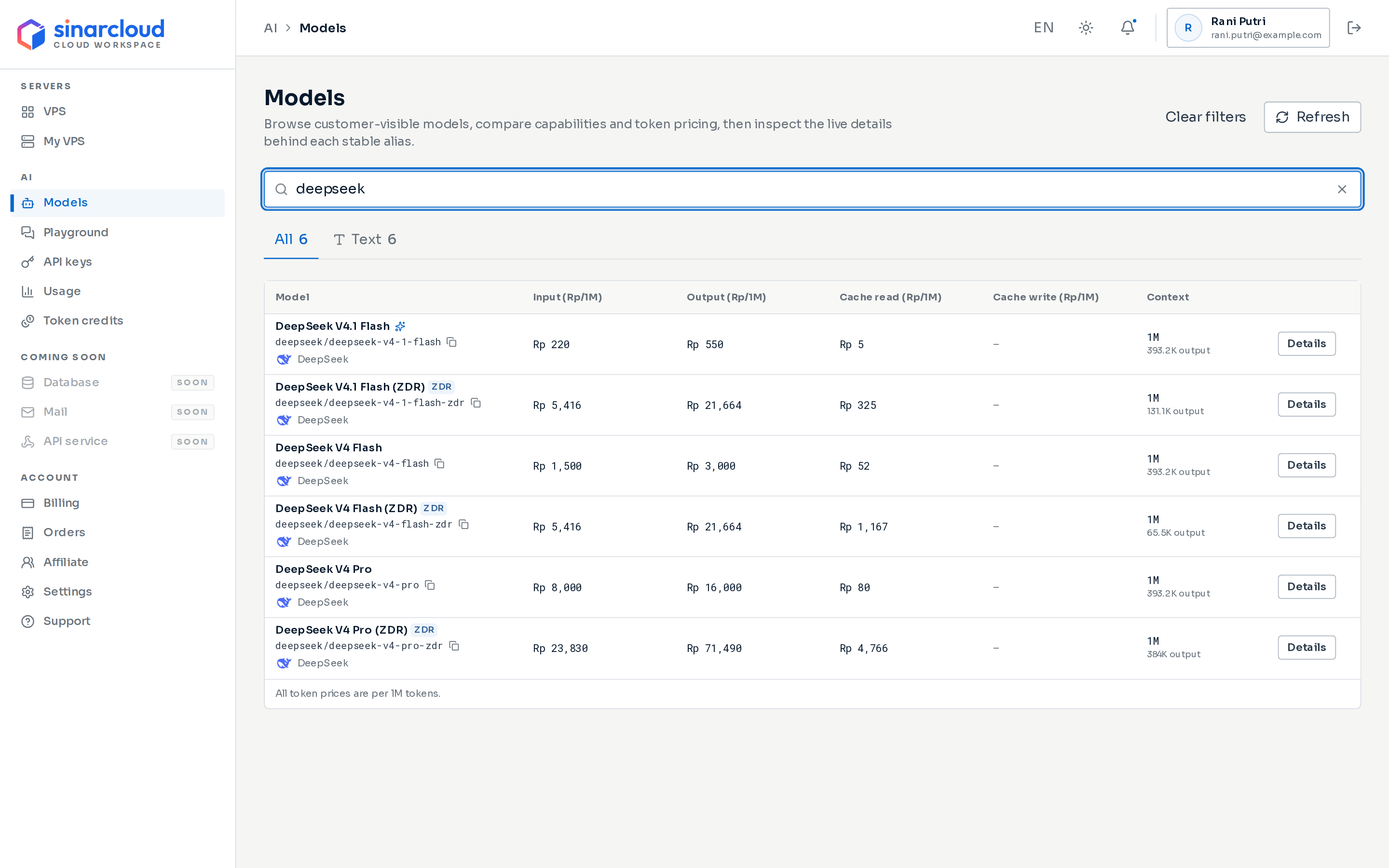
The Models page with the search box, mode buttons, and the model table
Read the model table
The table lists every matching model on one page.
At the end of each row, Details opens the model’s details.
All prices are per 1M (one million) tokens. The console rounds prices for display, but charges use the exact price.
The Model column can also show these tags:
- Popular (sparkle icon): a model SinarCloud features.
- Free and New: labels that highlight a model. They don’t change its price.
- ZDR: a zero data retention version. See Zero data retention models.
- A discount such as 20% off: a promotion applies to your account. Hover over the tag to see the promotion’s name.
- A signup offer such as 50% off for new signups, below the publisher: see Promotions and signup offers.
Model status
The table doesn’t show a model’s status. Open the model’s details to see it next to the publisher.
Retired models no longer appear on the page.
Zero data retention models
Some models also come in a zero data retention (ZDR) version. With a ZDR version, your prompts and responses aren’t kept after your request is complete. Other models use standard data handling, where prompts and responses may be retained for logging only. A ZDR version is a model of its own:- Its name ends in (ZDR), its alias ends in
-zdr, and it has the ZDR tag in the table and in its details. - It has its own price, which can be higher than the standard version’s.
- Its context window and maximum output can be smaller than the standard version’s.
zdr. To use one, send its alias in the model field, as with any other model.
Capabilities
Capabilities describe what a model can do. SinarCloud checks each request against them, so pick a model that lists every feature you use. A model’s details list its capabilities on the Overview tab, under Model capabilities.All capabilities and what they mean
All capabilities and what they mean
View model details
Click Details at the end of a row.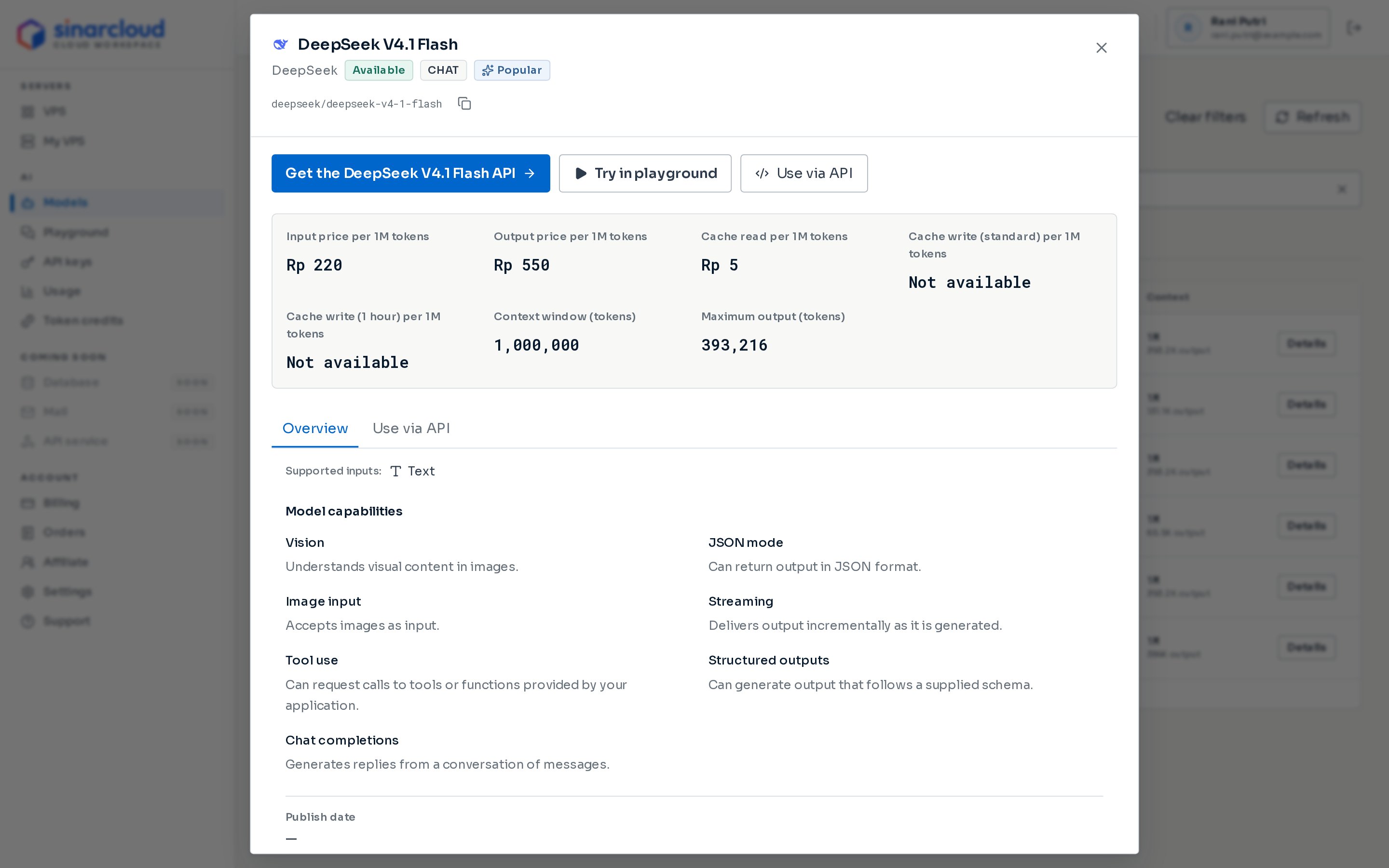
A model's details with prices, limits, and capabilities
- The model’s publisher, status, mode, and tags, and its alias with a copy icon (Copy model ID).
- A Get the model name API button, which opens API keys.
- Try in playground, which opens the Playground with this model selected. It works only for models that can take requests, support chat completions, and accept text. Otherwise, it’s disabled and the dialog says This model is not available in the chat playground.
- A Use via API button, which jumps to the Use via API tab.
- Every price and limit: input, output, cache read, both cache write prices, context window, and maximum output. A price the model doesn’t offer shows Not available.
- Any signup offer or promotion for the model.
YOUR_API_KEY with your key.
Samples call the first endpoint the model supports: chat completions, then Responses, completions, and embeddings. A model that supports none of these has no samples. The OpenCode and OpenClaw setups need Chat completions or Responses, and the Hermes setup needs Chat completions. If the model doesn’t list both Streaming and Tool use, the agent setups warn that agent workflows may not work.
Use the model alias in requests
The alias is the value you send in themodel field. Aliases are lowercase and can contain slashes, so copy the alias and use it exactly as shown. To copy it, click the copy icon next to the alias, in the table or in the model’s details.
The base URL is https://ai.sinarcloud.com/v1. Set your API key as an environment variable, then replace deepseek/deepseek-v4-1-flash with the alias you copied:
/chat/completions, Responses for /responses, Completions for /completions, and Embeddings for /embeddings. If the model doesn’t support the endpoint or a feature you use, or the alias is unknown, the request fails. See Send requests for every check and error.
Only these endpoints run models today. Models in other modes, such as image generation, can appear in the list but can’t be called yet. To list the models you can call, send
GET /models with your API key.Promotions and signup offers
When a discount applies, the price columns show the regular price crossed out and the discounted price below it.- Promotion: a discount for your account, for example from a coupon you redeemed or a signup offer you received. If more than one promotion applies, you get the largest discount.
- Signup offer: a discount new accounts get automatically when they sign up while the offer runs. Its price has the caption New signup price. Hover over the offer label to see the spots remaining and the end date (UTC).
How a price becomes a charge
The price in effect when a request starts applies to the whole request, and so does the promotion chosen at that moment.5m cache duration, or Cache write (1 hour) for 1h. A request is rejected if it uses a cache duration whose price shows Not available, or if it mixes both durations. If the model has no cache read price, cached input tokens are charged at the input price.
For example, a model costs Rp 15,000 per 1M input tokens and Rp 60,000 per 1M output tokens. A request with 2,000 input tokens and 500 output tokens costs Rp 30 for input and Rp 30 for output, so Rp 60 in total. Charges aren’t rounded to whole rupiah, so a small request can cost a fraction of a rupiah. Every request that costs something has a full price of at least Rp 0.6, though: if its tokens cost less, its full price is Rp 0.6. Requests on a free model, and requests that use no tokens, stay free. For more worked examples, including cache reads and writes, see How tokens are counted.
Token credits for the model pay first. A promotion then discounts what’s left, and your balance pays the rest. Under a 100% promotion, the request is free and your token credits aren’t used. If a promotion’s budget runs low, the discount can be smaller than its percentage, and token credits or your balance pay the difference.
A request starts only if your balance is above zero, you have token credits for the model, or the request costs nothing. Otherwise, you get a 402 error with the code insufficient_balance. The charge is taken when the request finishes, even if your balance goes below zero, and your next top-up covers that first. See each charge in Usage and spending.
When a price changes
Model prices can change, but a request that has already started keeps its price. Before some price increases, SinarCloud emails the account’s owners, usually about a week ahead, if your account used the model in the last 30 days. The subject reads “model costs more from date”. The email lists the current and new prices per 1M input and output tokens and the date the new price applies. Requests before then keep the current price. Not every price increase comes with this email, so check the Models page before you rely on a price. See When a model’s price changes.Create an API key
Create the key your requests use.
Send requests
Call the API with an OpenAI-compatible client.