

How it works
- You share your referral link with someone new to SinarCloud.
- Your friend opens the link, signs up, and makes a first paid top-up of at least the minimum amount in the offer.
- SinarCloud reviews the payment, then adds a reward to your balance and to your friend’s balance.
Get your referral link
If the page shows New referrals are currently paused, the offer and your link are hidden. See When new referrals are paused.
1
Open the Affiliate page
In the console sidebar, under Account, click Affiliate.
2
Review the offer
The offer card shows what you and your friend each get and the minimum first paid top-up your friend must make. The How it works panel next to it shows the reward limit and the program terms.
3
Copy your link
Click Copy referral link below the Your referral link field. If copying fails, click the field to select the link and copy it yourself.
How your friend signs up
Opening your link saves your referral code in your friend’s browser. Your friend then signs up with Continue with Google in that same browser. They can do it right away on the sign-up page your link opens, or later from any SinarCloud sign-in or sign-up screen in that browser. That includes the Sign up to deploy your VPS dialog, which opens when they configure a server from See VPS pricing and click Sign in to deploy. For that flow, see Create a VPS. The saved code doesn’t expire. It stays in that browser until a sign-in completes there. If your friend opened another valid referral link in that browser first, the earlier link is used. Signing up in a different browser or on another device doesn’t carry your referral.Who counts as a referral
A sign-up is recorded as your referral only when all of these are true:- Your friend creates a new SinarCloud account after opening your link. If your friend already has a SinarCloud account, no referral is recorded.
- New referrals aren’t paused when your friend signs up.
- Your account is in good standing (not disabled).
When a referral qualifies
A referral qualifies when SinarCloud verifies that your friend’s first paid top-up meets these conditions:- It’s at least the minimum top-up in the offer your friend signed up under.
- It was made after your friend signed up.
- It’s an actual payment. Balance from a coupon or another promotion doesn’t count.
Verification isn’t automatic. After your friend pays, the referral keeps showing Pending payment until SinarCloud reviews the payment. If you have a question about a pending referral, contact support.
How rewards are paid
When SinarCloud verifies the payment, it adds both rewards at the same time: your reward to your balance and your friend’s reward to theirs. Each reward appears on the Billing page, on the Transactions tab, as Referral reward. The Affiliate page calls these rewards “API credits”. Its terms say: “Credits are for API usage and cannot be withdrawn or transferred.”Rejected and reversed rewards
SinarCloud can reject a referral before the reward is paid. The referral then shows Rejected, and neither of you gets a reward. SinarCloud can also reverse a reward after it’s paid. A reversal takes back both rewards: yours from your balance and your friend’s from theirs. It appears on the Transactions tab as Referral reward reversed, and the referral shows Reversed. Reversed referrals don’t count toward Rewarded referrals or Credits earned. If you have a question about a rejected or reversed referral, contact support.Track your referrals
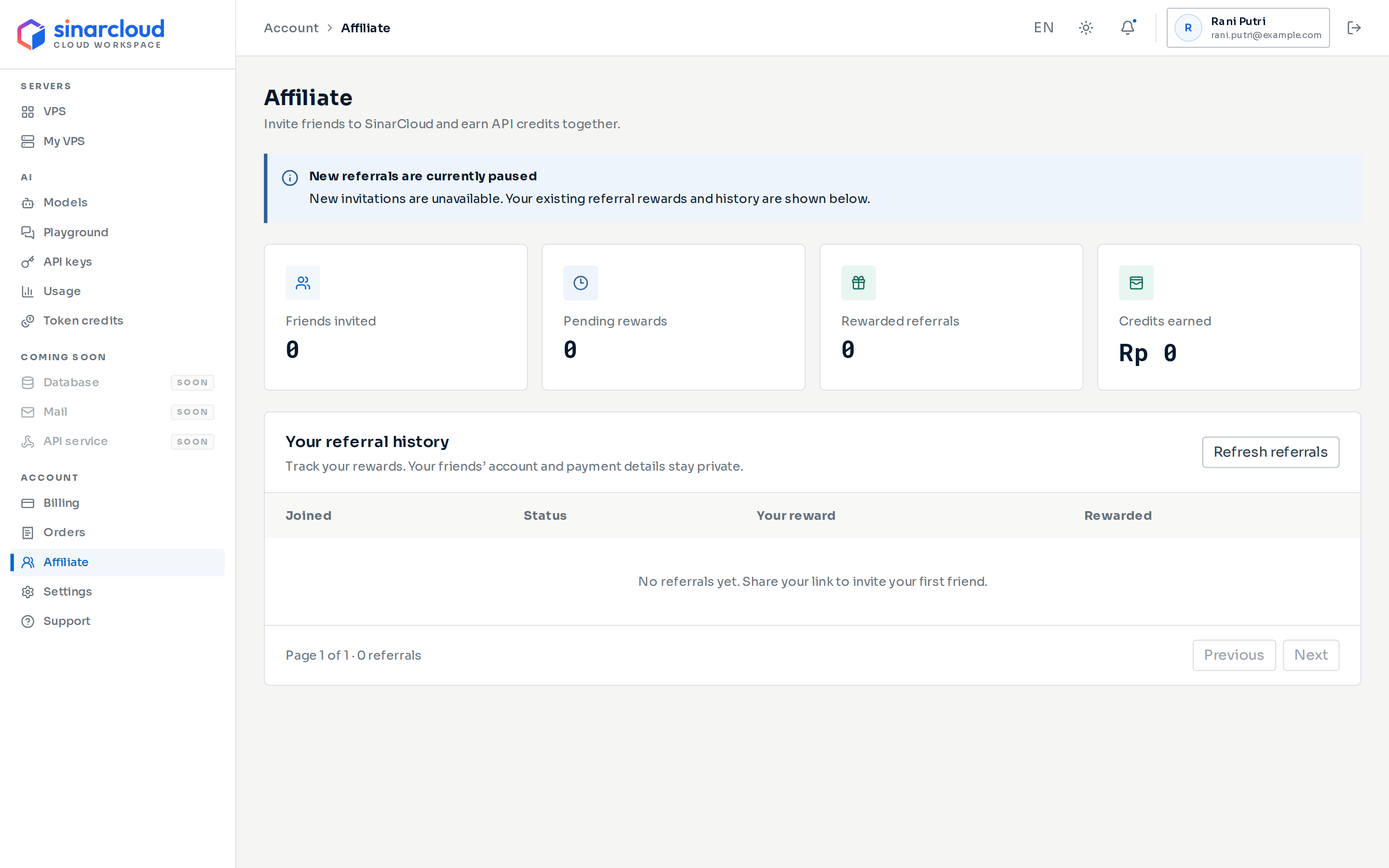
The Affiliate page while new referrals are paused
Your referral history lists your referrals, newest first, 20 per page. Each row shows when your friend Joined, the Status, Your reward, and the payout date under Rewarded. Use Previous and Next to move between pages. Your friends’ account and payment details aren’t shown.
The page refreshes itself every 30 seconds. To update it immediately, click Refresh referrals. If the page shows Unable to load referrals. or the history can’t load, click Refresh referrals to try again.