

Before you start
- Your server shows the Running status.
- You saved the generated password when you created the server, or your server signs in with an SSH key.
- For a Linux server, you have an SSH client. macOS and Linux include
ssh. On Windows, PowerShell includes the OpenSSH client. - For a Windows server, you have a Remote Desktop app, such as Remote Desktop Connection on Windows or Windows App on macOS.
Save the generated password
When you create a server, SinarCloud generates a password for its login user. After you confirm the order, the provisioning page shows a Connect to your server card with the server’s public address, Username, Generated password and SSH command (on Windows servers, a Remote Desktop row with the address and user to connect to). The password appears as soon as deployment starts, so you can save it while the server is still being built. The address fills in once the server is online.1
Copy the password
In the Generated password row, click Reveal to see the password, or click Copy to copy it. Store it in a password manager.
2
Confirm that you saved it
Select I’ve saved this password.
3
Open the server
When the page shows Your VPS is ready, click Go to instance.
Find your connection details
In the console sidebar, click My VPS under Servers, click your server, then click the Access tab. The Connect card on the Overview tab (called Remote Desktop on Windows servers) shows the same command or address, with your username and sign-in method. Its Access details link opens the Access tab.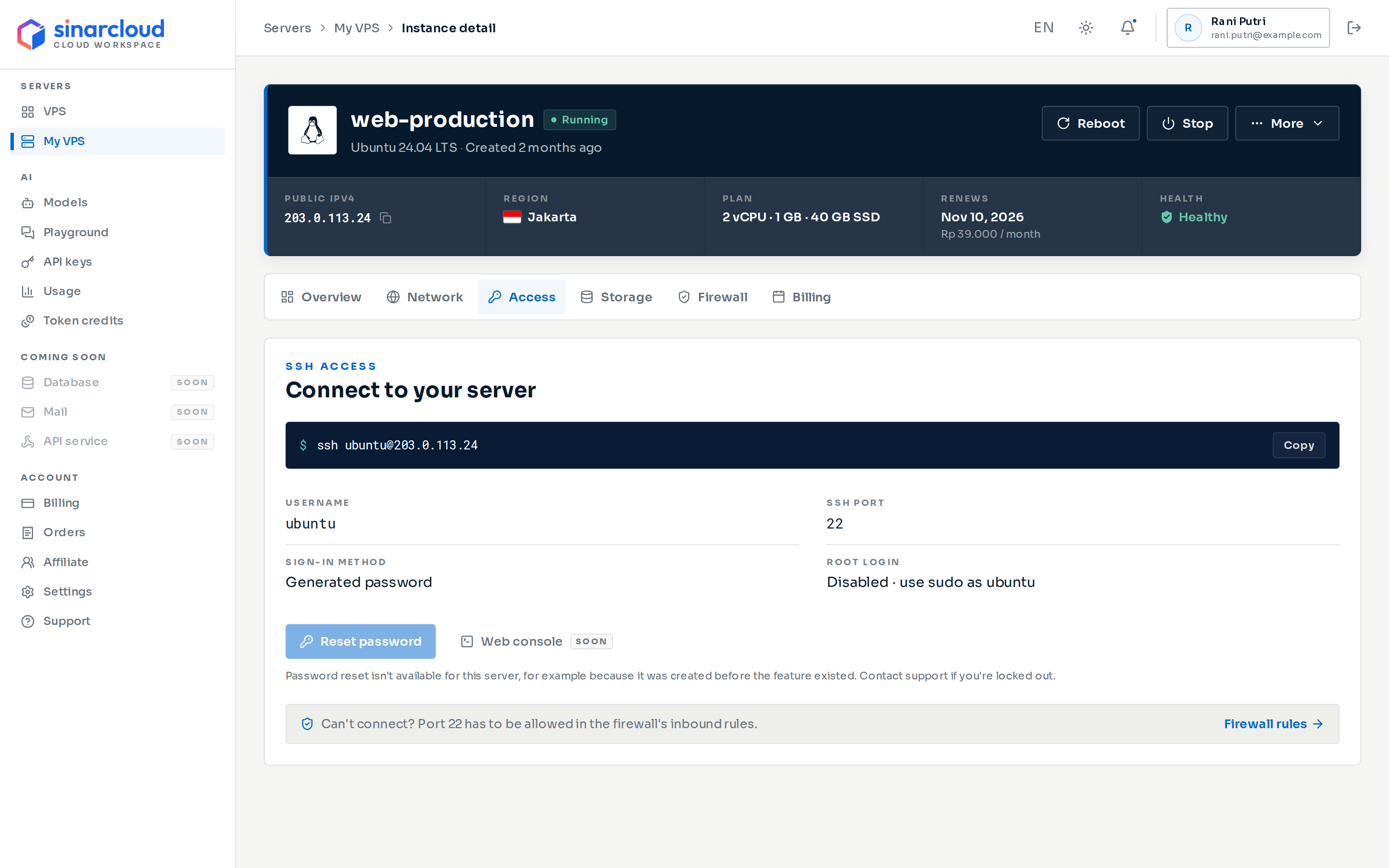
Access tab of a Linux server using a generated password
- The SSH command, in the form
ssh USERNAME@PUBLIC_IP. Click Copy to copy it. Until the server has an address, the box reads “The address appears once the server is online.” - Username: the user you log in as. It depends on the image, for example
ubuntu,adminorroot. - SSH Port:
22. - Sign-in method: Generated password or SSH key.
- Root Login: Enabled when the username is
root. Otherwise it shows Disabled and reminds you to usesudoas the login user.
Connect to a Linux server
Copy the command from the Access tab and run it in your terminal:yes to continue. When SSH asks for a password, paste the generated password and press Enter. Nothing appears on screen while you paste.
Servers that sign in with an SSH key
New servers always use a generated password. If your server was created with an SSH key, Sign-in method shows SSH key and the server has no password. Run the command with the matching private key. If the key isn’t in the default location, point to it with-i:
~/.ssh/my-sinarcloud-key with the path to your private key.
Log in with your own SSH key
After your first login with the password, you can add your own SSH public key to the server. On macOS or Linux, run this on your own computer and enter the password when asked:~/.ssh/id_ed25519.pub, as a new line in ~/.ssh/authorized_keys of the login user on the server. After that, ssh logs you in with your key instead of the password.
Connect to a Windows server
Windows servers sign in with Remote Desktop (RDP). Their Access tab shows a Remote Desktop section with the server’s address, the Username (usuallyAdministrator) and RDP Port 3389.
1
Allow Remote Desktop in the firewall
New servers allow inbound traffic only on TCP port
22. On the Firewall tab, add an inbound rule that allows TCP port 3389, preferably only from your own IP address. See Configure the firewall.2
Copy the address
On the Access tab, click Copy next to the address.
3
Connect
Open your Remote Desktop app and connect to the address. Sign in as the Username from the Access tab with the generated password.
Servers with only an IPv6 address
Some plans give a server a public IPv6 address and no public IPv4 address. For these servers, the page header shows Public IPv6 instead of Public IPv4, and the SSH command uses the IPv6 address.- You can reach the server only from a network that has IPv6. Check yours at test-ipv6.com.
- If
sshfails with “Unknown error” on Windows or “Network is unreachable” on macOS and Linux, your network has no IPv6. Connect through your phone’s hotspot, turn on Cloudflare WARP, or use a server with a public IPv4 address. - For
scp,sftporrsync, put the address in square brackets, for exampleubuntu@[2001:db8::10]. - On a Windows server, the Remote Desktop card on the Overview tab doesn’t show the IPv6 address. Copy it from the Access tab.
- Password reset isn’t available for IPv6-only servers yet, so keep the generated password safe.
Reset a lost password
If you lose the generated password, reset it from the console. The server must be Running, and it must support password reset. Not every server does; the note on the Access tab tells you.1
Open the reset dialog
On the Access tab, click Reset password. You can also click Reset password in the Connect card on the Overview tab.
2
Confirm the reset
The dialog shows the Instance and its Login user. Click Reset password. The current password stops working once the change is applied. SSH sessions that are already open stay connected.
3
Wait for the server
The change can take up to a minute. Keep the dialog open until the new password appears.
4
Save the new password
The console shows the new password only once. Click Reveal or Copy, store the password in a password manager, then click I’ve saved it.
A new server needs about 5 minutes after it first starts before it can take a password change. During that time, the dialog shows Password reset opens in with a countdown, and its Reset password button stays disabled until the countdown ends. The password from when you created the server still works meanwhile.
- The server isn’t running. Start it first. See Manage a VPS.
- The server doesn’t support password reset, for example a Windows server, a server that only has an IPv6 address, a server on infrastructure that doesn’t offer password reset, or a server created before the feature existed. If you’re locked out, contact support from the Support page.
- The server signs in with an SSH key, so it has no password to reset.
If you can’t connect
- Check that the server’s status is Running. If it shows Stopped, click Start at the top of the instance page.
- If Start is unavailable and a notice says the data transfer allowance is used up, the server can’t start until the date in the notice. See Manage a VPS.
- Check that you log in as the Username shown on the Access tab.
- Copy the current command or address from the Access tab. A server may get a new public IP address when you start it after a stop.
- Check the firewall. New servers allow inbound SSH (TCP port
22) from any address. Windows servers also need a rule for TCP port3389. The Access tab links to Firewall rules. See Configure the firewall. - If the server rejects the password, paste it again instead of typing it. If you lost it, reset it.
Next steps
Manage a VPS
Start, stop, reboot or delete your server and check its usage.
Configure the firewall
Control which ports and addresses can reach your server.
Troubleshooting
Fix common connection and account problems.
Get support
Contact the SinarCloud team.