

Before you start
- Create an API key for Cline and choose a model, as described in Before you connect. The base URL is
https://ai.sinarcloud.com/v1. Cline takes these values in its settings, so you don’t need to set theSINARCLOUD_API_KEYenvironment variable. - Choose a model whose Model capabilities list Chat completions, Tool use, and Streaming. Cline streams every reply and gives the model tools to read files, edit code, and run commands.
Install Cline
Ctrl+Shift+X (Cmd+Shift+X on macOS). Search for Cline.In the results, find Cline, published by Cline, and click Install. Other results, such as Cline (Nightly), are different extensions.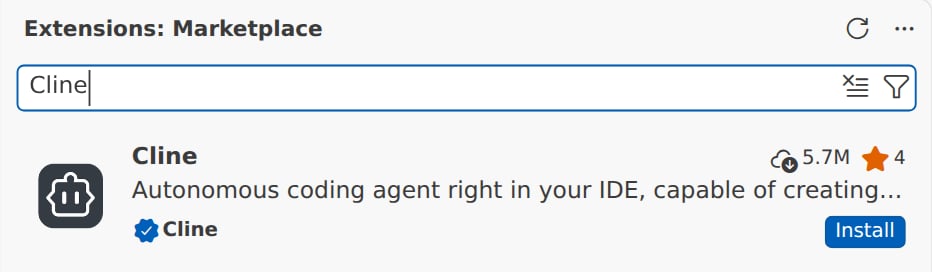
Cline in the Extensions view, ready to install
Open Cline
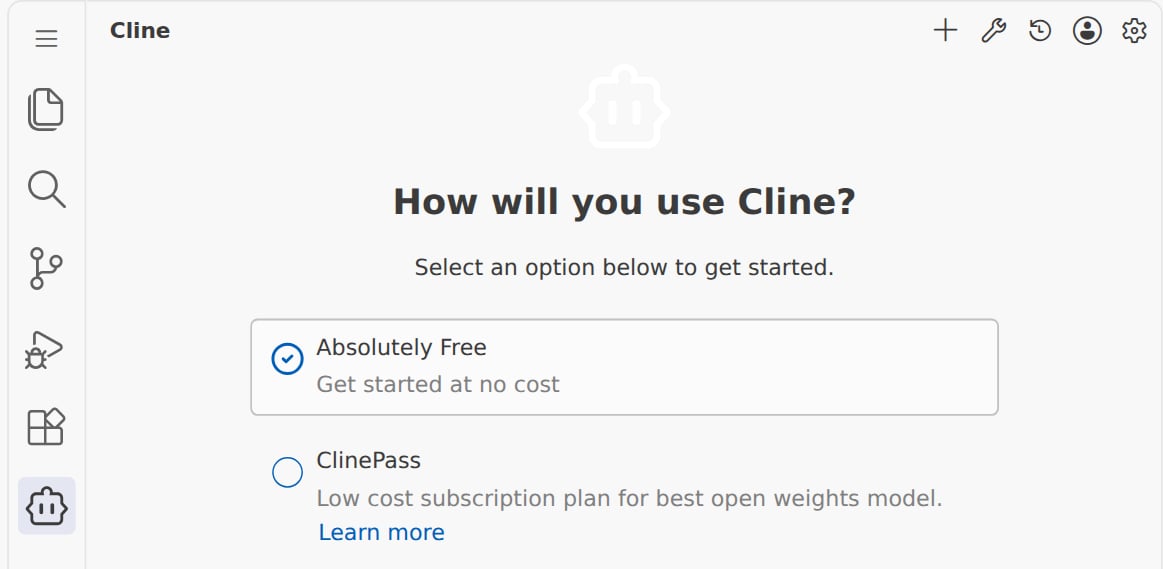
The Cline icon in the Activity Bar, and Cline's first question
Choose Bring my own API key
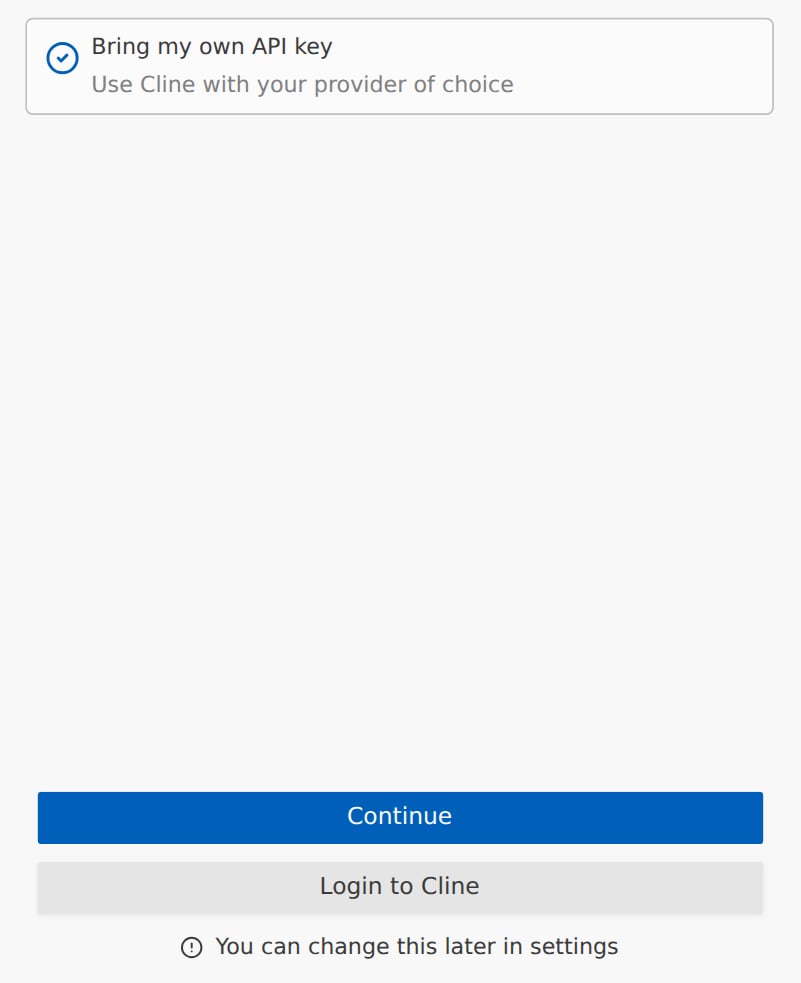
Bring my own API key selected, with Continue at the bottom of the panel
Choose OpenAI Compatible
OpenAI Compatible, then select OpenAI Compatible in the list.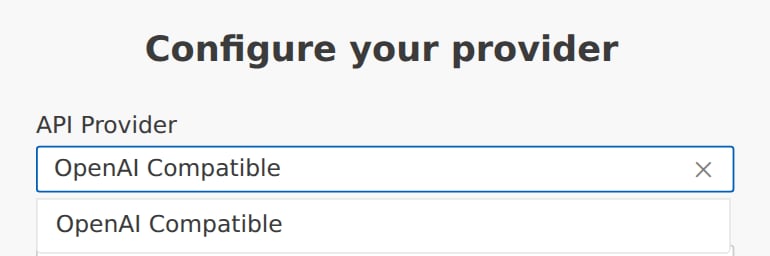
OpenAI Compatible in the API Provider list
Enter the base URL and your API key
- In Base URL, enter
https://ai.sinarcloud.com/v1. - In OpenAI Compatible API Key, paste your API key. Cline shows it as dots.
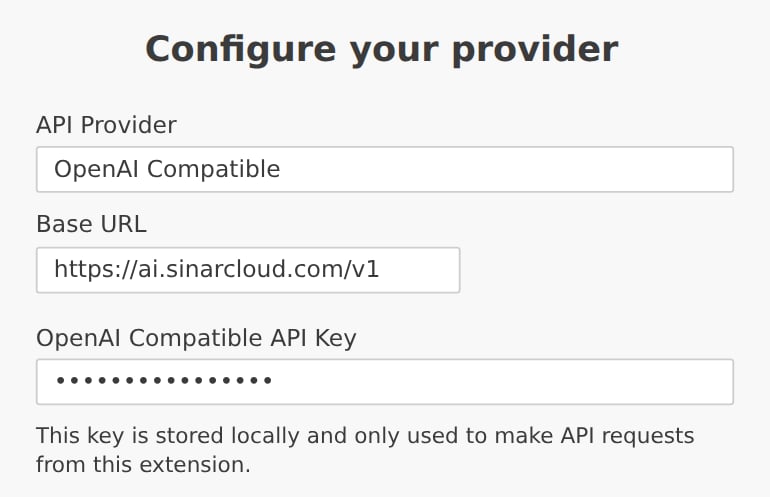
The SinarCloud base URL and your API key
Choose the model
deepseek/deepseek-v4-1-flash.If your model isn’t in the list, choose Use custom model ID… and paste the model alias. If Cline can’t load the list, Model ID stays a text box. Paste the alias there instead.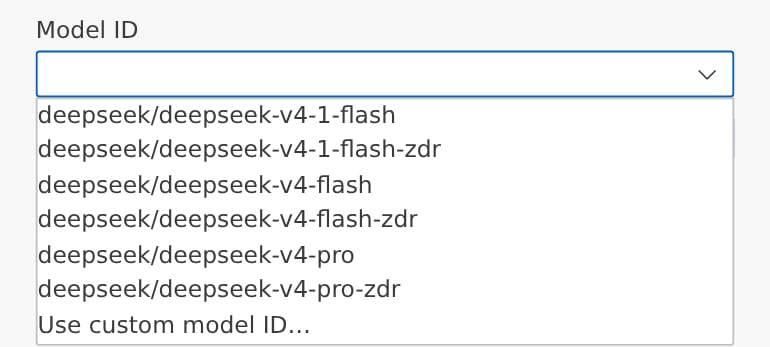
Choose your model in the Model ID list
Enter the model details
- Supports Images: keep it selected only if the model lists Image input or Vision.
- Context Window Size: the model’s Context window (tokens), such as
1000000. - Max Output Tokens: the model’s Maximum output (tokens), such as
393216. Don’t enter a higher number, because SinarCloud refuses requests that ask for more output than the model allows. - Input Price / 1M tokens and Output Price / 1M tokens: leave them at
0. See What works differently.
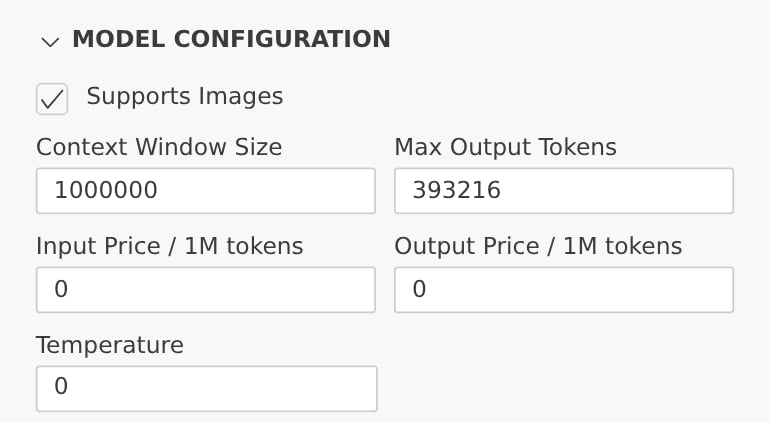
MODEL CONFIGURATION filled in for deepseek/deepseek-v4-1-flash
Save the settings
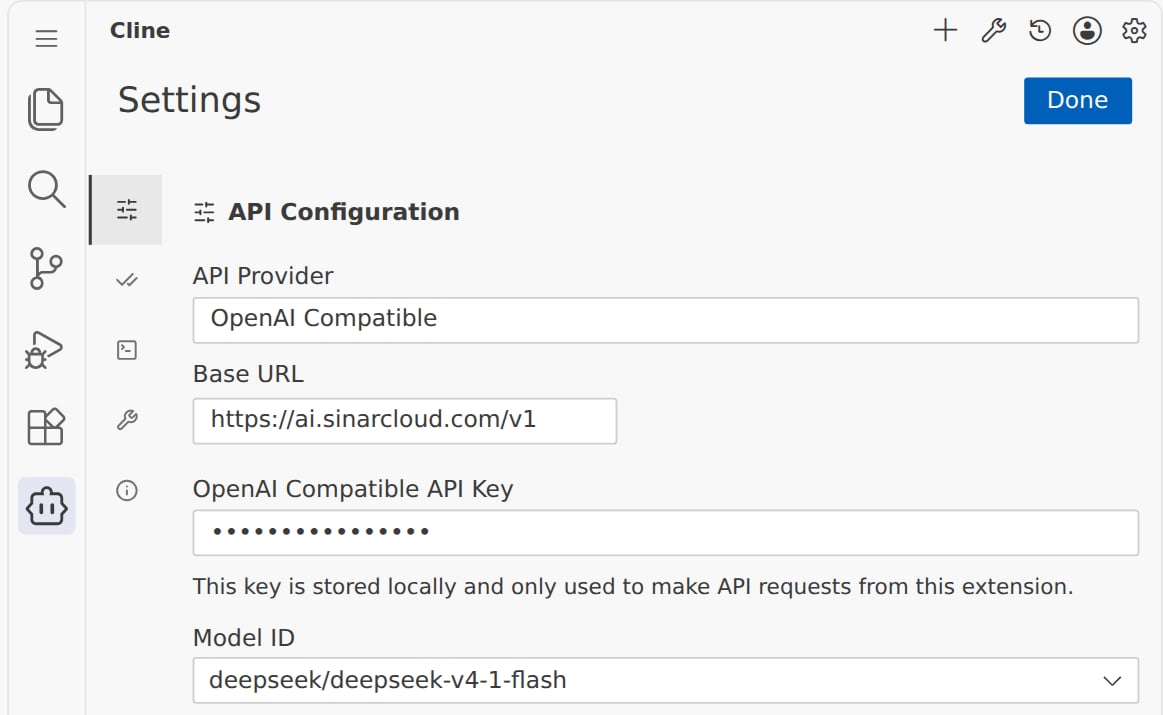
The saved settings on the API Configuration page
Start a task
openai-compat: followed by your model alias. Type a task, such as Add a GET /products/:id route to src/server.js, and press Enter.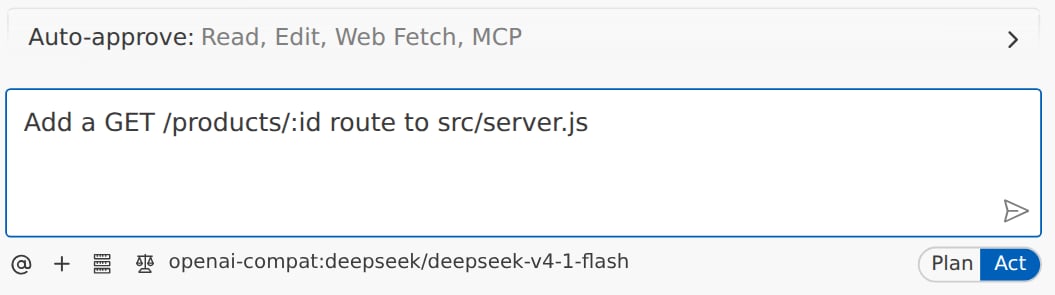
A task ready to send, with the SinarCloud model under the chat box
Find the requests in Usage
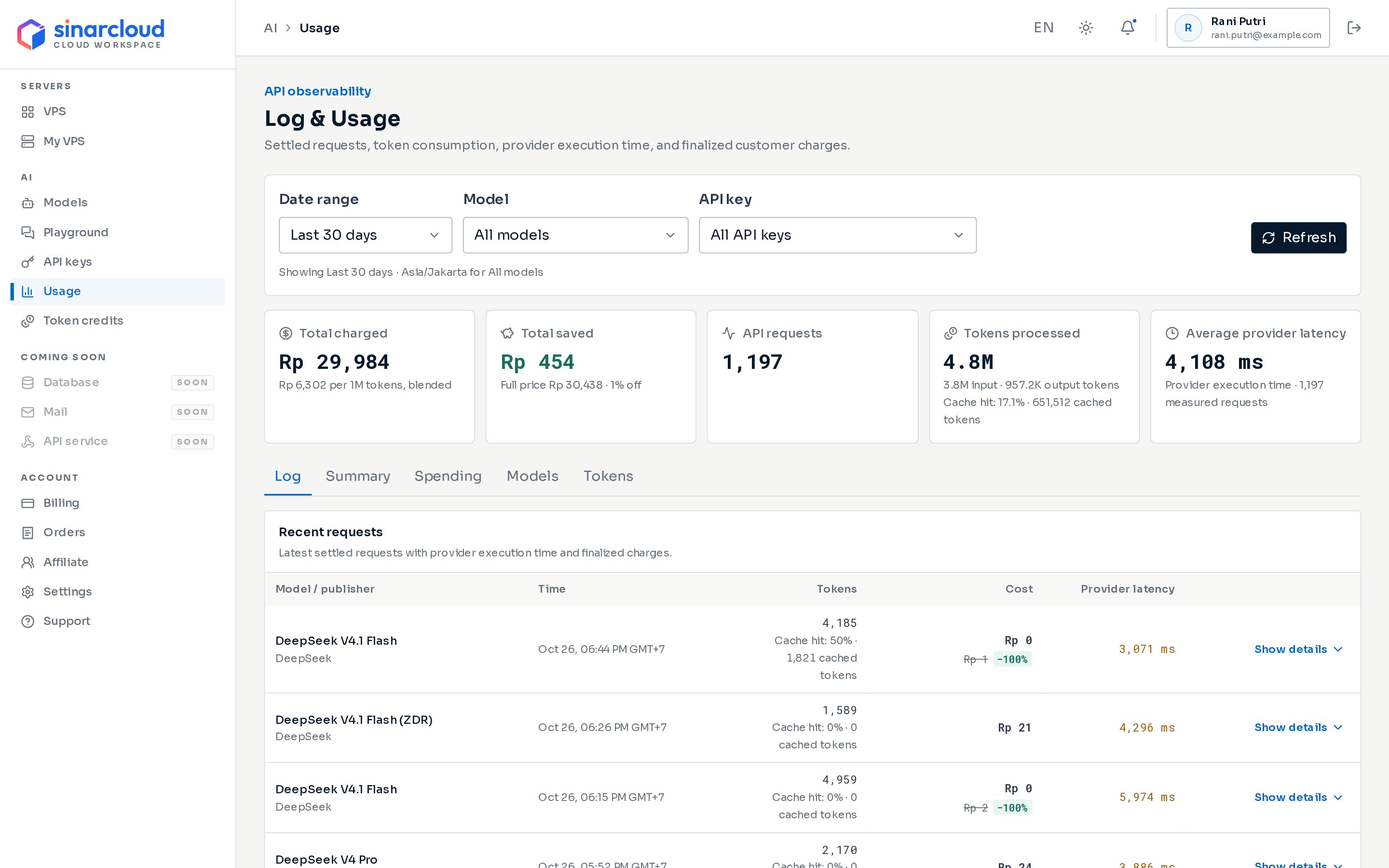
The Usage page, with the API key filter at the top
Settings worth changing
- Model ID: to switch models, choose another alias, then check MODEL CONFIGURATION. When you choose a new model, Cline copies the values from the model you used before. If Max Output Tokens is higher than the new model allows, every request fails until you lower it.
- Max Output Tokens: if you leave it empty, Cline asks for up to 32,000 output tokens per reply. Set it to the model’s Maximum output (tokens) to allow longer replies.
- Context Window Size: Cline shows how much of the context window a task has used at the top of the task.
What works differently
- Cline’s cost estimate isn’t your charge. At the top of a task, Cline shows a cost in US dollars, worked out from the tokens used and the Input Price / 1M tokens and Output Price / 1M tokens you entered. With both at
0, it shows$0.0000. SinarCloud charges your balance in rupiah, so check Usage in the console to see what a task cost. - Prompt caching shows as No. Under ADVANCED, Cline lists Prompt Caching as No for OpenAI Compatible, and there’s no setting to turn it on. Requests work without it.
- Web Search doesn’t apply. Web Search, under Feature Settings in Cline’s settings, is on by default. Cline doesn’t give the model a web search tool through OpenAI Compatible, so you don’t need to turn it off.
- Images need a model with image input. Cline sends images you paste into a message, even when Supports Images is cleared. If the model doesn’t list Image input or Vision, SinarCloud refuses the request.
Troubleshooting
Cline shows errors from SinarCloud in the task, followed by the request ID and the Retry and Start New Task buttons. Include the request ID if you contact support.Provider "openai-compatible" rejected the configured credentials.
Provider "openai-compatible" rejected the configured credentials.
Provider response: Invalid API key. The key in OpenAI Compatible API Key is missing, mistyped, expired, or revoked. Open Settings, paste your whole key again, click Done, and send your task again. If the key has expired or been revoked, create a new one.The requested model does not exist or is not available for this endpoint.
The requested model does not exist or is not available for this endpoint.
https://ai.sinarcloud.com/v1. Then check that the model’s Model capabilities list Chat completions.The output-token limit exceeds the model's allowed range.
The output-token limit exceeds the model's allowed range.
The requested model does not support image input.
The requested model does not support image input.
Your balance is empty or negative and no token credits remain for this model.
Your balance is empty or negative and no token credits remain for this model.
402 and this message when your balance is Rp 0 or below and you have no token credits for the model. Add balance, then send your task again.