Kilo Code is an open source AI coding agent for Visual Studio Code. It can send its requests to any OpenAI-compatible API. Connect it to SinarCloud in its settings, and Kilo Code runs on SinarCloud models such as deepseek/deepseek-v4-1-flash, charged to your balance. You don’t need a Kilo account. This guide was last checked with Kilo Code 7.8.18.

Before you start

  • Get an API key and a model alias as described in Before you connect. The base URL is https://ai.sinarcloud.com/v1. Kilo Code takes these values in its settings, so you don’t need to set environment variables.
  • Choose a model whose Model capabilities list Chat completions, Tool use, and Streaming. This guide uses deepseek/deepseek-v4-1-flash.
1

Install Kilo Code

In VS Code, open the Extensions view: click Extensions in the Activity Bar, or press Ctrl+Shift+X (Cmd+Shift+X on macOS). Search for Kilo Code.In the results, find Kilo Code: AI Coding Agent, Copilot, and Autocomplete, published by Kilo Code, and click Install.
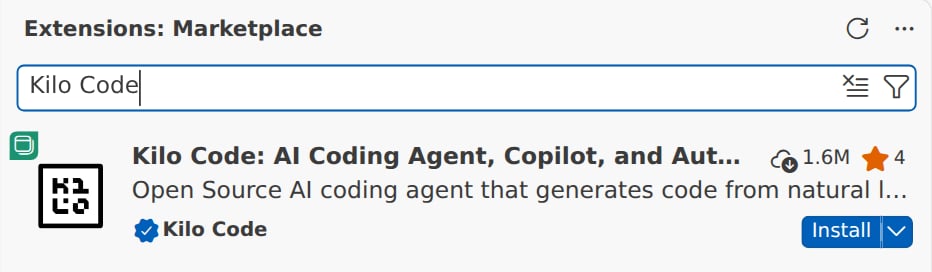
The Extensions: Marketplace view in VS Code with Kilo Code typed in the search box. The first result is Kilo Code: AI Coding Agent, Copilot, and Autocomplete, published by Kilo Code with a verified badge, with an Install button.

Kilo Code in the Extensions view, ready to install

2

Open Kilo Code

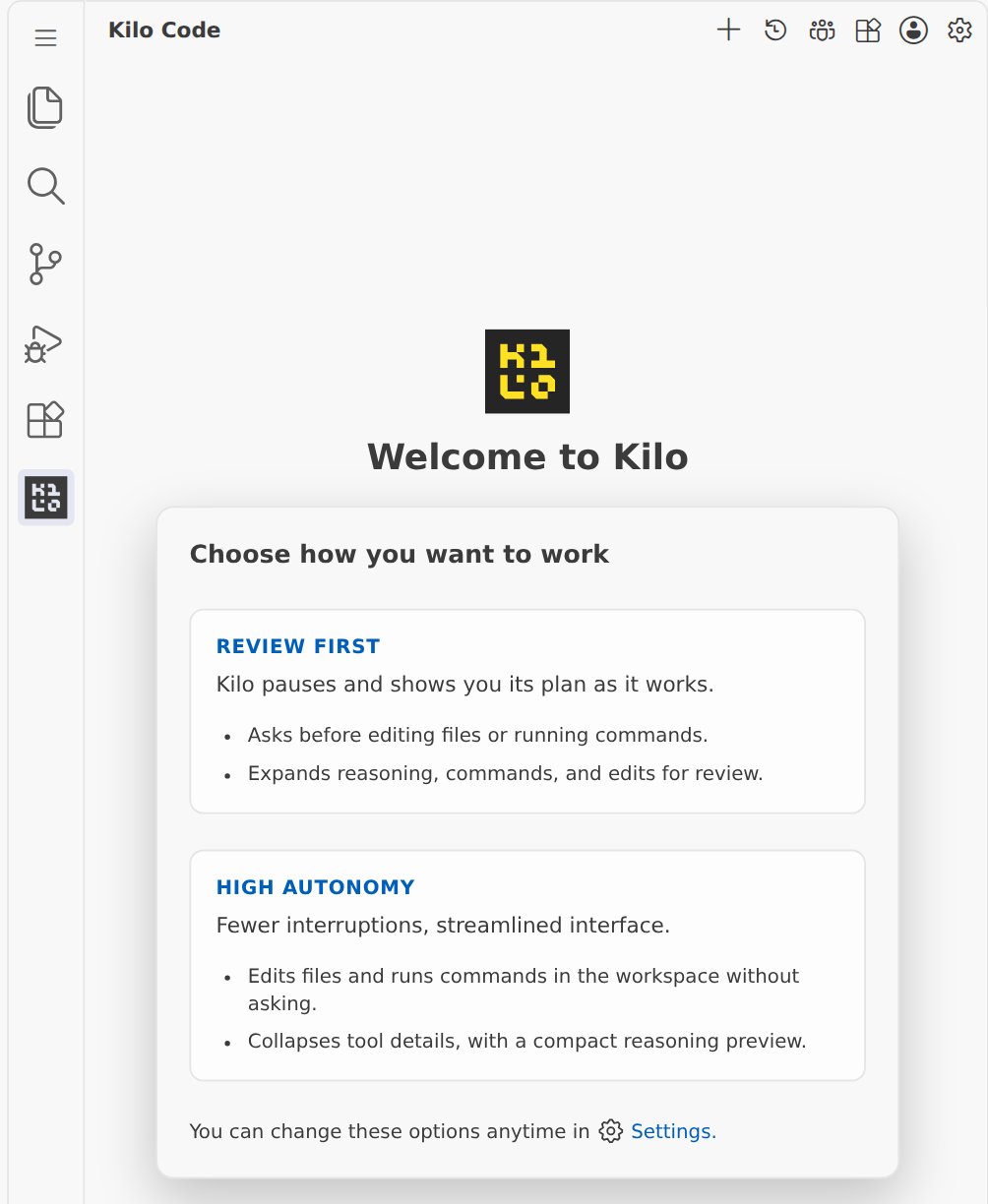
In the Activity Bar, click Kilo Code. The first time you open it, Kilo Code shows Welcome to Kilo and asks you to Choose how you want to work. Pick Review first or High autonomy. You can change this later in the settings.
VS Code with the Kilo Code icon selected in the Activity Bar. The Kilo Code panel, with its toolbar icons ending in the Settings gear, says Welcome to Kilo and asks you to Choose how you want to work, with the Review first and High autonomy options and a link to Settings.

Kilo Code asks how you want to work

3

Open Kilo Settings

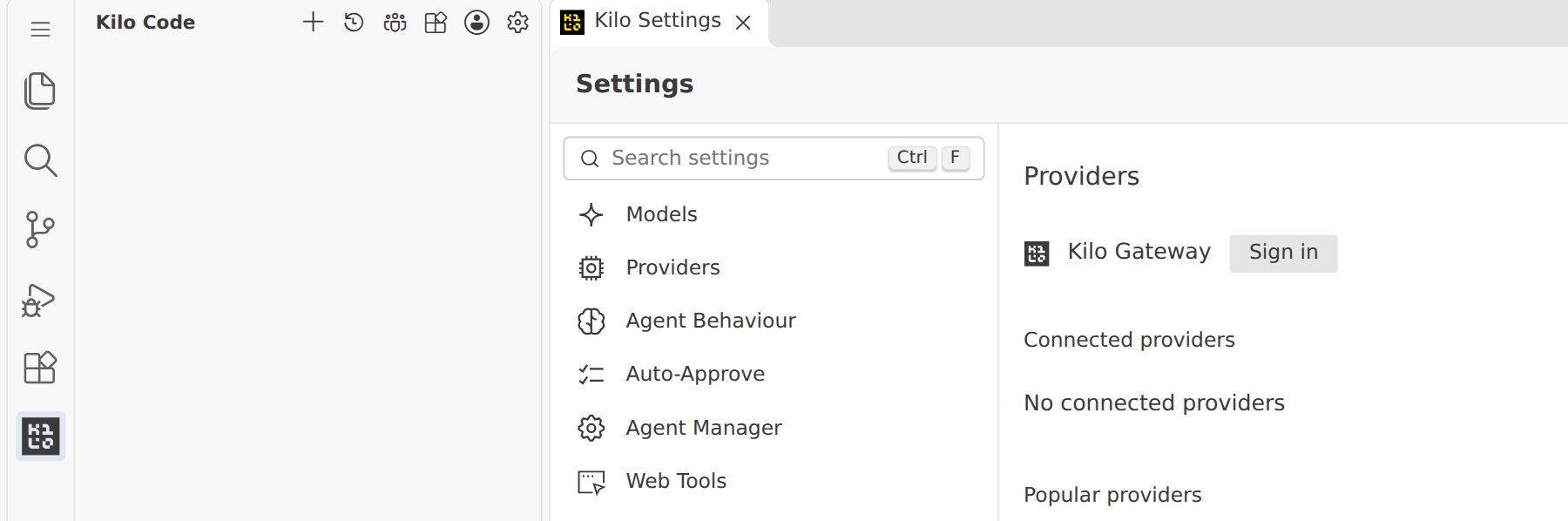
At the top of the Kilo Code panel, click the gear icon (Settings). The Kilo Settings tab opens. Click Providers. You don’t need to sign in to Kilo Gateway.
Kilo Code panel with its toolbar icons, ending in the Settings gear, next to the Kilo Settings tab. The Providers page is open and shows Kilo Gateway with a Sign in button, Connected providers with No connected providers, and the Popular providers heading.

Kilo Settings opens in its own tab

4

Choose Custom provider

Under Popular providers, scroll down to Custom provider, at the end of the list, and click Connect. Use Custom provider, not the DeepSeek entry in the same list.
The Custom provider row, labeled CUSTOM and described as Add a custom provider by base URL, with a Connect button. Below it is Show more providers.

Custom provider, at the end of the Popular providers list

5

Enter the ID and display name

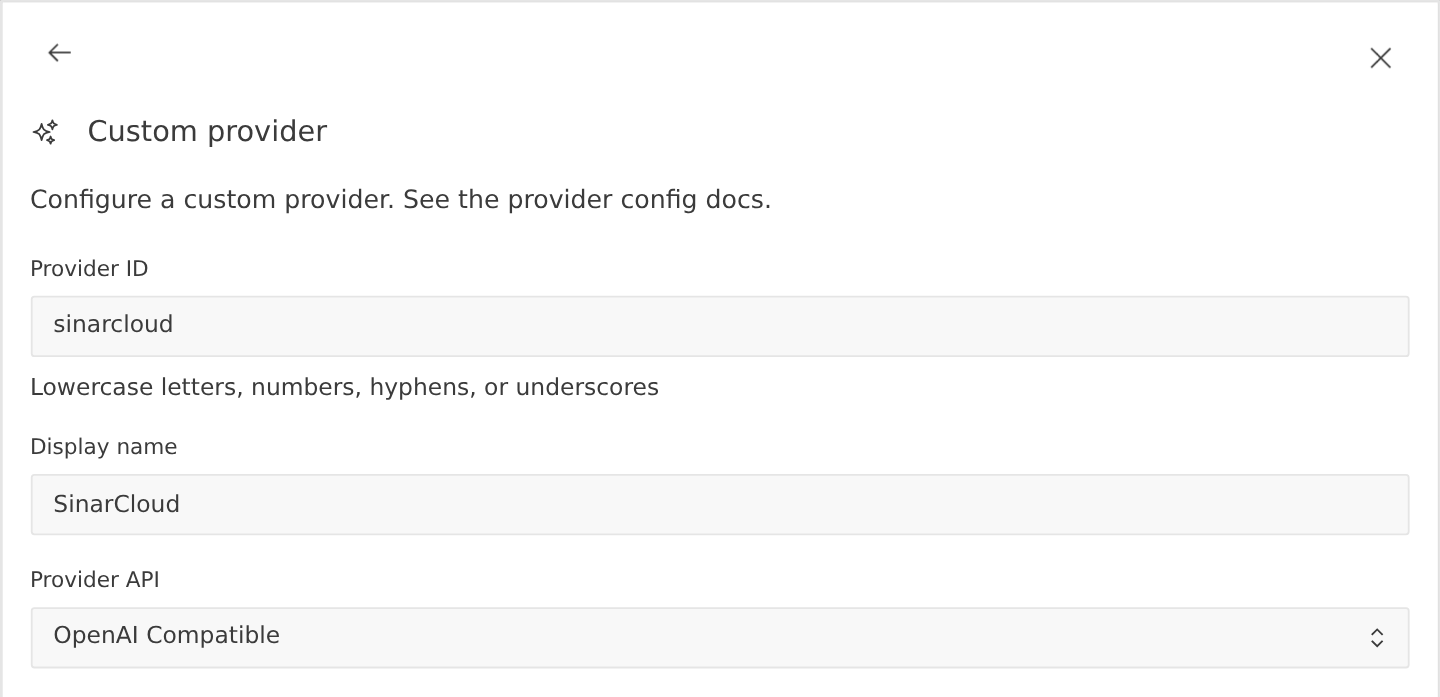
Kilo Code opens the Custom provider form. Fill in the first fields:
  • Provider ID: sinarcloud
  • Display name: SinarCloud
  • Provider API: keep OpenAI Compatible.
The top of the Custom provider form, which says Configure a custom provider. See the provider config docs. Provider ID is set to sinarcloud, Display name to SinarCloud, and Provider API to OpenAI Compatible.

The ID, the display name, and OpenAI Compatible

6

Enter the base URL and your API key

  • Base URL: https://ai.sinarcloud.com/v1
  • API key: your API key. The form says it’s optional, but SinarCloud needs it. Kilo Code shows it as dots.
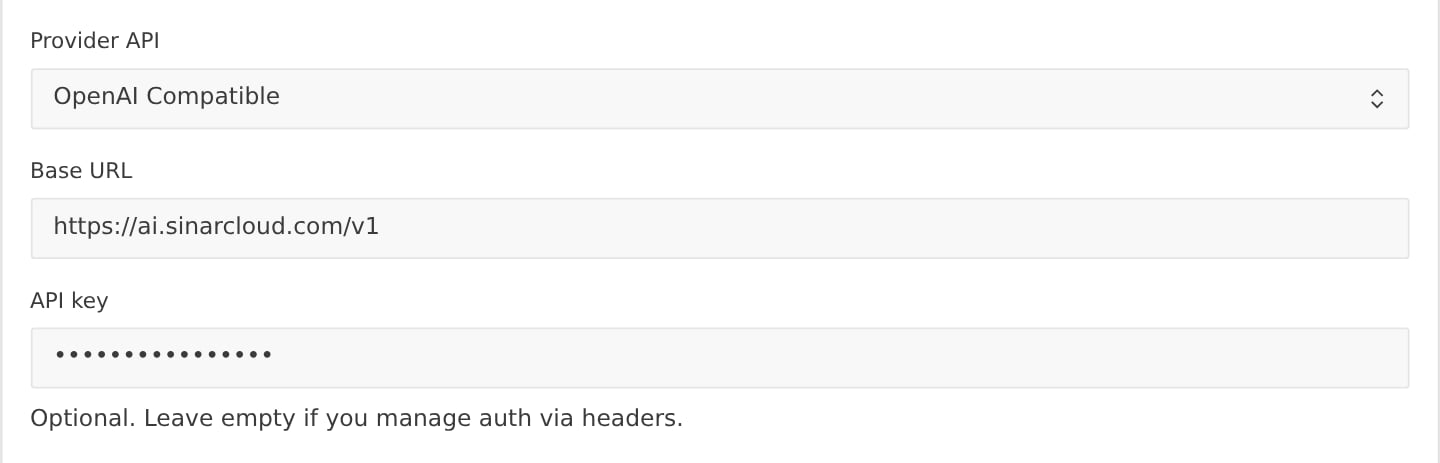
The Custom provider form with Provider API set to OpenAI Compatible, Base URL set to https://ai.sinarcloud.com/v1, and the API key shown as dots, above the note Optional. Leave empty if you manage auth via headers.

The SinarCloud base URL and your API key

Kilo Code saves the base URL and your models in its config file, kilo.jsonc. It stores the API key separately, so the key isn’t in that file.
7

Choose the model

After you fill in Base URL and API key, Kilo Code loads the model list from SinarCloud. It shows how many models it found, with all of them selected. Click Deselect all, select deepseek/deepseek-v4-1-flash, and click Add 1 model(s).The rest of the list stays open. Click Cancel to close it. If the list doesn’t appear, click Fetch models, or type the model alias in ID yourself.
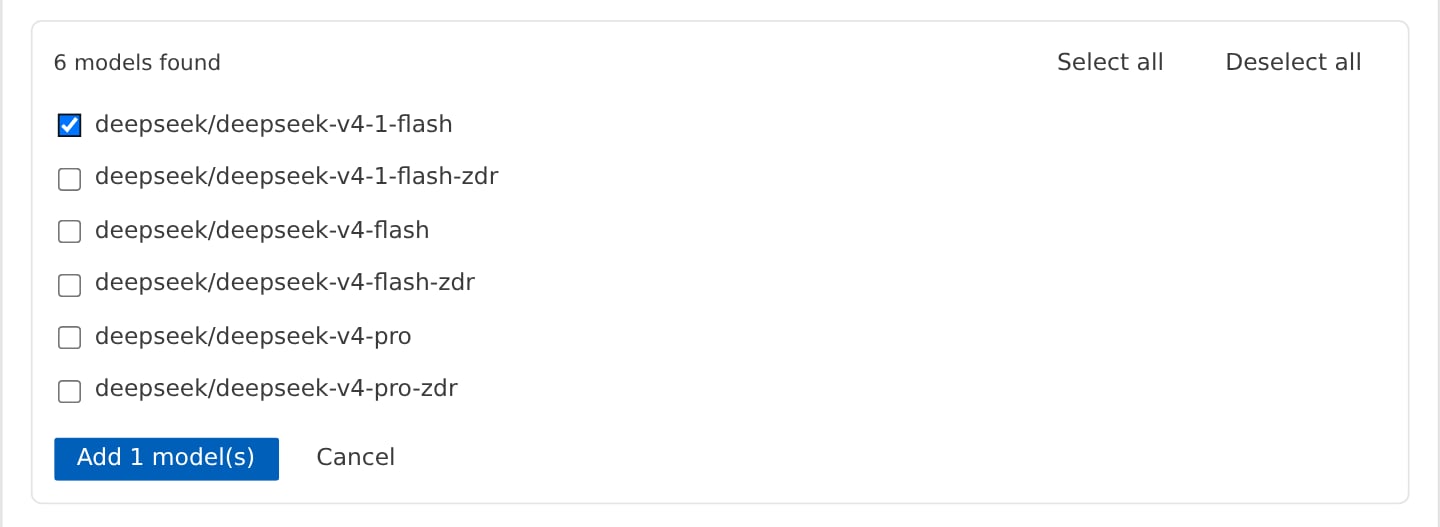
The model list in the Custom provider form: 6 models found, with Select all and Deselect all. deepseek/deepseek-v4-1-flash is ticked, and deepseek/deepseek-v4-1-flash-zdr, deepseek/deepseek-v4-flash, deepseek/deepseek-v4-flash-zdr, deepseek/deepseek-v4-pro and deepseek/deepseek-v4-pro-zdr aren't. Below them are the Add 1 model(s) and Cancel buttons.

Only deepseek/deepseek-v4-1-flash selected

8

Set the model details

The model now has a row with its ID and Name. Kilo Code fills in Name with the model alias. Replace it with the name you want Kilo Code to show, such as DeepSeek V4.1 Flash.Tick Image only if the model’s Model capabilities list Image input or Vision. The form doesn’t ask for the model’s context window. You can add it later, as described in Set the context window.
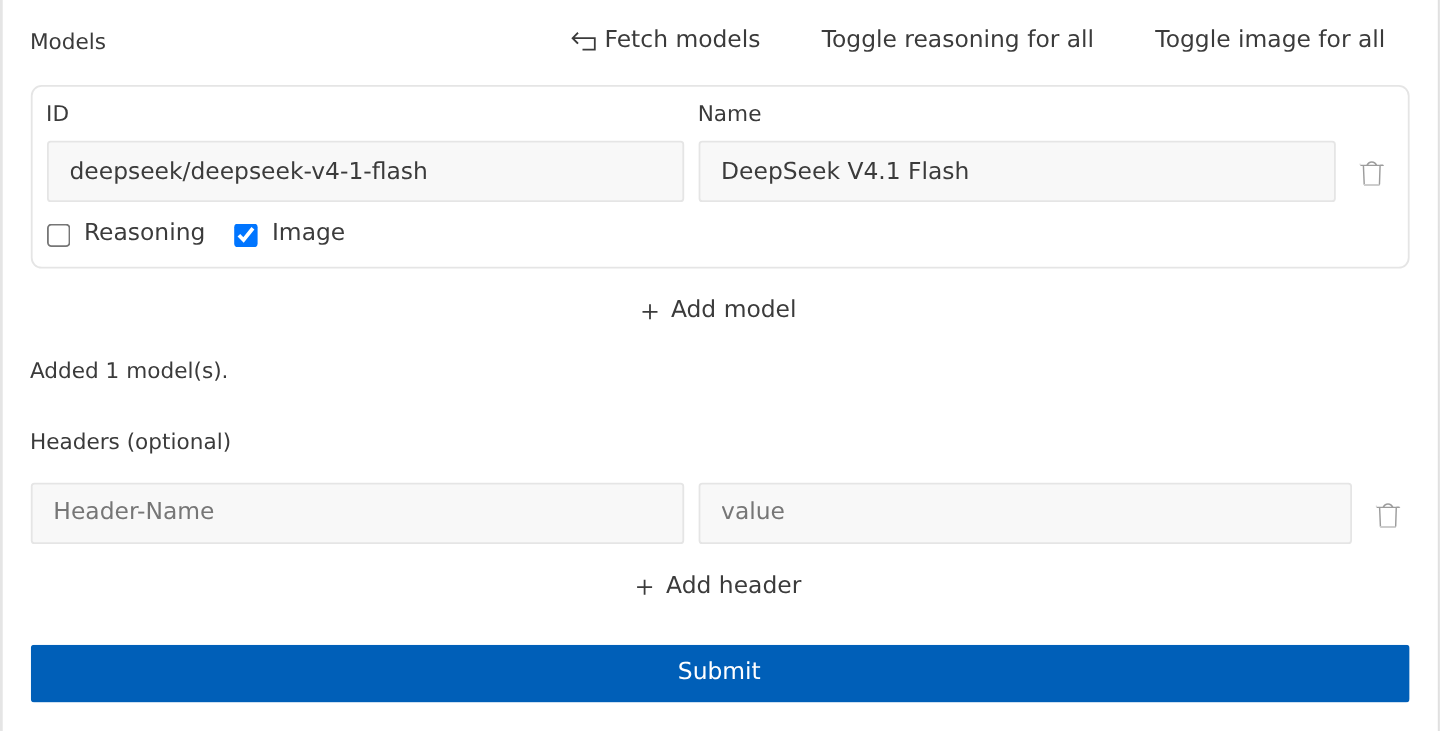
Models section of the Custom provider form with one row: ID deepseek/deepseek-v4-1-flash, Name DeepSeek V4.1 Flash, Reasoning unticked and Image ticked. Below it are Add model, the note Added 1 model(s)., Headers (optional), Add header, and the Submit button.

The model, with Image ticked, above the Submit button

9

Submit the form

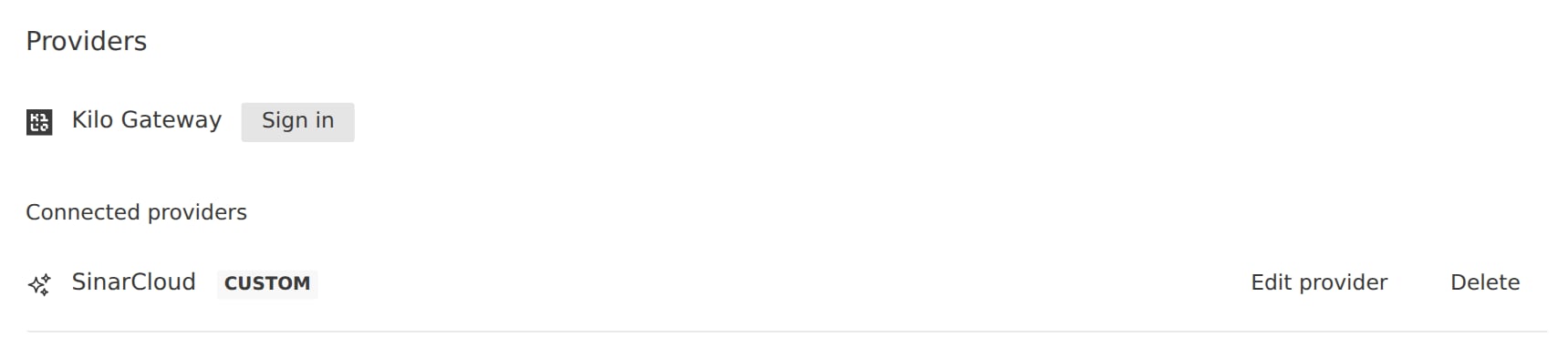
Click Submit. Kilo Code shows SinarCloud connected, and SinarCloud appears under Connected providers.
The Providers page of Kilo Settings with Kilo Gateway and its Sign in button, and under Connected providers, SinarCloud labeled CUSTOM, with Edit provider and Delete.

SinarCloud under Connected providers

To add more models later, click Edit provider next to SinarCloud. Kilo Code loads the model list again, so you can add the models you want and click Submit.
10

Choose the default model

Click Models. Open the list next to Default Model and type SinarCloud in the search box. Select DeepSeek V4.1 Flash, labeled SinarCloud, and click Select. Then click Save at the bottom of the page.Kilo Code saves the model as sinarcloud/deepseek/deepseek-v4-1-flash: your Provider ID, a slash, and the model alias. New tasks start with this model.
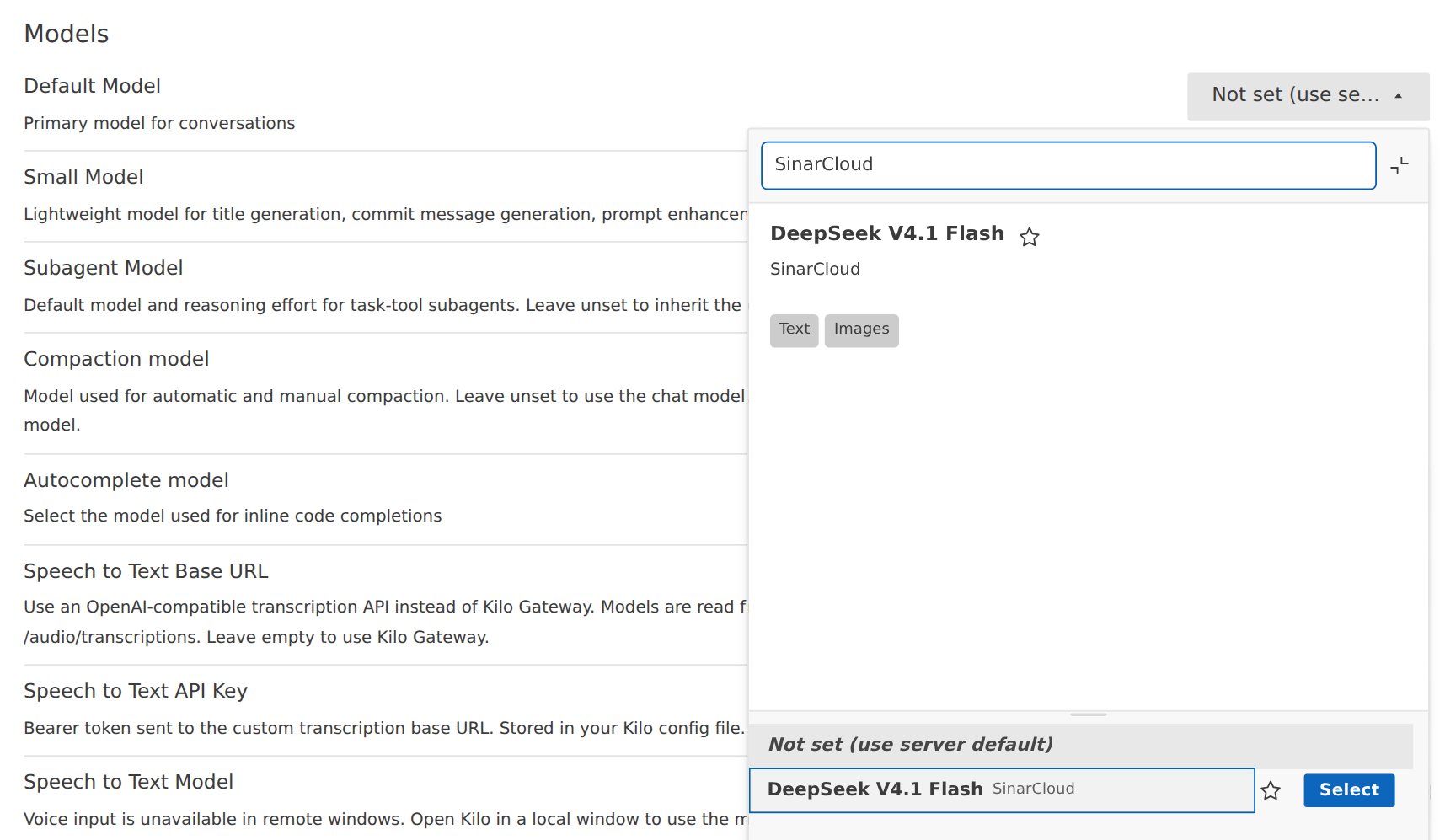
Models page of Kilo Settings with the Default Model list open. The search box contains SinarCloud, and the list shows one model, DeepSeek V4.1 Flash, labeled SinarCloud, with a Select button. The preview above it shows the Text and Images tags.

Search for SinarCloud to see only the models you added

Kilo Gateway also offers DeepSeek models, some with the same names, such as DeepSeek V4.1 Flash. Pick the model labeled SinarCloud. Searching for SinarCloud hides the others.
11

Start a task

Close the Kilo Settings tab. In the Kilo Code panel, the chat box shows DeepSeek V4.1 Flash. Type a task, for example Add a GET /products/:id route to src/server.js, and press Enter.To use another SinarCloud model in a chat, click the model name in the chat box, type SinarCloud, and choose the model.
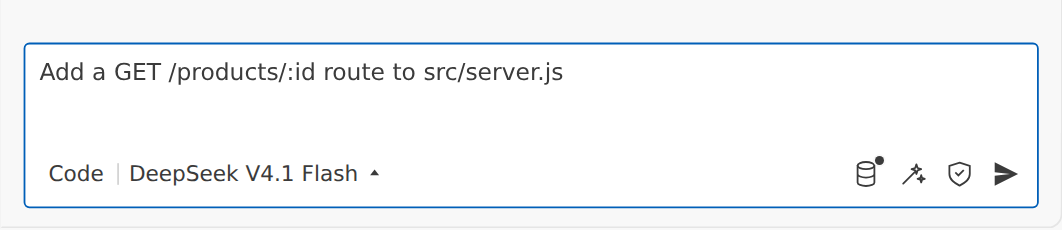
Kilo Code chat box with the task Add a GET /products/:id route to src/server.js typed in. Below the text are the Code mode and the DeepSeek V4.1 Flash model.

The chat box with DeepSeek V4.1 Flash selected

12

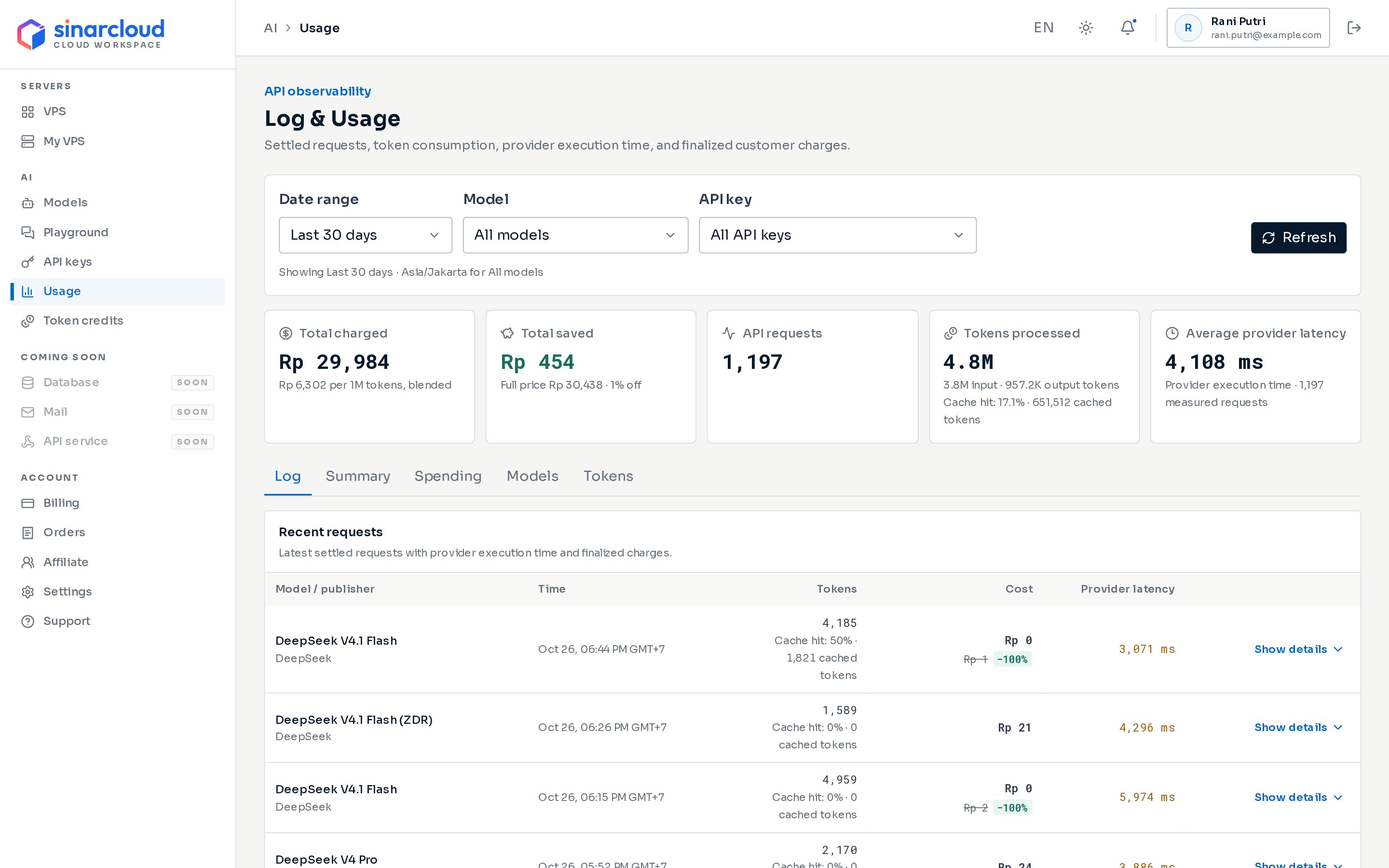
Find the requests in Usage

In the console, under AI, click Usage, then choose the key you created for Kilo Code in the API key filter. Only requests whose charge is final appear, so click Refresh if you don’t see them yet.Each step of Kilo Code’s work is a separate request. Kilo Code also sends short requests of its own with the same key, for example to name a session, or when you click Enhance prompt (the wand icon in the chat box).
Log & Usage page with the Date range, Model and API key filters, a Refresh button and five cards of totals, starting with Total charged and Total saved. Below them are the Log, Summary, Spending, Models and Tokens tabs, with the Log tab's Recent requests table showing a Show details button on each row.

The Usage page, with the API key filter at the top

Set the context window

The Custom provider form doesn’t ask for the model’s context window. Add it to Kilo Code’s config file. Kilo Code then shows how full the context window is, and compacts long sessions before they reach it.
  1. At the top of Kilo Settings, click Global Config. Kilo Code opens kilo.jsonc.
  2. Find "sinarcloud", then your model under models. Add a limit with the model’s Context window (tokens) and Maximum output (tokens) from its details on the Models page in the console.
  3. Save the file, then click Reload at the top of Kilo Settings.
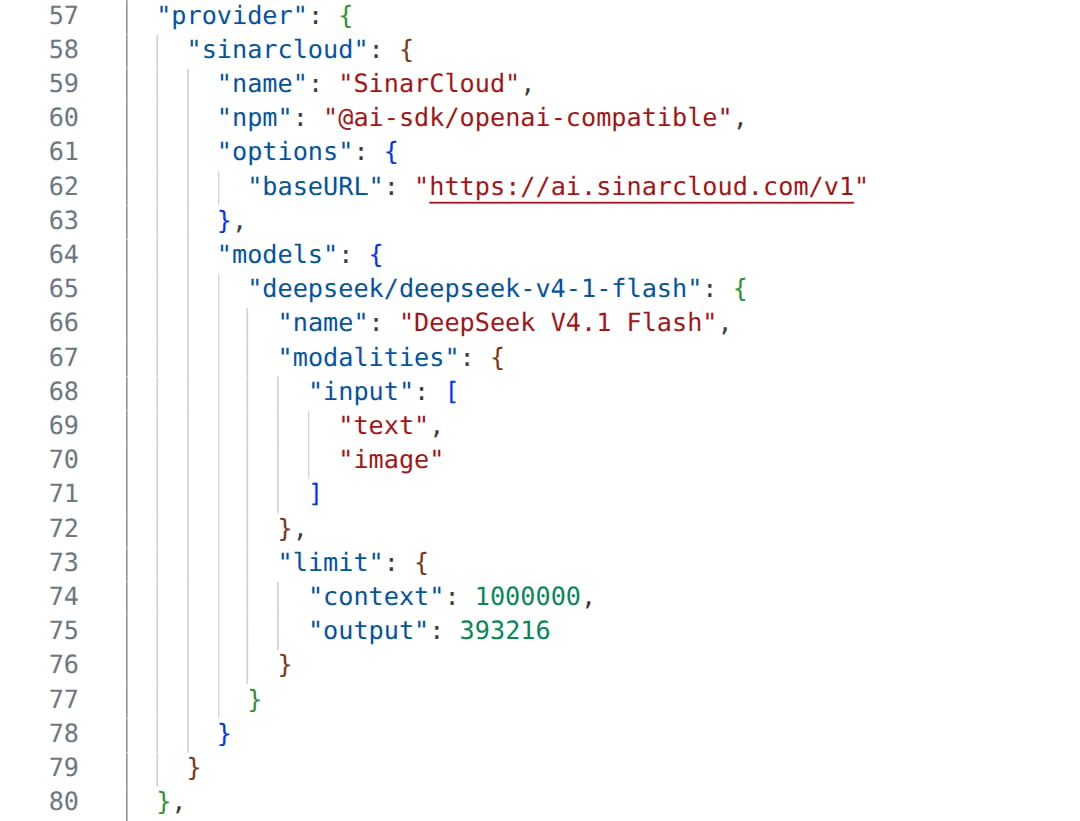
kilo.jsonc
kilo.jsonc open in VS Code, lines 57 to 80. Under provider, sinarcloud has the name SinarCloud, npm @ai-sdk/openai-compatible, and options with baseURL https://ai.sinarcloud.com/v1. Under models, deepseek/deepseek-v4-1-flash has the name DeepSeek V4.1 Flash, input modalities text and image, and a limit with context 1000000 and output 393216.

The SinarCloud entry in kilo.jsonc, with the limit added

After you reload, the top of each chat shows how much of the context window the session uses. Kilo Code still asks for at most 32,000 output tokens per request. Edit provider keeps your limit when you change other settings.
Use the model’s real context window. If limit.context is smaller than the conversation, Kilo Code can’t compact it enough and stops the task. See Troubleshooting.

Use a lower-cost model for quick tasks

Kilo Code also uses your model for quick tasks, such as naming sessions and Enhance prompt. To use another SinarCloud model for them:
  1. Add the model to SinarCloud with Edit provider.
  2. In Kilo Settings, click Models, and choose the model next to Small Model.
  3. Click Save.
Compare prices on the Models page in the console before you choose.

What works differently

  • Kilo Code shows tokens, not costs. Kilo Code doesn’t know SinarCloud prices. To see what a session cost, use the Usage page in the console.
  • Images need a model with image input. If Image isn’t ticked for a model, Kilo Code doesn’t send your images to it. Instead, it tells the model that it can’t read them.
  • Autocomplete doesn’t run on SinarCloud. The Autocomplete model list only offers code completion models that Kilo Code supports, and SinarCloud models aren’t among them.
See Compatibility for details.

Troubleshooting

Kilo Code shows errors from SinarCloud in the chat. Click Details under a message to see the status code and the response, including the x-request-id header. Include that ID if you contact support.
The API key is missing, mistyped, expired, or revoked. Kilo Code shows this message right away, without retrying.In Kilo Settings, click Providers, then Edit provider next to SinarCloud. The API key field shows ******** instead of your saved key. Paste your whole key, then click Submit. If the key has expired or been revoked, create a new one.
The model alias doesn’t exist, the model isn’t available right now, or it doesn’t support chat completions. Copy the alias again from the Models page in the console. Then click Edit provider next to SinarCloud, check that ID matches the alias exactly, and click Submit. Also check that the model’s Model capabilities list Chat completions.
You sent an image to a model that doesn’t accept images, and Image is ticked for that model. Click Edit provider next to SinarCloud, untick Image for the model, and click Submit. To work with images, choose a model whose Model capabilities list Image input or Vision.
The conversation doesn’t fit the context window that Kilo Code has for the model, even after compacting it. Check that limit.context in kilo.jsonc matches the model’s Context window (tokens), as described in Set the context window, and click Reload in Kilo Settings. Then start a new task with the New Task icon (+) at the top of the Kilo Code panel.
SinarCloud refuses requests with a 402 error when your balance is empty or negative and no token credits remain for the model. Add balance, then send your message again.
For other problems, see Troubleshooting.